Learn to use IAM roles for EC2 instances to interact with AWS services like S3, enhancing security and simplifying credential management.
In this lesson, you’ll learn how to use IAM roles to provide your EC2 instance with the permissions it needs to interact with other AWS services, such as Amazon S3. We’ll start with a simple application that uses the AWS SDK to programmatically create an S3 bucket.
The code snippet below demonstrates how to configure an S3 client using explicit credentials. The application conditionally adds credentials if a secret access key is provided. It retrieves the bucket name from a command-line argument and then creates the bucket using the S3 API.
Copy
Ask AI
const accessKeyId = "";const secretAccessKey = "";const s3Config = { region: "us-east-1" };if (secretAccessKey != "" || null) { s3Config.credentials = { accessKeyId, secretAccessKey, };}const s3Client = new S3Client(s3Config);// Create the parameters for calling createBucketvar bucketName = process.argv[2];// Call S3 to create the bucketconst main = async () => { try { const response = await s3Client.send( new CreateBucketCommand({ Bucket: bucketName }) ); }};
To run the application and create a bucket (for example, named “bucket123”), execute:
Copy
Ask AI
node index.js bucket123
After uploading the code to an EC2 instance (named “SDK demo”), you can verify its contents by running commands such as ls and cat index.js on the instance.When you execute the application with:
Copy
Ask AI
node index.js iam-role-kodekloud-demo
you might see output similar to:
Copy
Ask AI
123, then that's going to create a bucket called bucket123. [ec2-user@ip-172-31-18-206 app]$ node index.js bucket123
This confirms that the instance is running the code and creating the bucket, assuming the provided credentials are valid.
When you first run the application with provided (but incorrect) credentials, you might see an error like:
Copy
Ask AI
[ec2-user@ip-172-31-18-206 app]$ node index.js iam-role-kodekloud-demoError: Code invalid access key ID. The AWS access key ID you provided does not exist in our records.
This error indicates that the access key ID is invalid. Before using IAM roles, our application used explicit access keys. For demonstration purposes, we then generated valid credentials by creating an IAM user.
To generate valid credentials, follow these steps:
Navigate to the IAM console and create a new user named “SDK demo.”
Attach policies directly by searching for and selecting Amazon S3 Full Access.
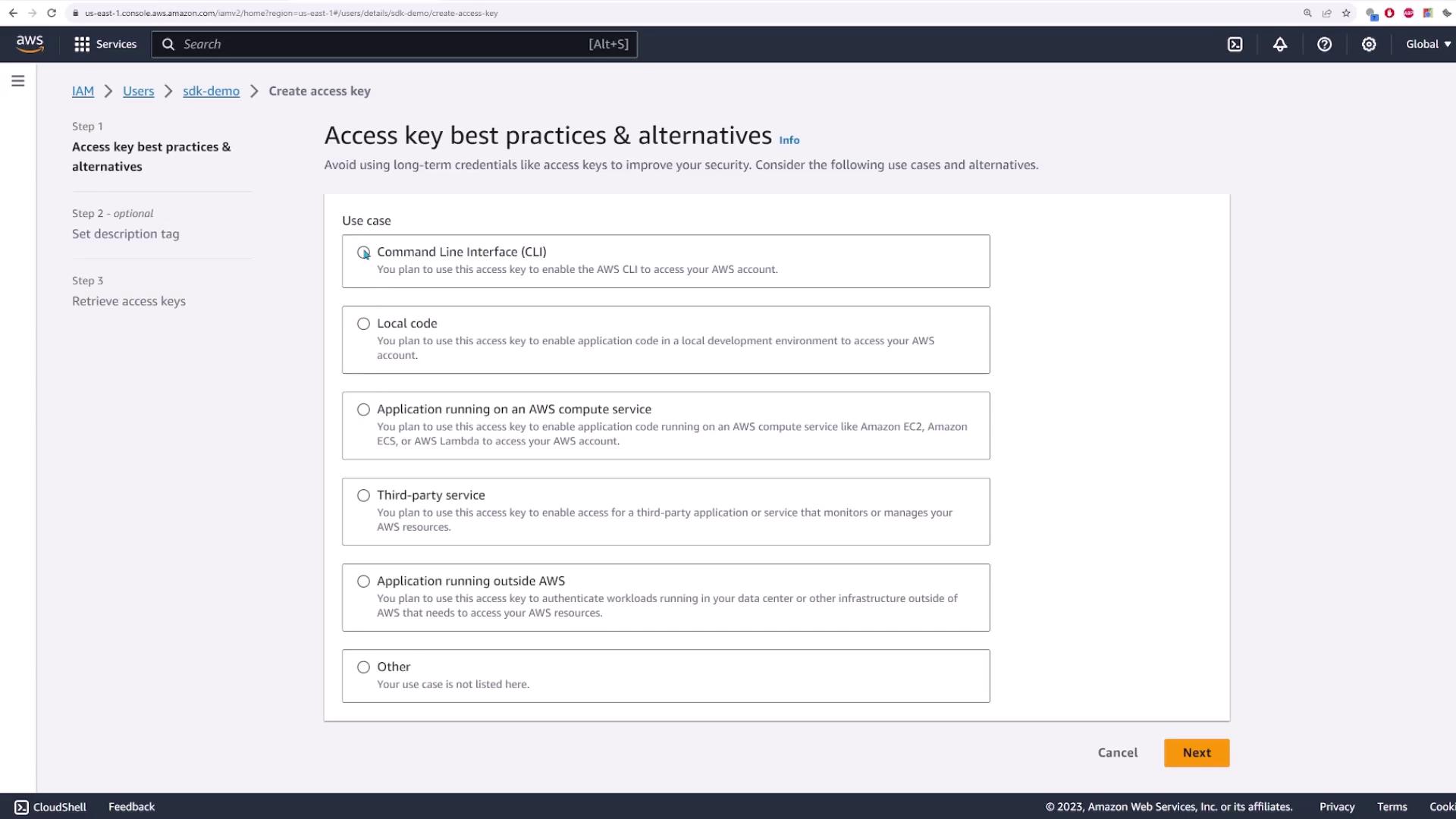
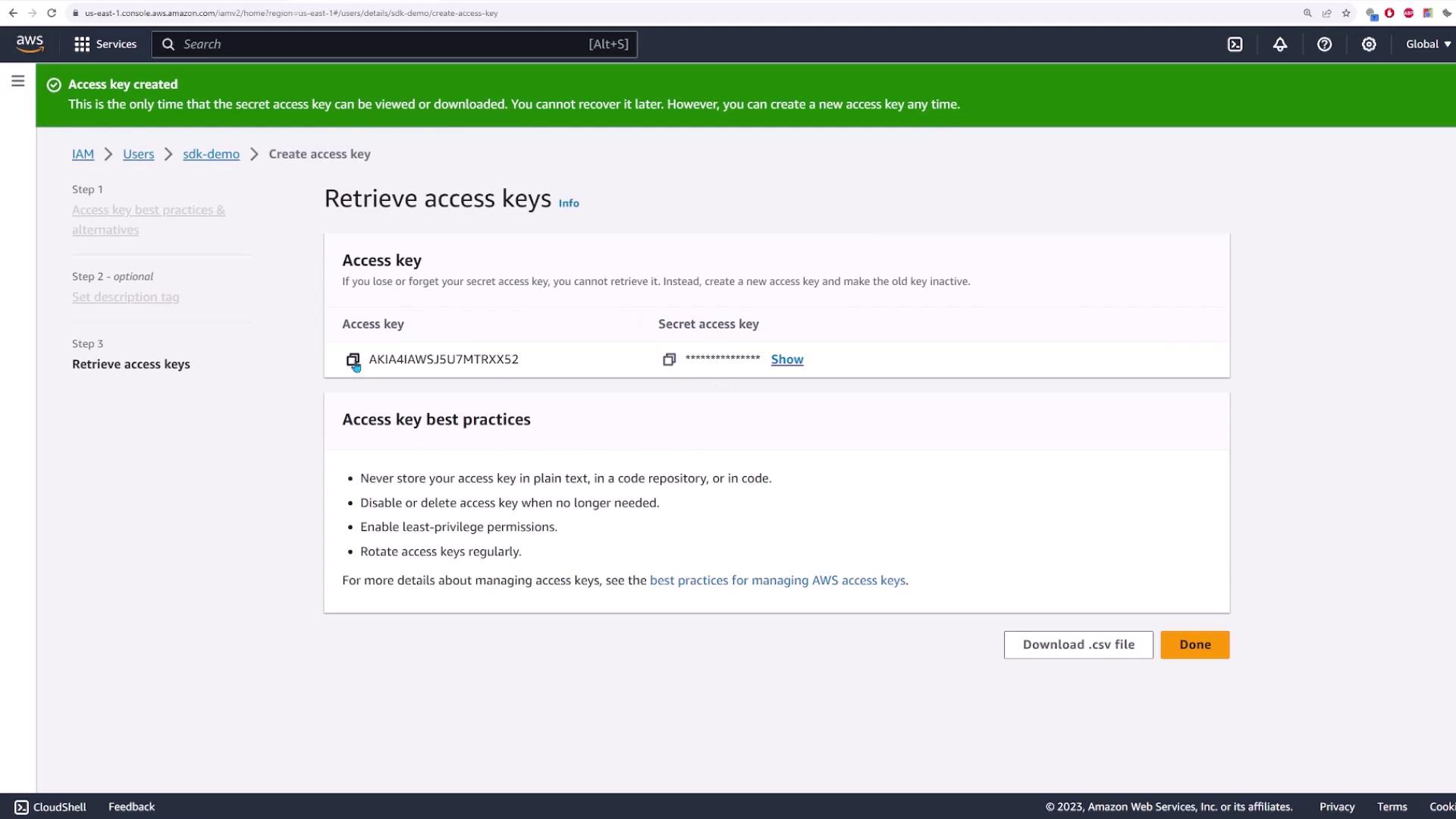
In the Security Credentials tab for the new user, create an access key. For this lesson, choose the Command Line Interface (CLI) option, then click “Next” and “Create Access Key.”
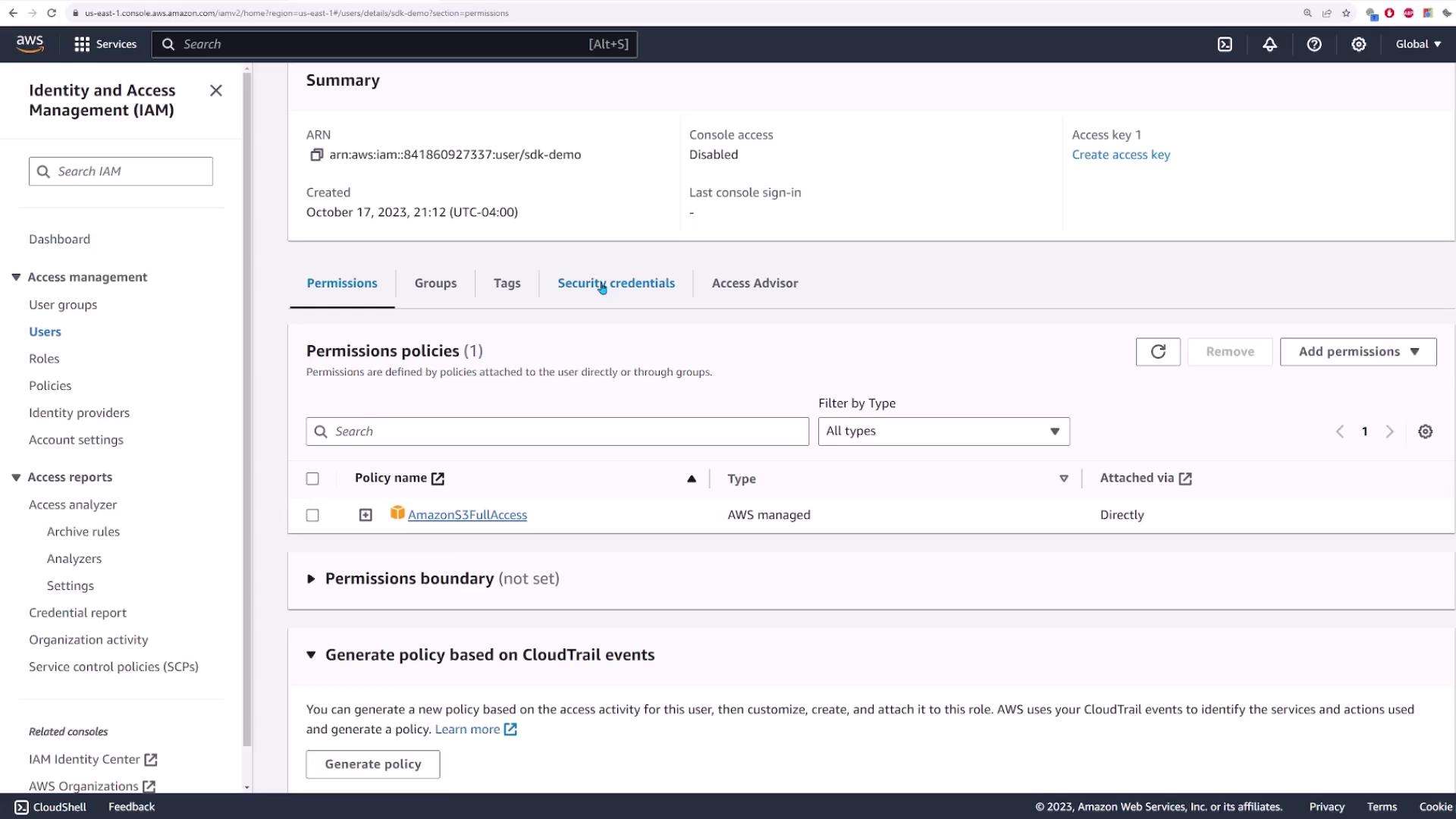
After copying the correct Access Key and Secret Access Key into your code, update the snippet as follows:
Copy
Ask AI
const { S3Client, CreateBucketCommand, GetObjectCommand } = require("@aws-sdk/client-s3");// Set the region and provide valid credentialsconst accessKeyId = "AKIAIAIWSJ5U7MTRXX52";const secretAccessKey = "WW1UNLSS/bIa+V1qYpXRlC4vQpNb0EQGKrg7D73";const s3Config = { region: "us-east-1" };if (secretAccessKey != "" || null) { s3Config.credentials = { accessKeyId, secretAccessKey, };}const s3Client = new S3Client(s3Config);// Create the parameters for calling createBucketvar bucketName = process.argv[2];// Call S3 to create the bucketconst main = async () => { try { const response = await s3Client.send( new CreateBucketCommand({ Bucket: bucketName }) ); console.log(response); } catch (e) { console.log("failed to create bucket"); console.log(e); }};main();
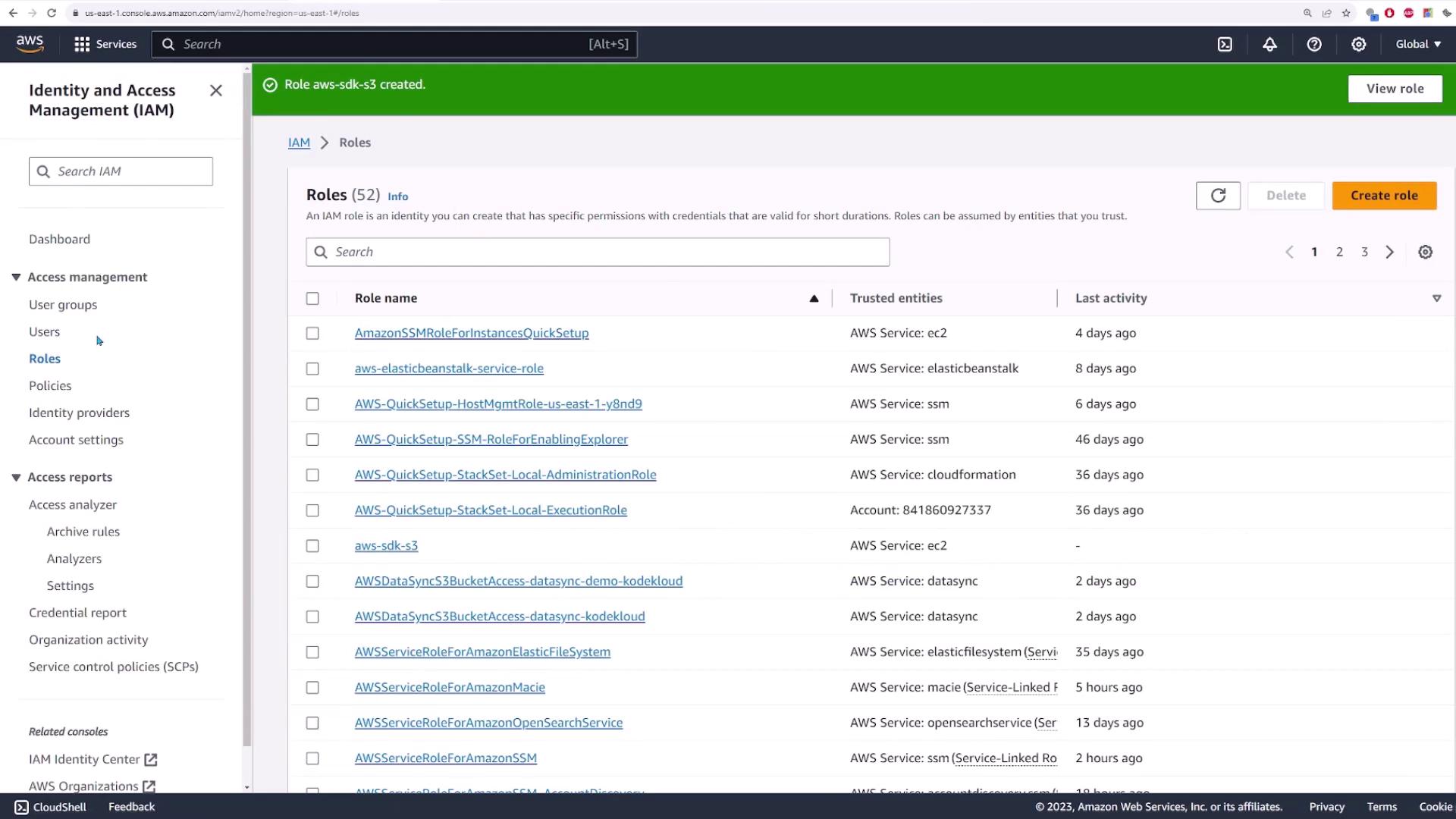
To remove the need for managing access keys manually, we now transition to using IAM roles. When you remove credentials from your code and run the application, you’ll encounter an “InvalidAccessKeyId” error, as expected.To resolve this, create an IAM role for the EC2 instance by following these steps:
In the IAM console, select Roles and click Create Role.
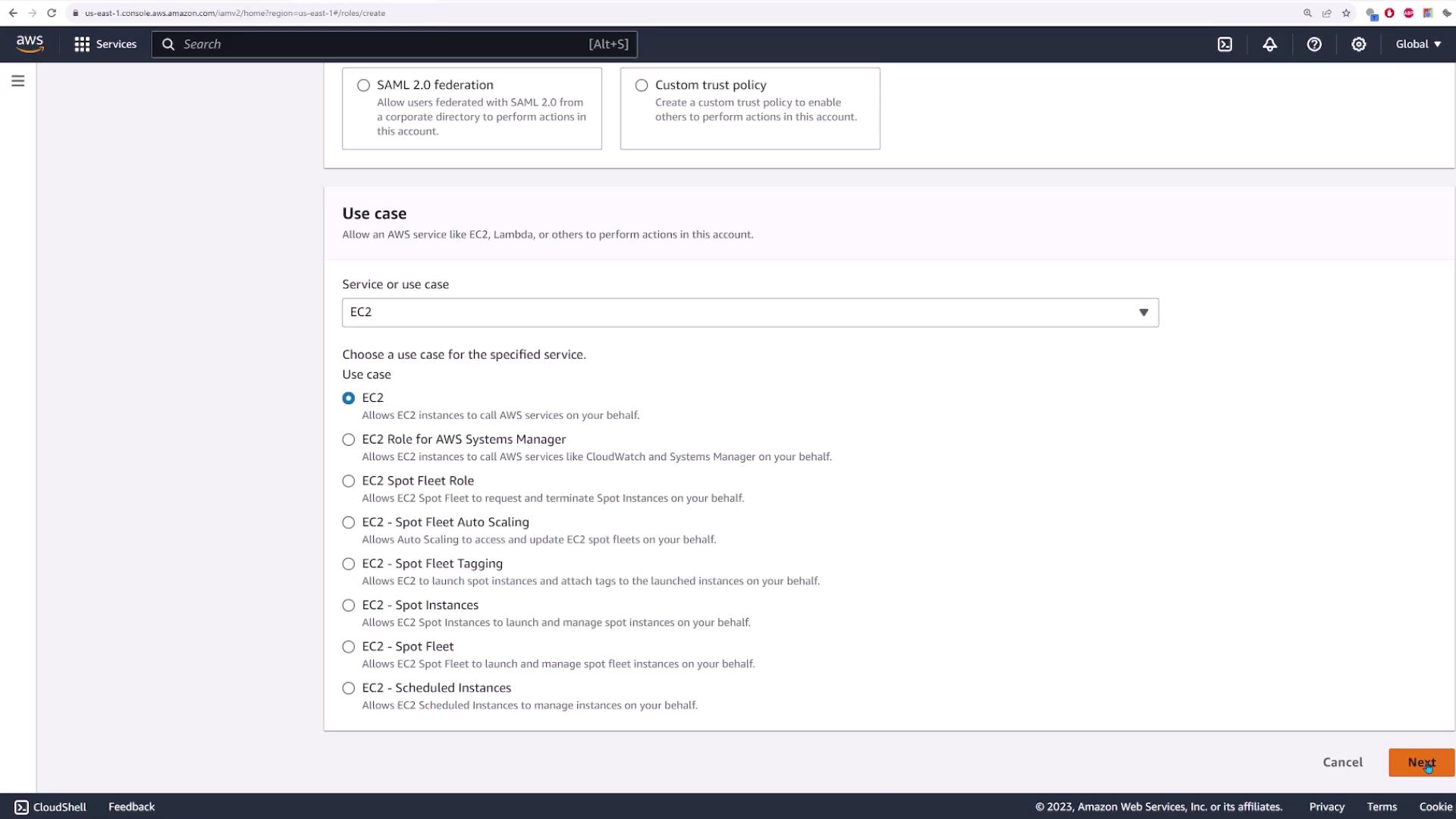
Choose AWS service as the trusted entity type, since the role will be used by an EC2 instance.
For the use case, select EC2 so the instance can perform actions on your behalf—specifically, interacting with S3.
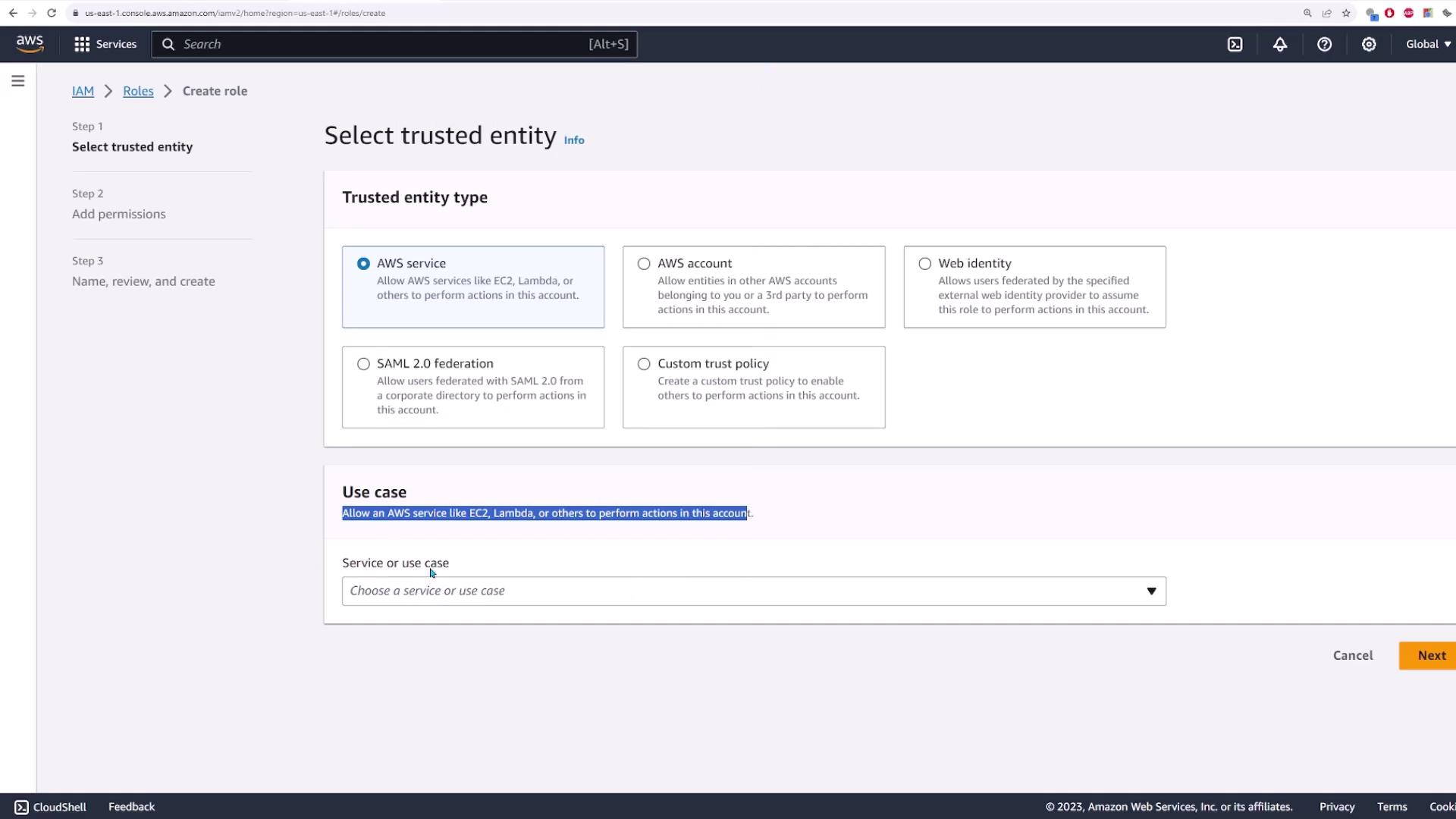
Attach the Amazon S3 Full Access policy to the role.
Name the role (e.g., “AWS SDK S3”) and use the following trust policy:
There are two primary methods for authenticating an application with AWS services:
Authentication Method
Description
Explicit IAM User Credentials
Uses generated access keys. Manual credential management is required.
IAM Roles for EC2 Instances
Automatically provides authentication by attaching a role to the EC2 instance; eliminates hard-coded keys.
Using IAM roles simplifies security management by allowing your EC2 instance to assume a role with the correct permissions—enabling seamless interactions with AWS services like S3.
This lesson demonstrated the transition from explicit credentials to using IAM roles, enhancing your application’s security posture while reducing manual credential management.
This concludes our lesson on using IAM roles for EC2 instances. For further reading, visit the AWS Documentation and explore the IAM User Guide.