

EC2 instance types
EC2 instance types are grouped by workload characteristics (compute, memory, storage, GPU). Choose an instance type based on your application’s resource profile.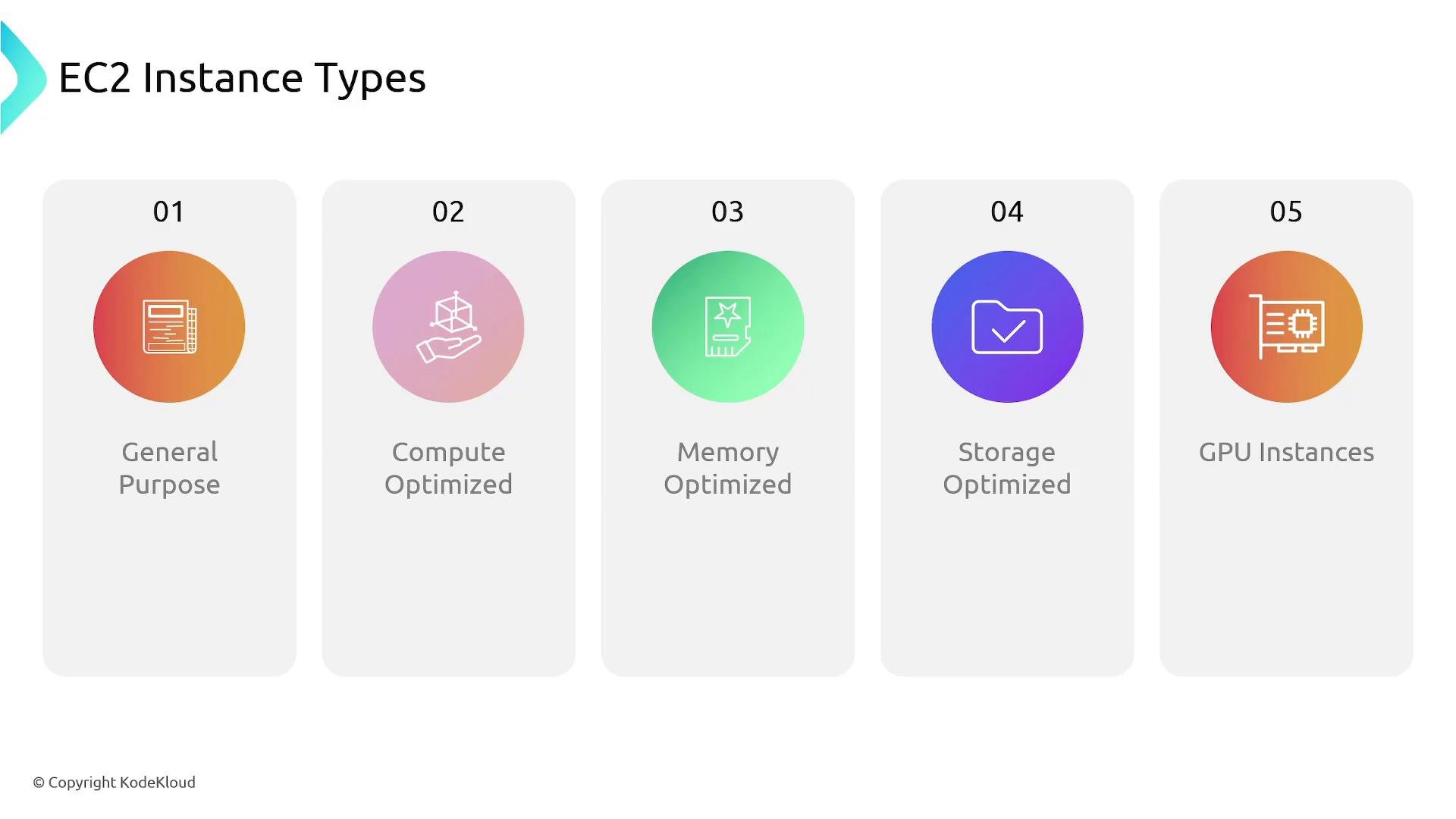
- General purpose: balanced CPU, memory, and networking — ideal for web servers and general applications.
- Compute‑optimized: high CPU performance for compute‑bound workloads (batch processing, HPC).
- Memory‑optimized: large RAM for in‑memory databases and analytics.
- Storage‑optimized: high I/O throughput/IOPS for databases and heavy disk workloads.
- GPU instances: GPU acceleration for machine learning, simulations, and graphics.
AMI (Amazon Machine Image)
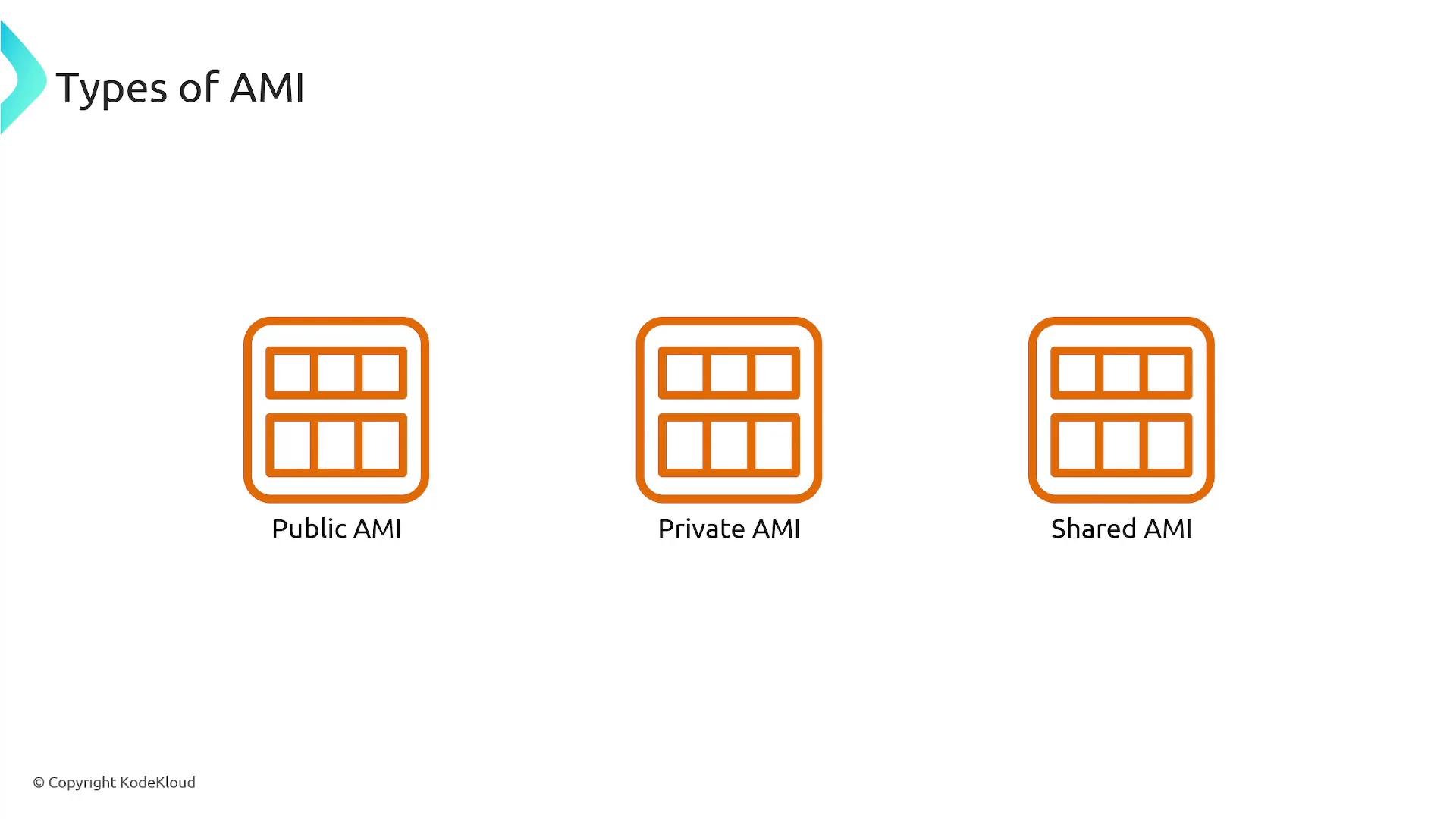
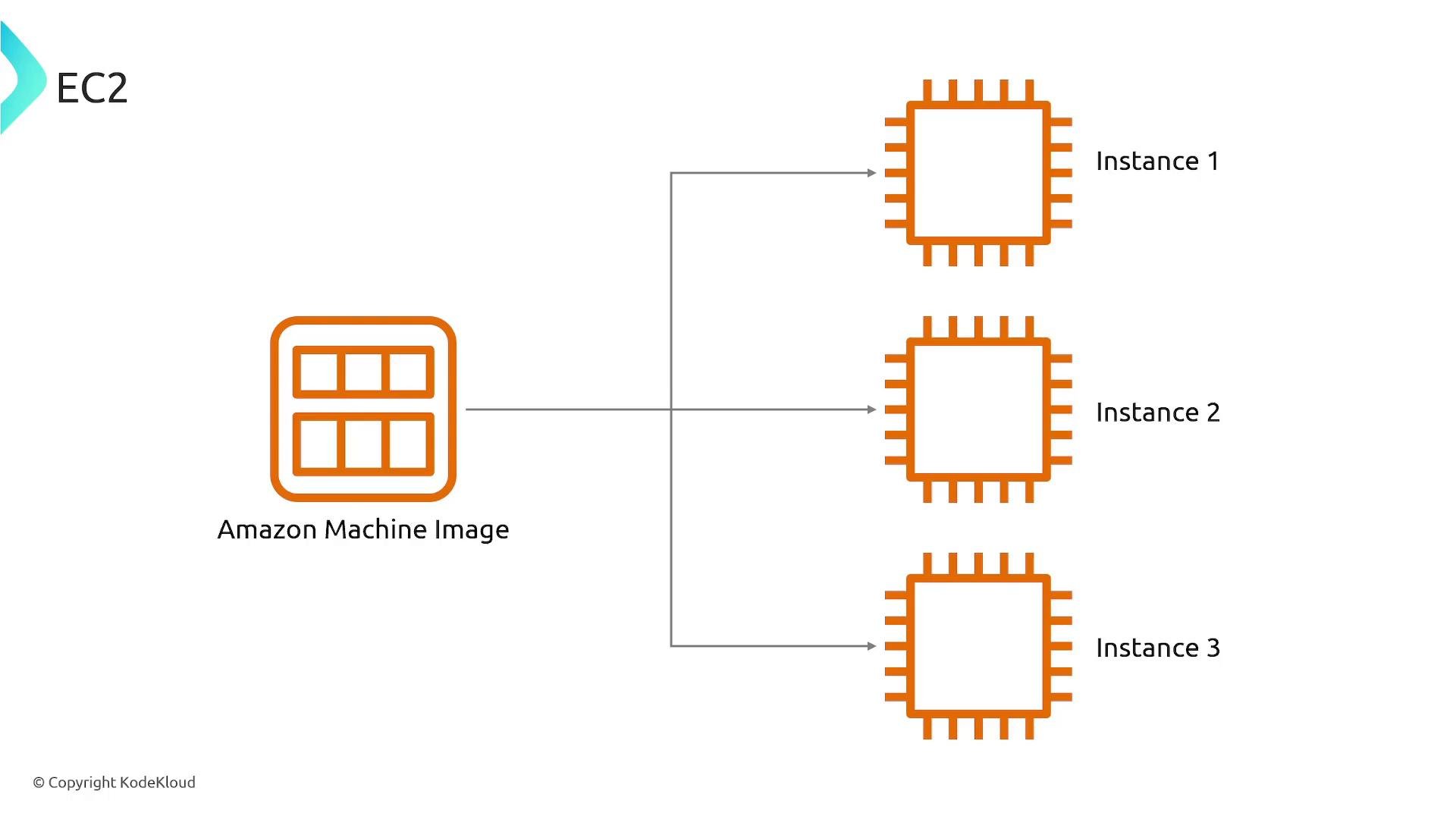
An AMI is the template used to launch an EC2 instance — it defines the operating system, initial software, and boot configuration. Treat an AMI as a blueprint that you select or create to standardize instance provisioning.- Choose an AMI when launching an instance; it determines the OS (Amazon Linux, Ubuntu, Windows, etc.).
- AMIs can include preinstalled packages and configuration so instances are ready at boot.
- Create a custom AMI from a configured instance to capture that instance’s state for future launches.
With a single AMI you can launch many identical instances:
Connecting to EC2 (SSH / RDP)
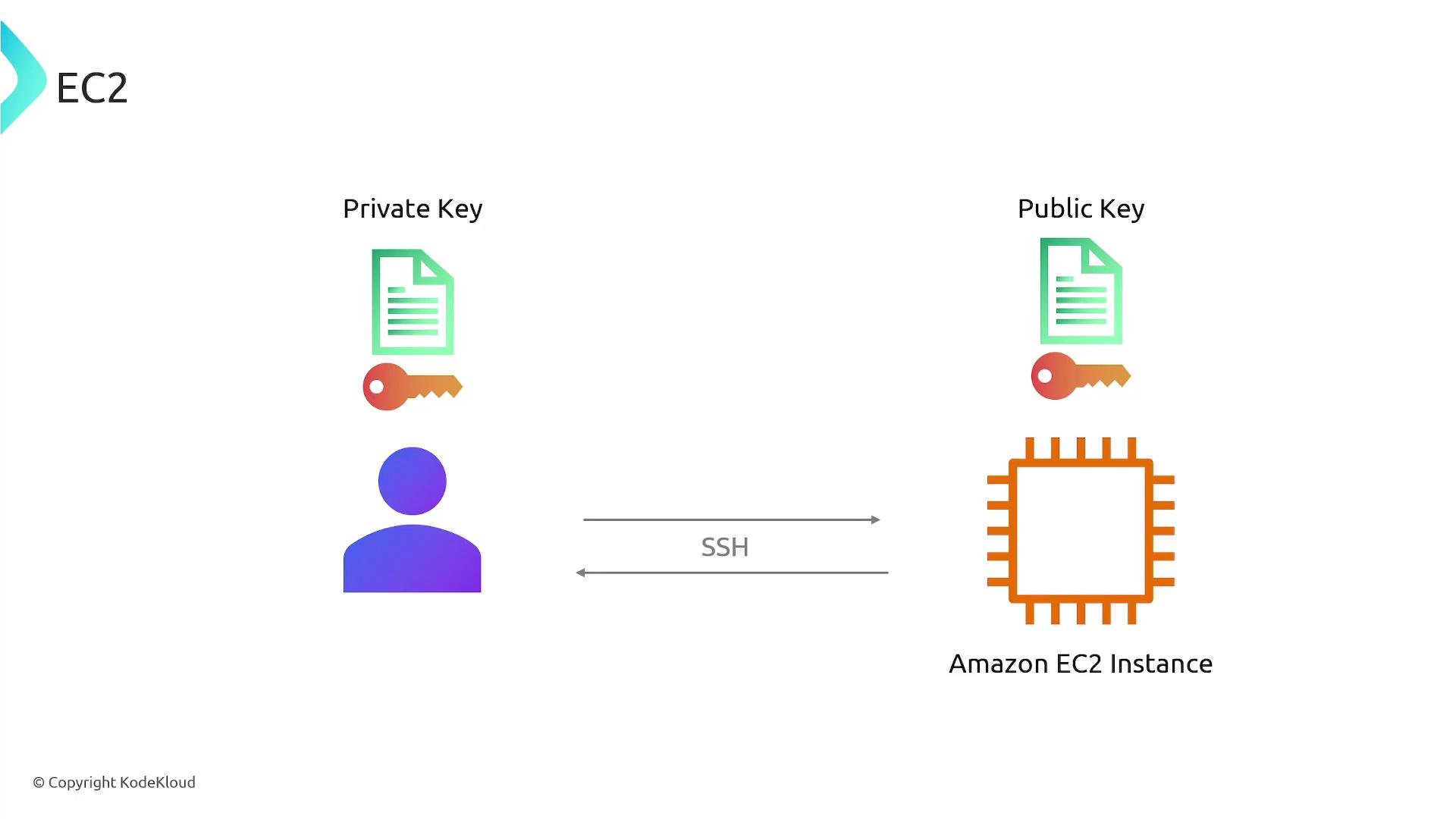
Linux instances: connect via SSH using an EC2 key pair (public key on the instance, private key you store locally). Windows instances: use RDP; the Administrator password is encrypted and retrieved via the key pair. Example SSH command (Linux/macOS or Git Bash):- Default usernames differ by AMI:
ec2-user(Amazon Linux),ubuntu(Ubuntu),centos(CentOS). - Protect your private key and set permissions (e.g.,
chmod 400 key.pem). - For Windows instances, download the encrypted admin password and decrypt it with the private key before connecting via RDP.
EC2 instance lifecycle
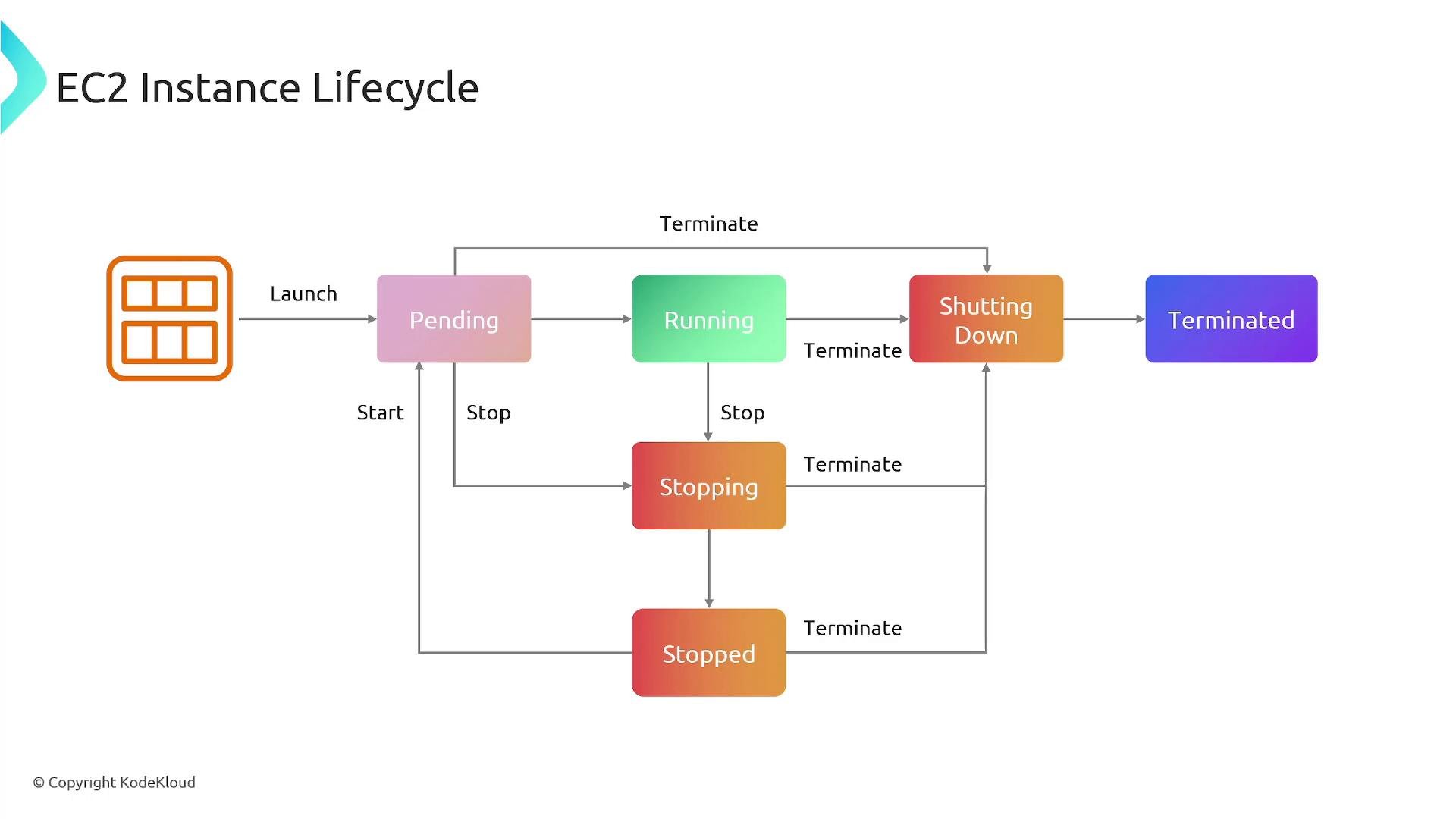
An instance transitions through states during its lifecycle. Understanding these states helps with cost, availability, and automation:- Pending — instance is launching.
- Running — instance is active and reachable.
- Stopping — instance is preparing to stop.
- Stopped — instance is shut down and not accepting connections. (EBS-backed instances stop and retain volume data; instance-store volumes cannot be stopped.)
- Shutting‑down — instance is being terminated.
- Terminated — instance is permanently deleted and cannot be recovered.
User Data (bootstrap)
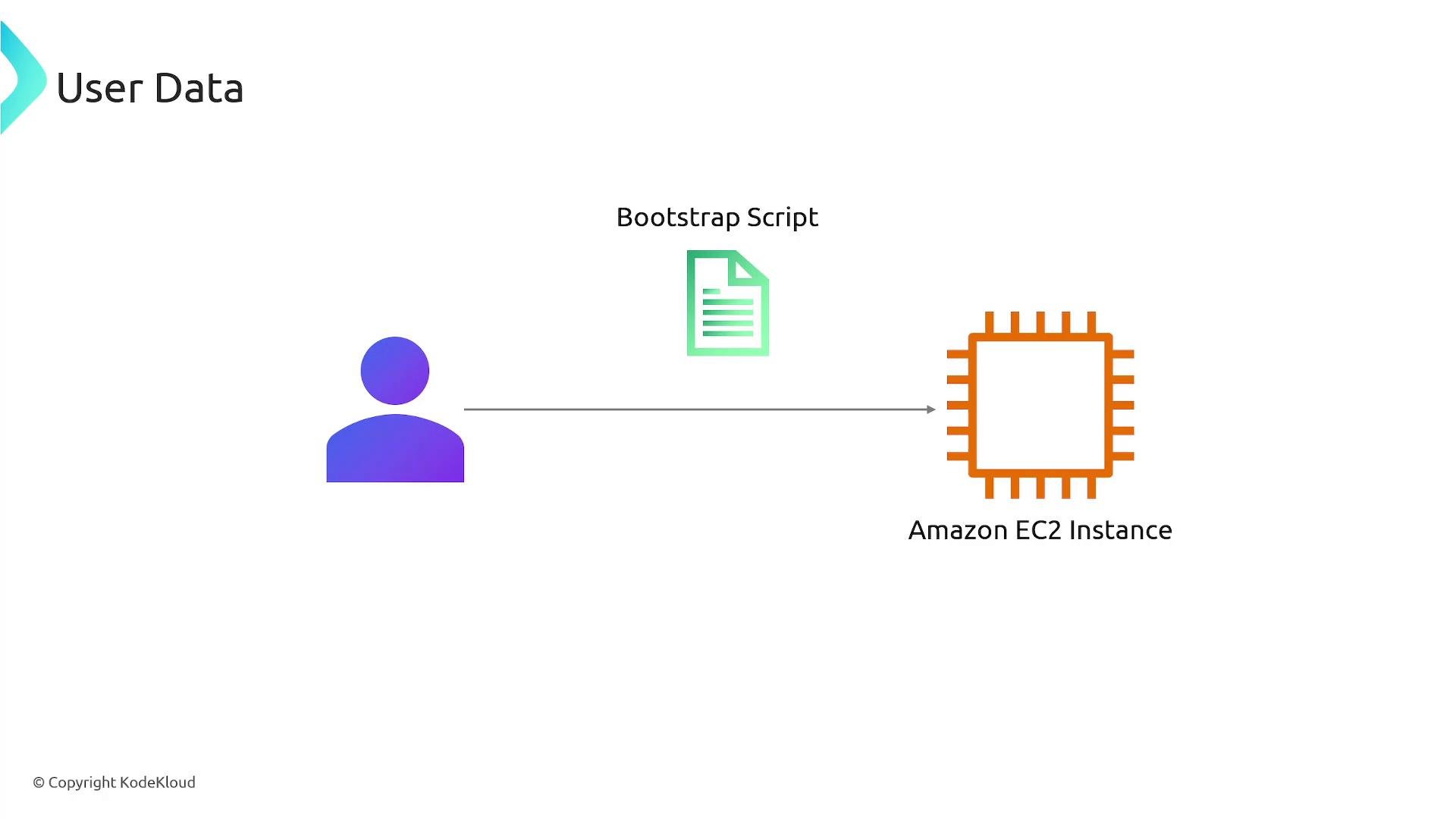
When launching an instance you can provide user data (shell scripts or cloud‑init directives) that run at boot. Use this to bootstrap instances automatically:- Install packages and dependencies
- Configure services, users, and firewall rules
- Pull application code and start services
- User data size limit: 16 KB
- By default, user data runs on first boot; you can configure cloud‑init to run it on every boot if required.
Security groups
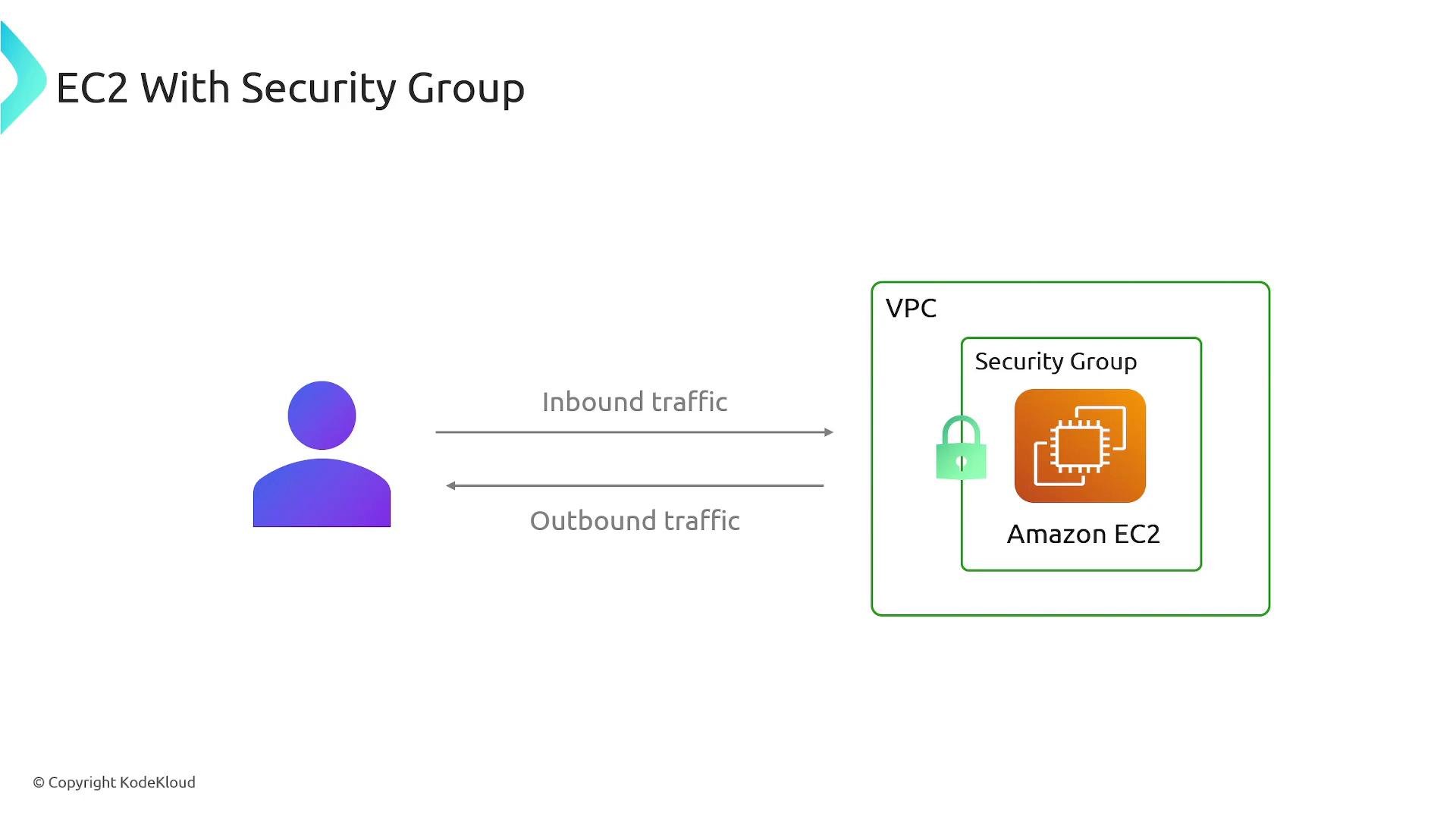
Security groups are virtual firewalls attached to instances that control inbound and outbound traffic by protocol, port range, and source/destination. Best practice examples:- Web server: allow inbound TCP 80 (HTTP) and 443 (HTTPS); restrict SSH (22) to trusted IPs.
- Application tier: allow only necessary ports from internal subnets or load balancer security group.
Storage: EBS and snapshots
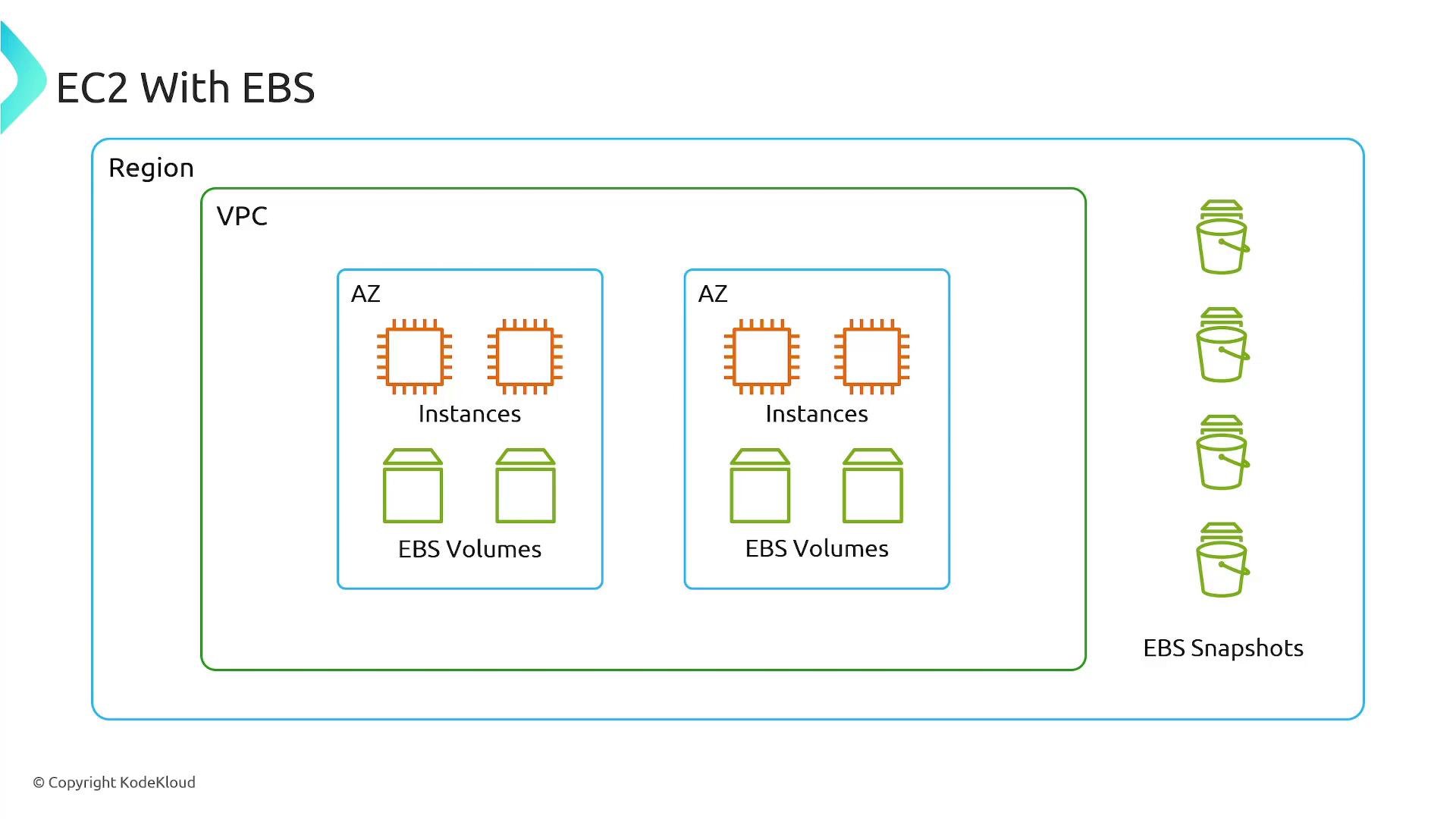
EC2 instances commonly use EBS (Elastic Block Store) for persistent block storage. EBS volumes attach to instances and persist independently of instance lifecycle (unless configured for deletion on termination).- Use cases: OS boot volumes, databases, file systems, and backups.
- EBS snapshots: incremental, point‑in‑time backups stored in Amazon S3 behind the scenes. Only changed blocks are saved after the first snapshot, which minimizes storage costs.
EBS volumes are network‑attached, persistent block storage. Instance store (ephemeral) volumes lose data when an instance stops or terminates — use EBS for persistent data and snapshots for backups.
Load balancing and Auto Scaling
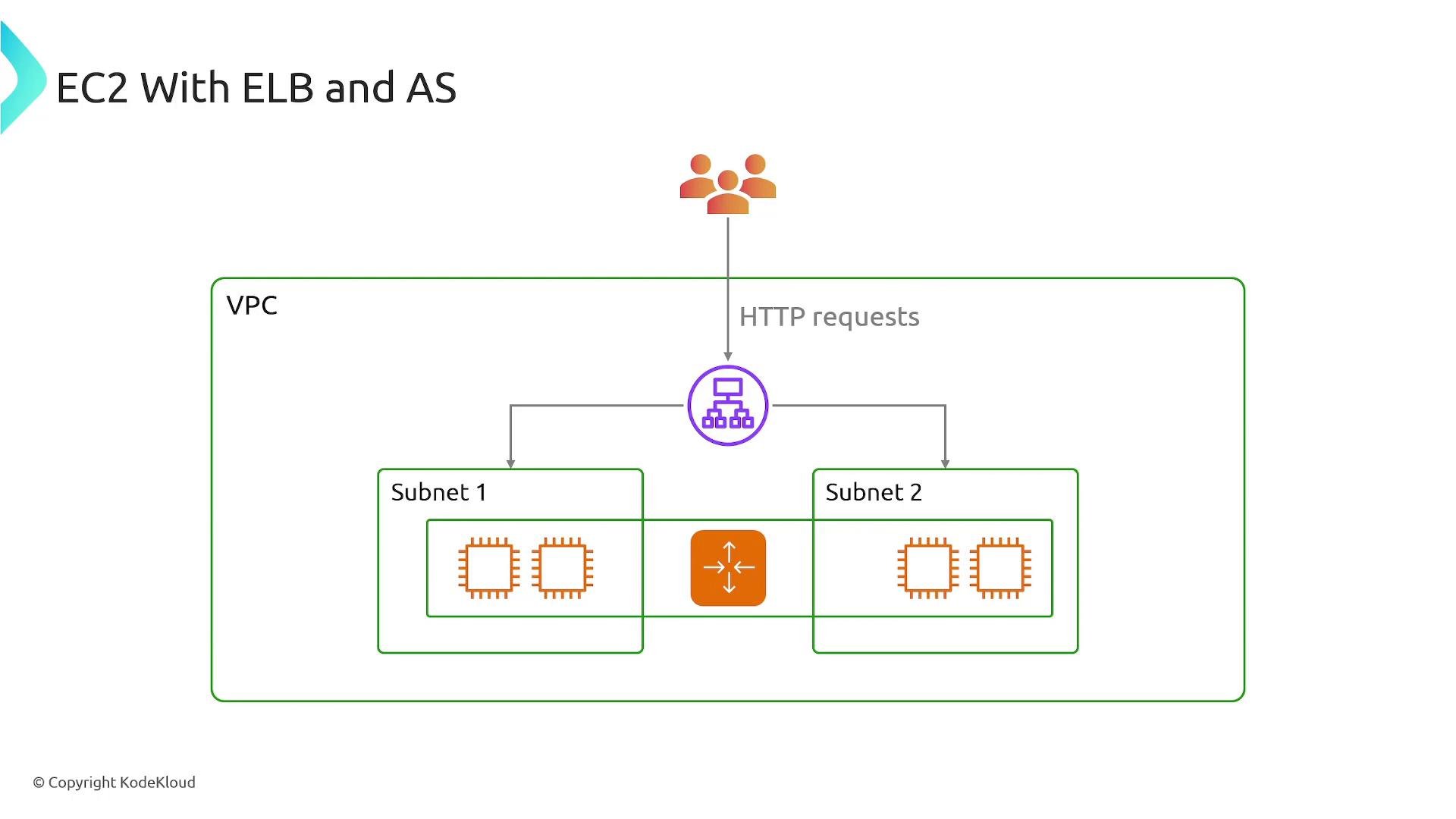
Combine EC2 with Elastic Load Balancing (ELB) to distribute traffic across instances and Availability Zones. Auto Scaling Groups (ASG) automatically add or remove instances based on demand, health checks, or schedules. Benefits:- High availability across AZs
- Fault tolerance for instance failures
- Cost optimization by scaling to demand
Elastic IPs
Public IPs assigned at launch can change when an instance is stopped and started. An Elastic IP is a static IPv4 address allocated to your account — associate it to an instance to keep a stable public IP. You can disassociate and reassign it as needed.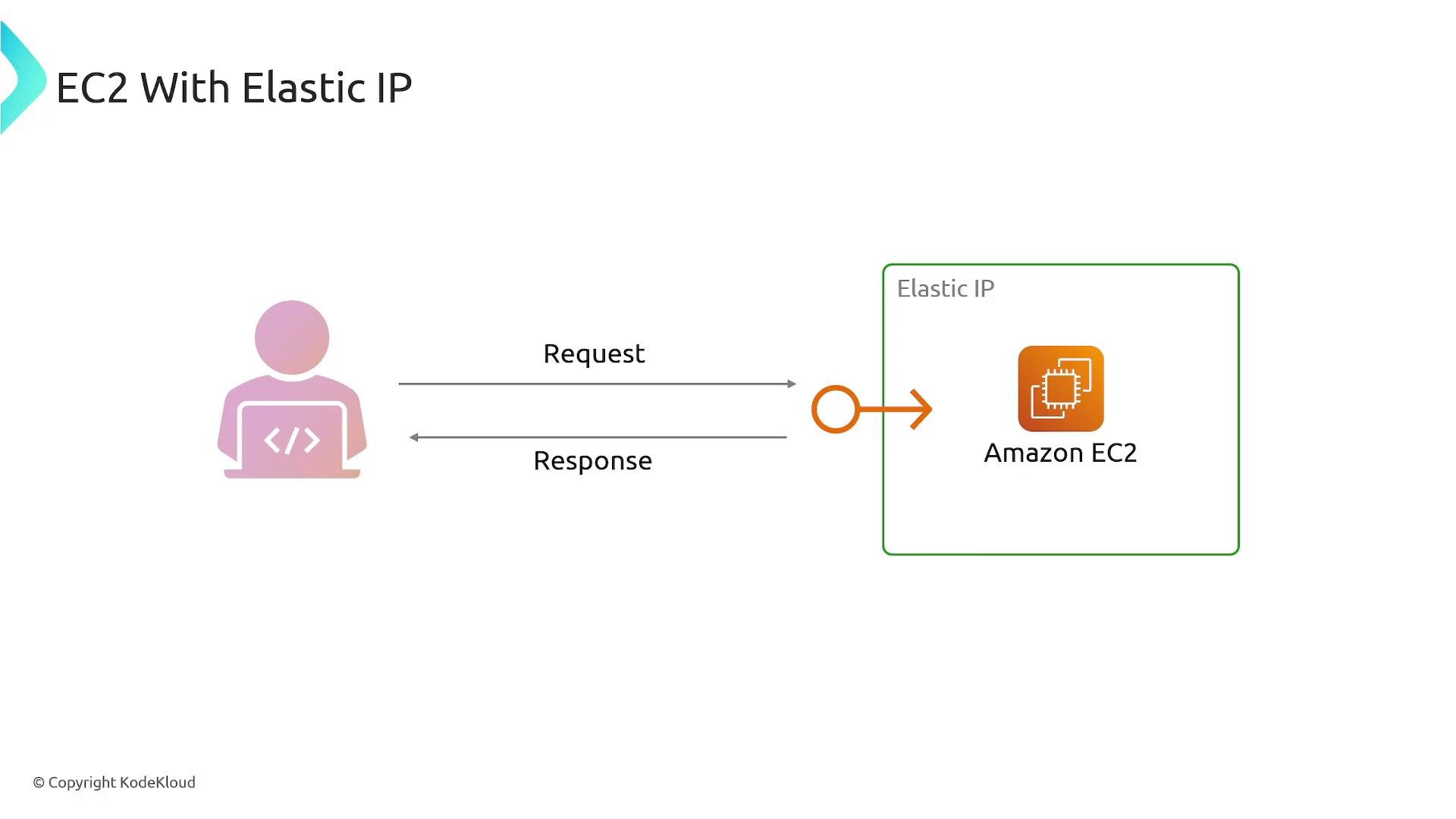
Launch templates
Use launch templates to capture and version instance launch configuration (AMI, instance type, key pair, security groups, user data, network settings, tags). Launch templates are reusable and are commonly used by Auto Scaling and automation scripts to ensure consistent instance configuration.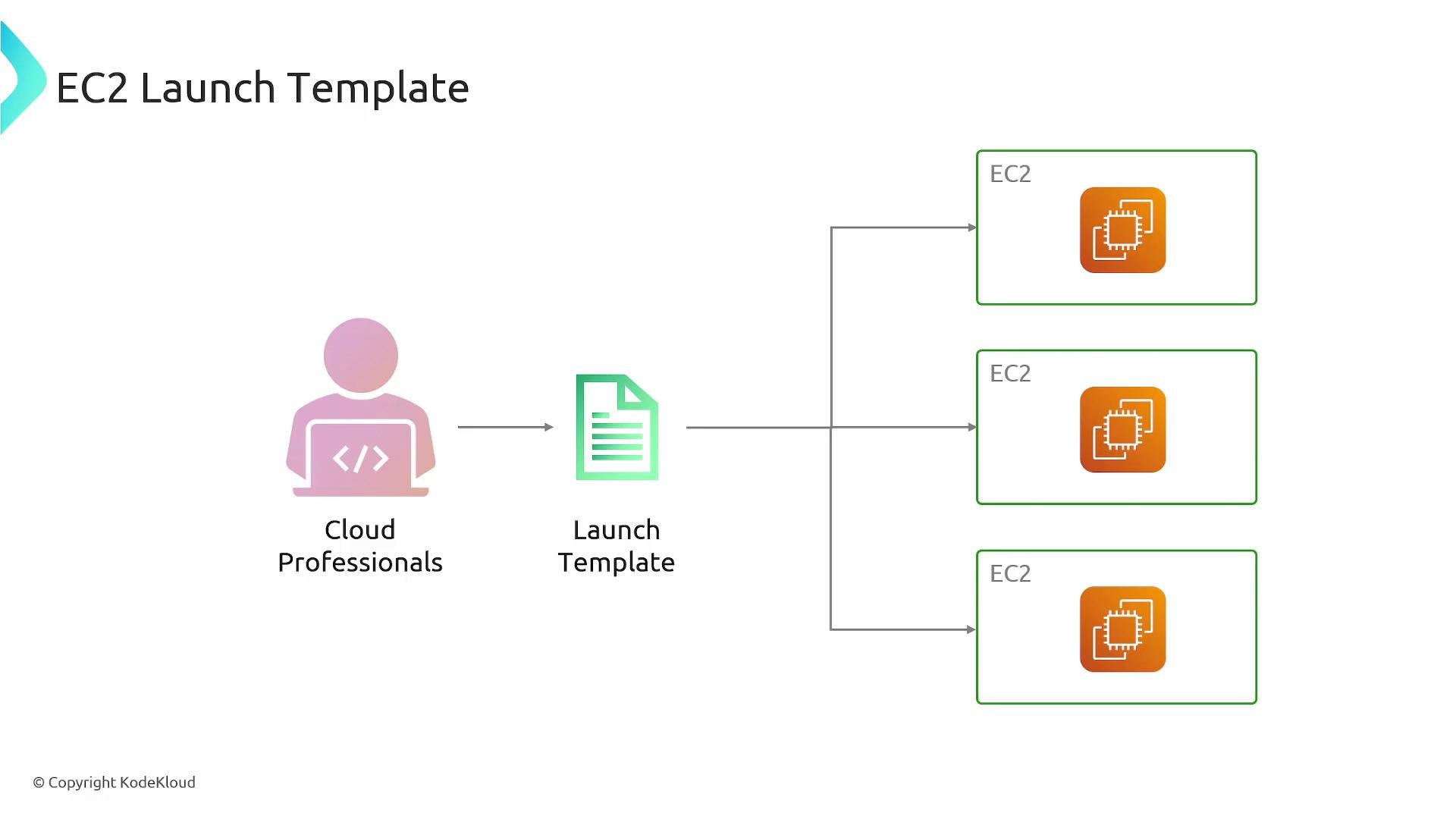
Placement options
Control how EC2 instances are placed on physical hardware within an Availability Zone using placement groups.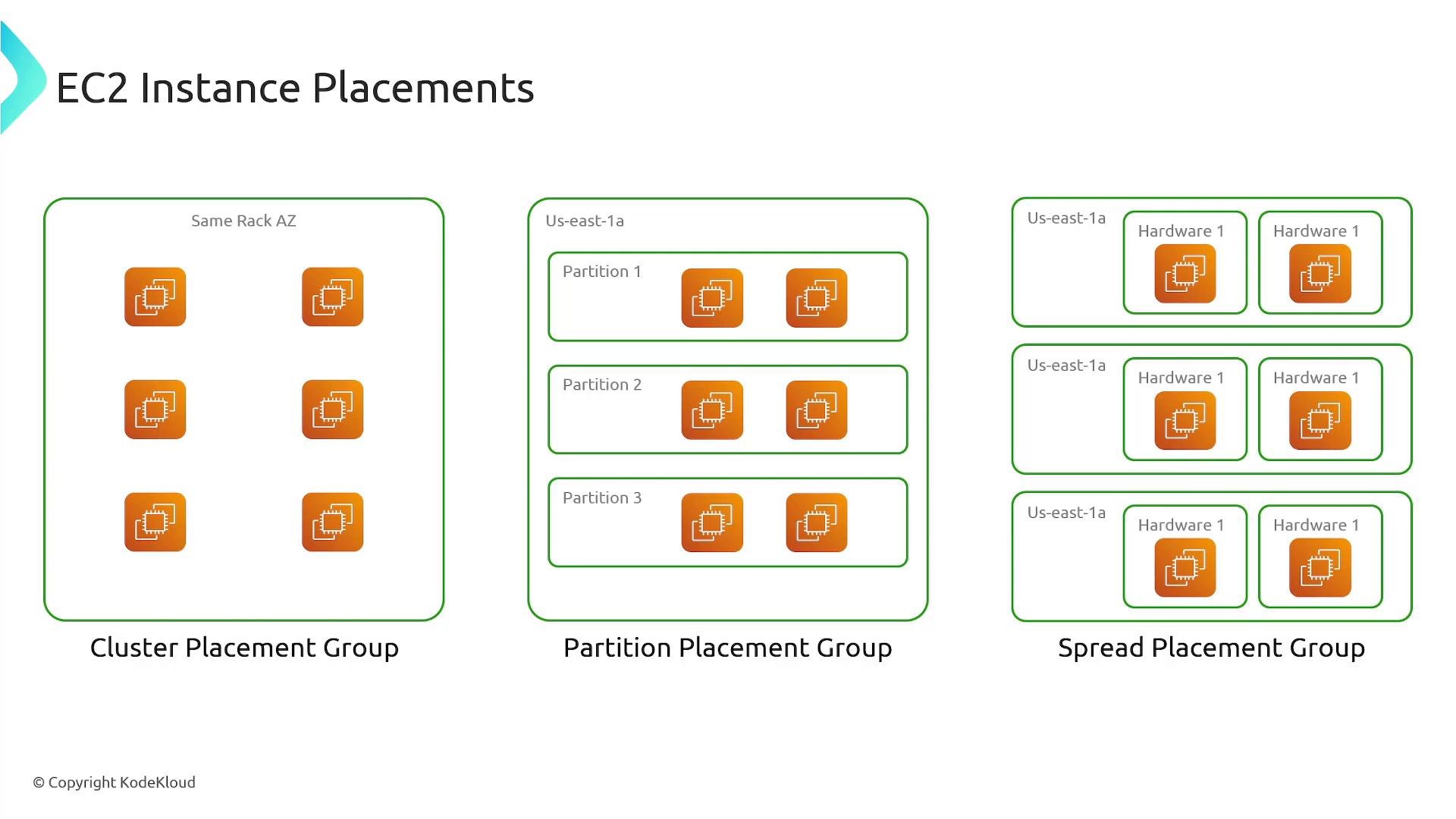
EC2 pricing and purchasing options
Select a pricing model based on workload predictability, fault tolerance, licensing, and cost goals.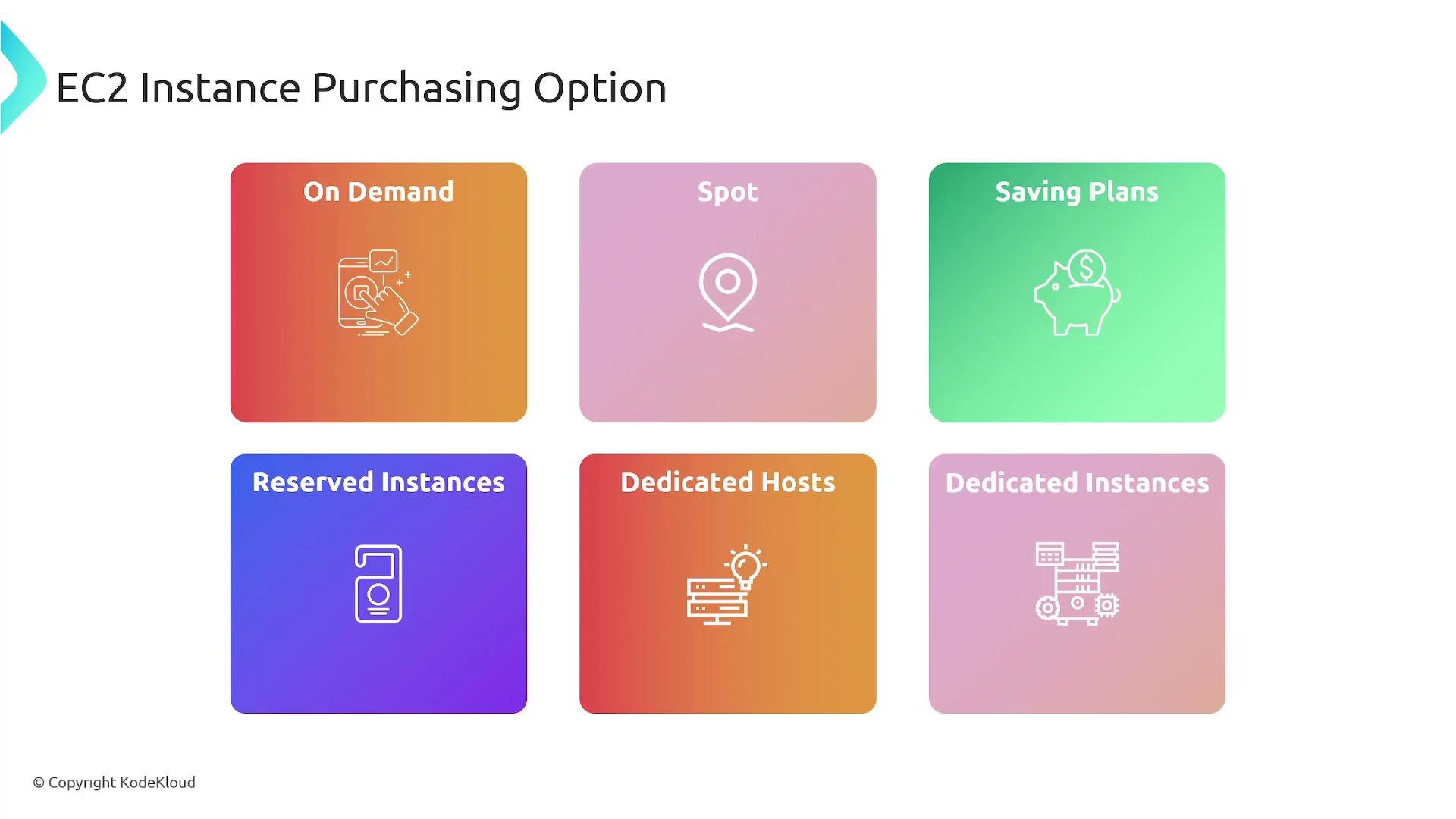
Analogy reminders:
- On‑Demand: pay full price when needed.
- Spot: buy discounted spare capacity if you can tolerate interruptions.
- Savings Plans / Reserved Instances: commit to save money over time.
- Dedicated Hosts / Instances: physical isolation for licensing or compliance.
Final notes
- Use AMIs and launch templates to standardize and accelerate instance provisioning.
- Protect access with security groups and key pairs; restrict management ports to trusted sources.
- Use EBS for persistent storage and incremental snapshots for backups.
- Combine ELB and Auto Scaling for resilient, scalable architectures.
- Choose placement and purchasing options that match latency, isolation, and cost constraints.
Remember: terminating an instance permanently deletes it (unless you created an AMI or snapshot first). Stopping an instance preserves attached EBS volumes (which continue to incur storage charges) but stops compute billing while the instance is stopped.
Links and references
- AWS EC2 documentation: https://docs.aws.amazon.com/ec2/
- EBS documentation: https://docs.aws.amazon.com/ebs/
- Elastic Load Balancing: https://docs.aws.amazon.com/elasticloadbalancing/
- Auto Scaling: https://docs.aws.amazon.com/autoscaling/