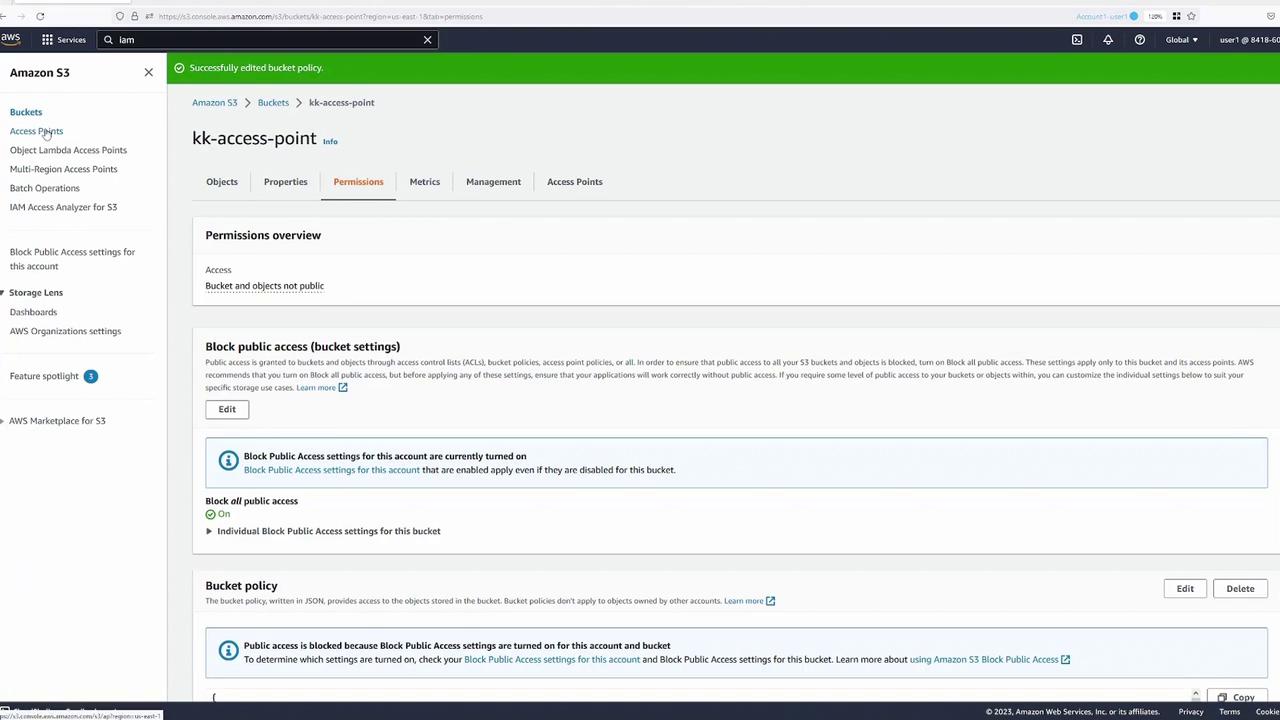
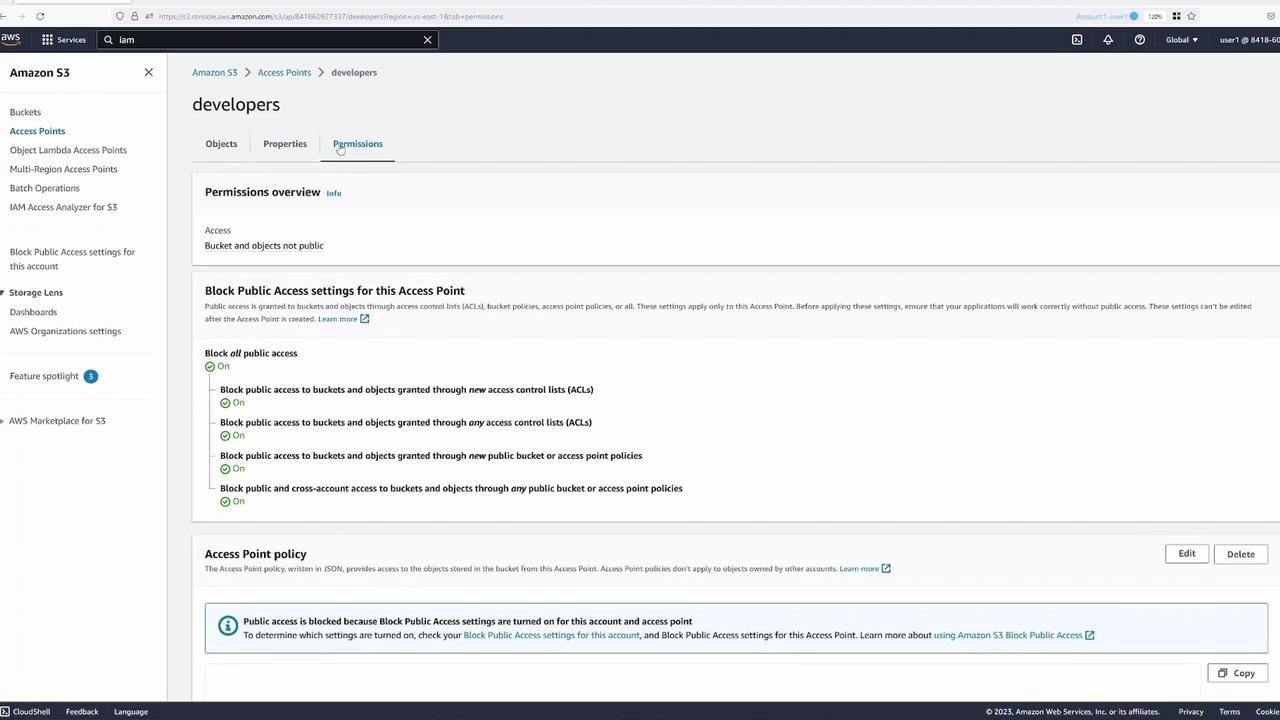
Creating the Demo Bucket
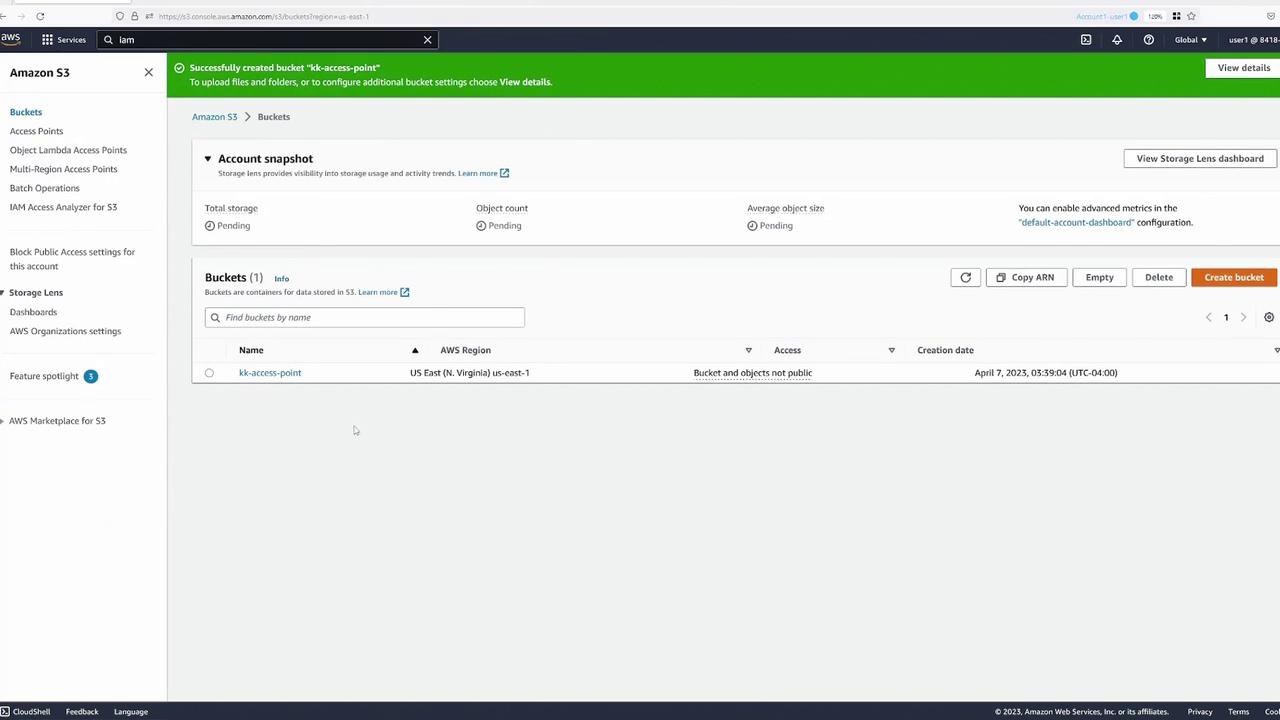
Begin by creating a new bucket in the AWS S3 console and naming it “KodeKloud access point”. Retain all the default settings.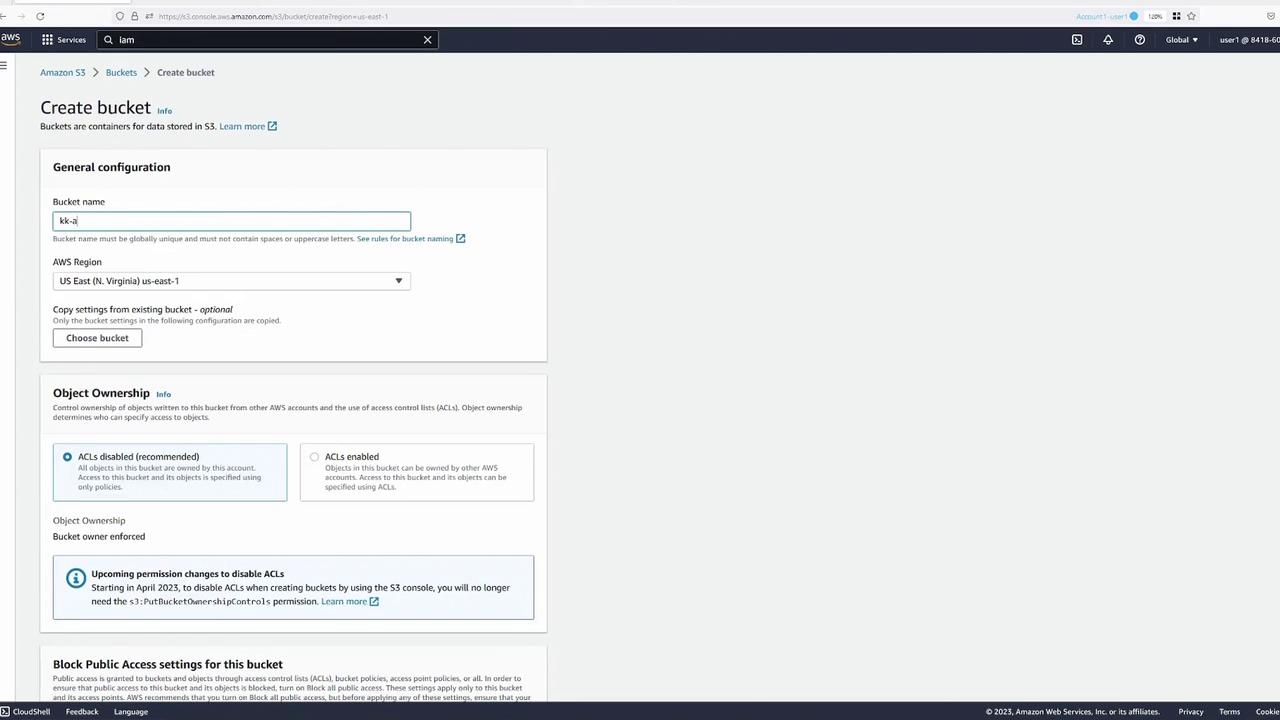
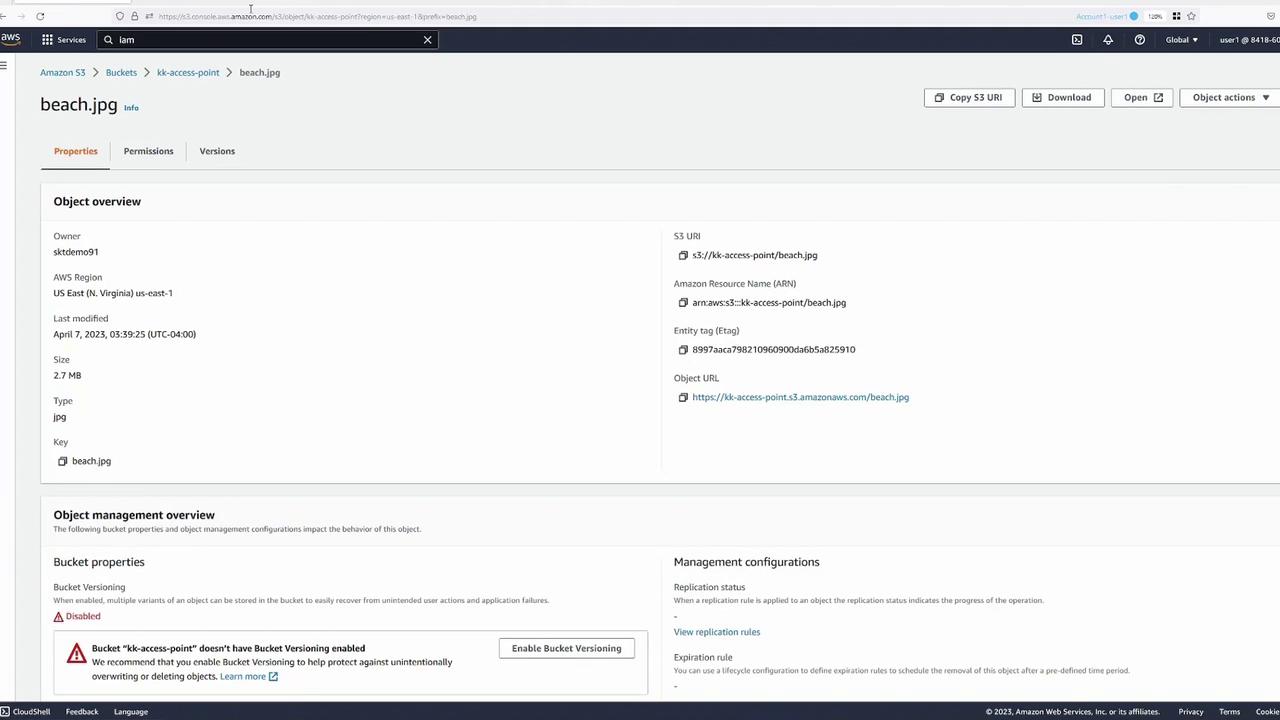
Testing Access with Multiple Users
To simulate different access permissions, open several browser tabs representing different users within the same AWS account. For demonstration purposes:- Blue Tab: Represents user one (the bucket owner).
- Green Tab: Represents user two.
- Yellow Tab: Represents user three.
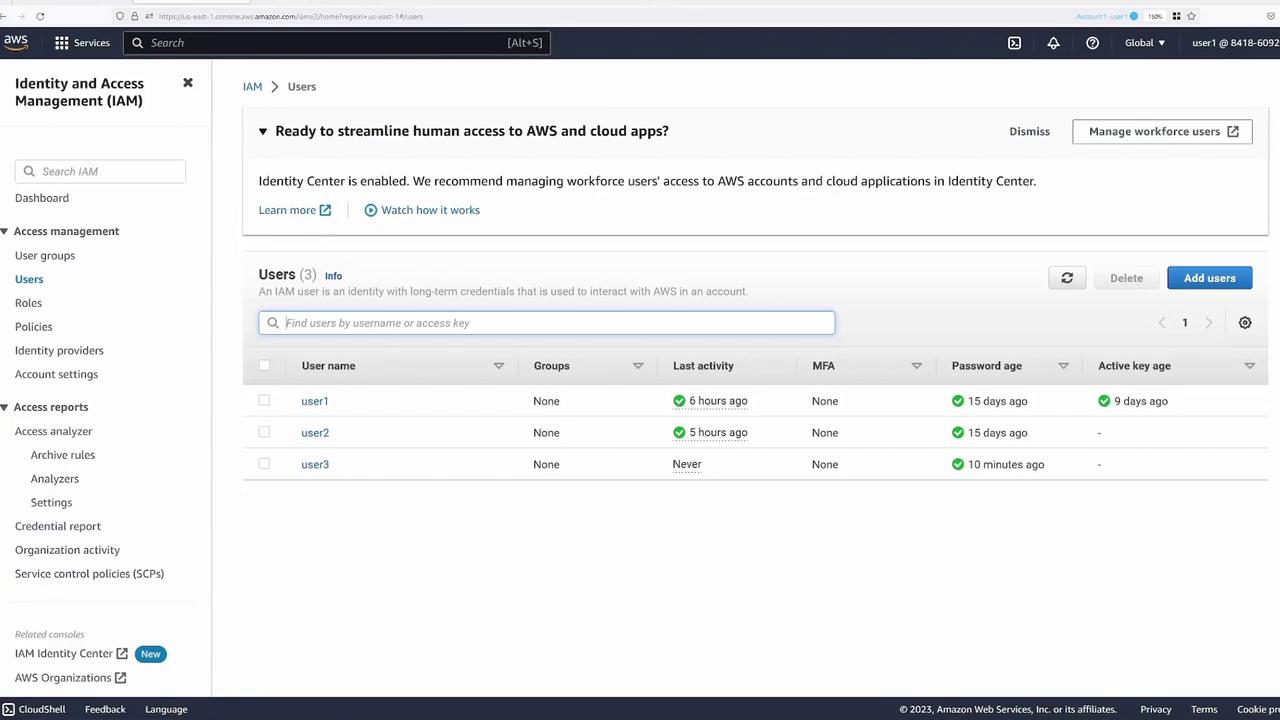
Creating and Configuring Access Points
Setting Up Access Points
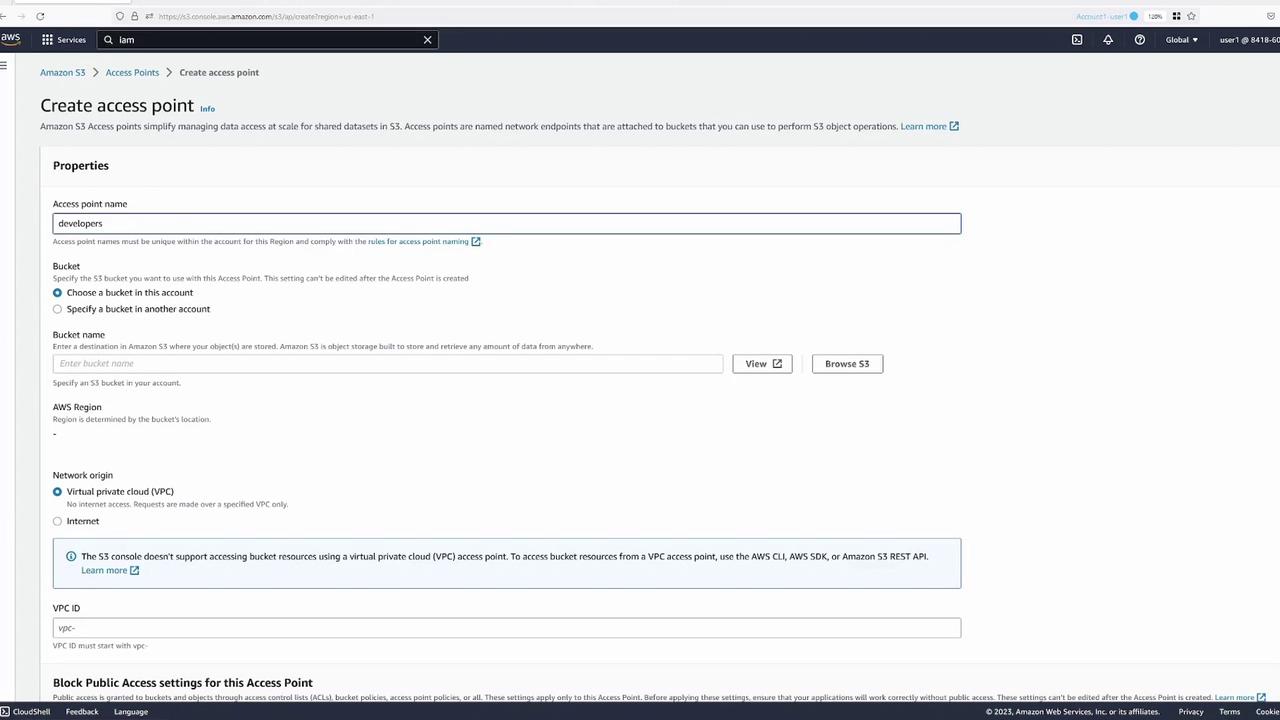
We now create access points to delegate specific access permissions for different groups. First, set up an access point for developers (user two). During creation:- Assign a name (e.g., “developers”).
- Choose the bucket “KodeKloud access point”.
- Enable the option to allow requests from the Internet.
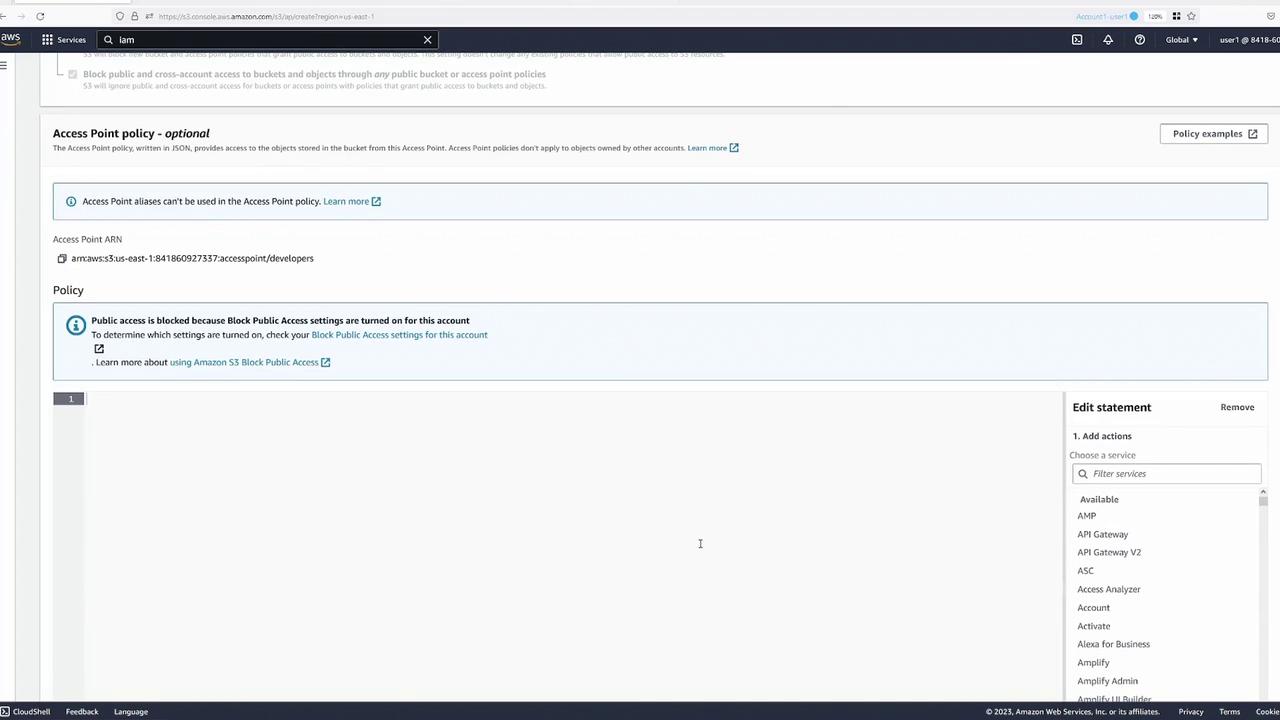
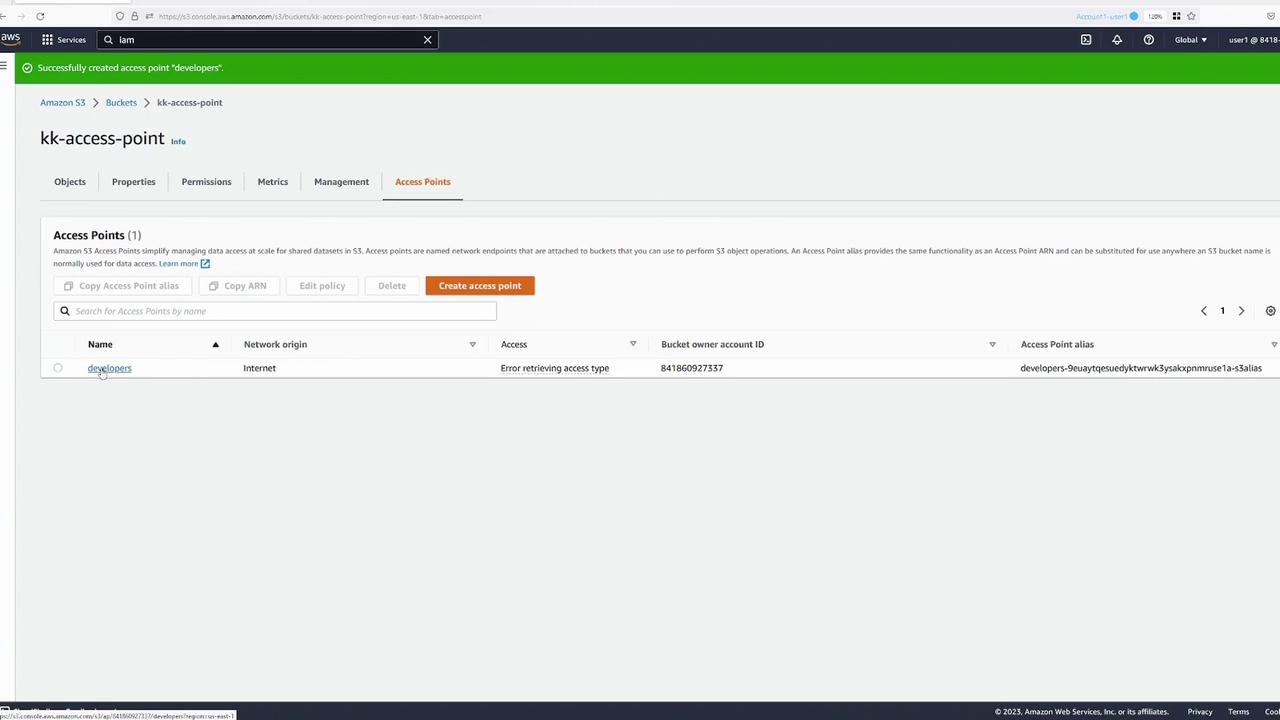
Access Point Policies and Bucket Delegation
Access point policies control requests made through an access point. For example, to allow a specific user (Jane) to perform object operations, you might use a policy like this:Remember that permissions in an access point policy are only effective if the underlying bucket also permits the same access. You can achieve this by either:
- Adding the same policy to the bucket policy, or
- Delegating access control from the bucket to the access point. The recommended approach is delegation.