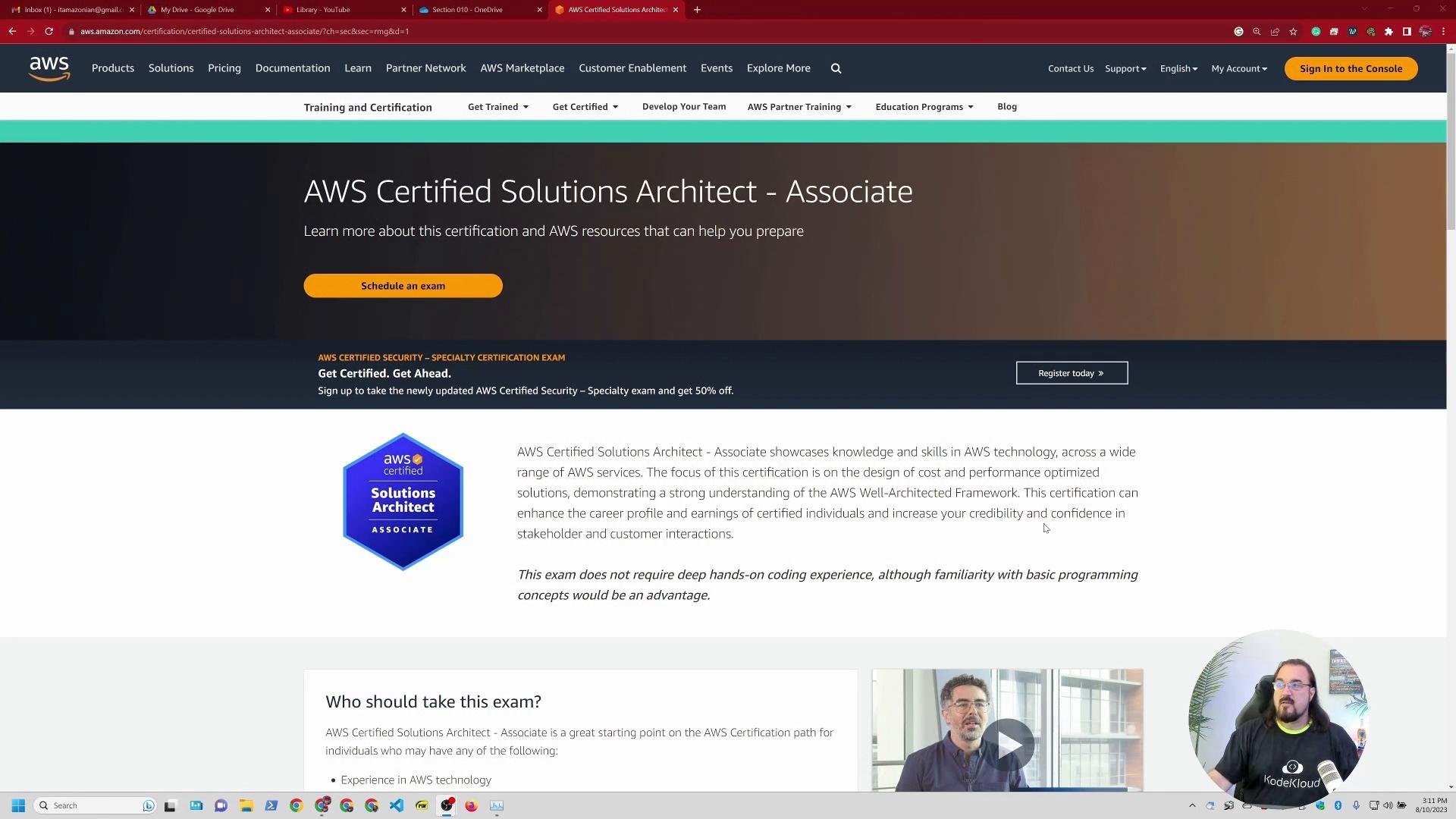
Welcome — I’m Michael Forrester. This article walks you step‑by‑step through registering for the AWS Certified Solutions Architect – Associate (SAA‑C03) exam for the first time. It covers the common flow, important gotchas, and pre‑exam checks so nothing surprises you on exam day. Use this as a registration checklist: from locating the certification page to completing payment and validating your system for online proctoring.
A screenshot of the AWS web page for the "AWS Certified Solutions Architect – Associate" certification, showing the title, description, and a prominent "Schedule an exam" button. A small circular video overlay with a person appears in the bottom-right.

1. Start on the AWS Certification page

I found the Solutions Architect Associate page by searching for “AWS Certified Solutions Architect” and clicking the Training & Certification overview at the AWS Training site. From the certification page click “Schedule an exam” to begin.

2. Sign in to AWS Training & Certification (or create an account)

If you already have an AWS Training account, sign in and you’ll be redirected to CertMetrics for certification management. If not, create an account — or use your organization’s SSO if provided.
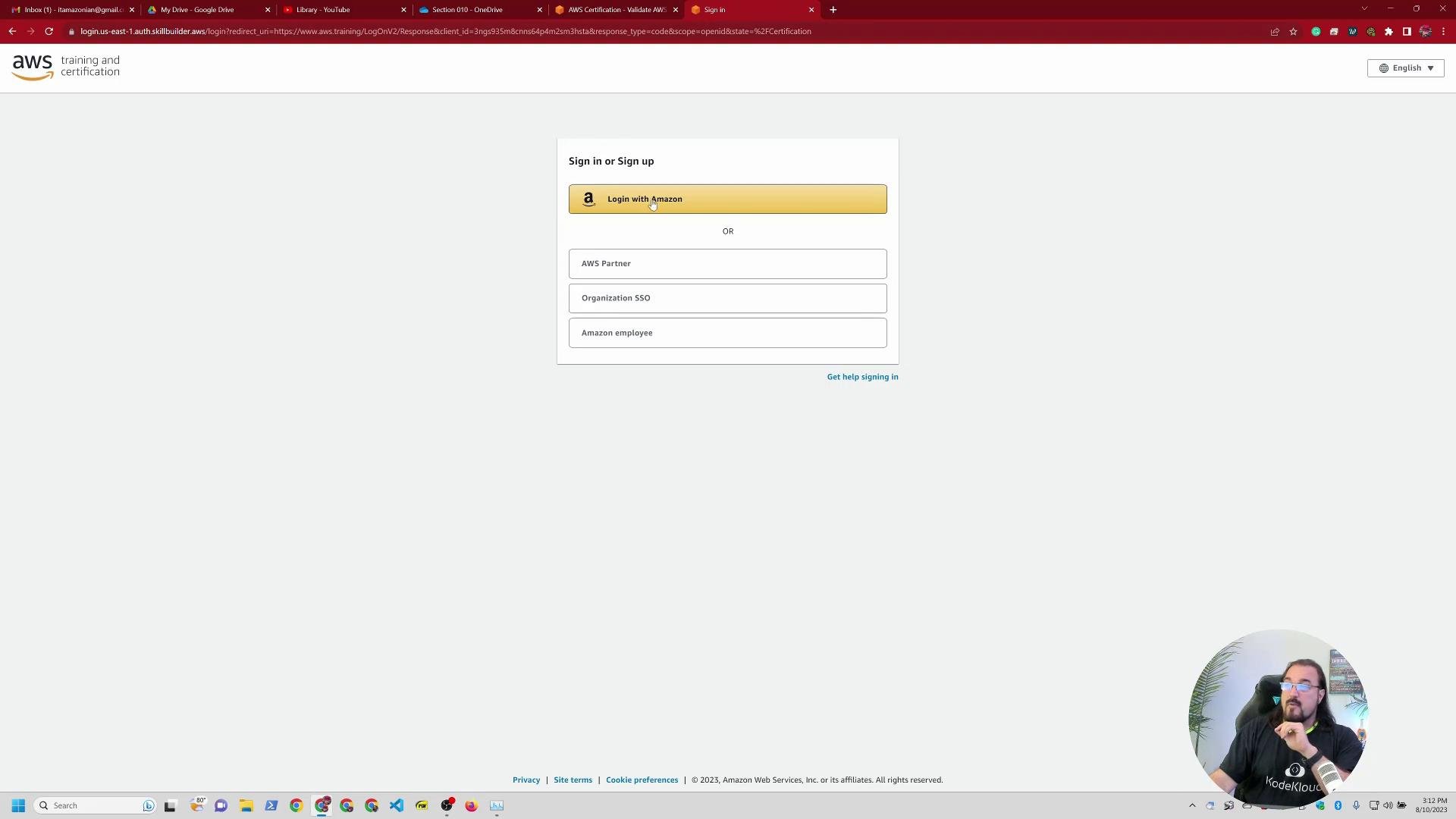
A screenshot of an AWS Training and Certification sign-in page with a central login box showing options like "Login with Amazon," AWS Partner, Organization SSO, and Amazon employee. A small circular webcam overlay of a person appears in the bottom-right corner.
Tip: Use a dedicated training account (not a retail Amazon account). Enable MFA and store credentials in a password manager to avoid login delays on exam day.

3. CertMetrics — check your certification record

CertMetrics shows certification history, active certifications, and allows you to download issued certificates. For exam registration, locate the SAA‑C03 row and follow the scheduling link.
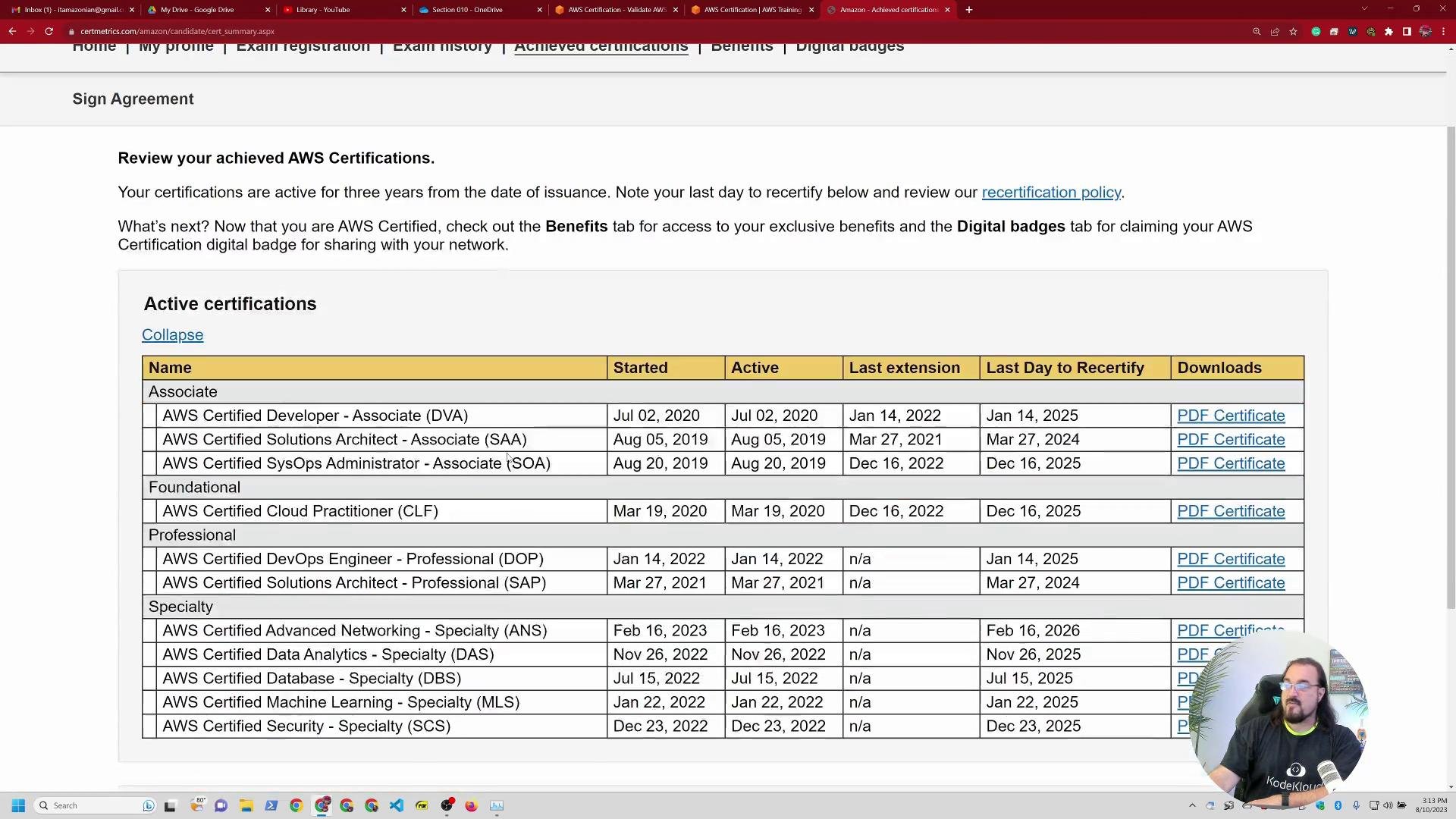
A screenshot of an AWS "Achieved certifications" webpage showing a table of active AWS certification names, start/recertify dates, and PDF download links. A small circular webcam overlay of a bearded man appears in the bottom-right corner.
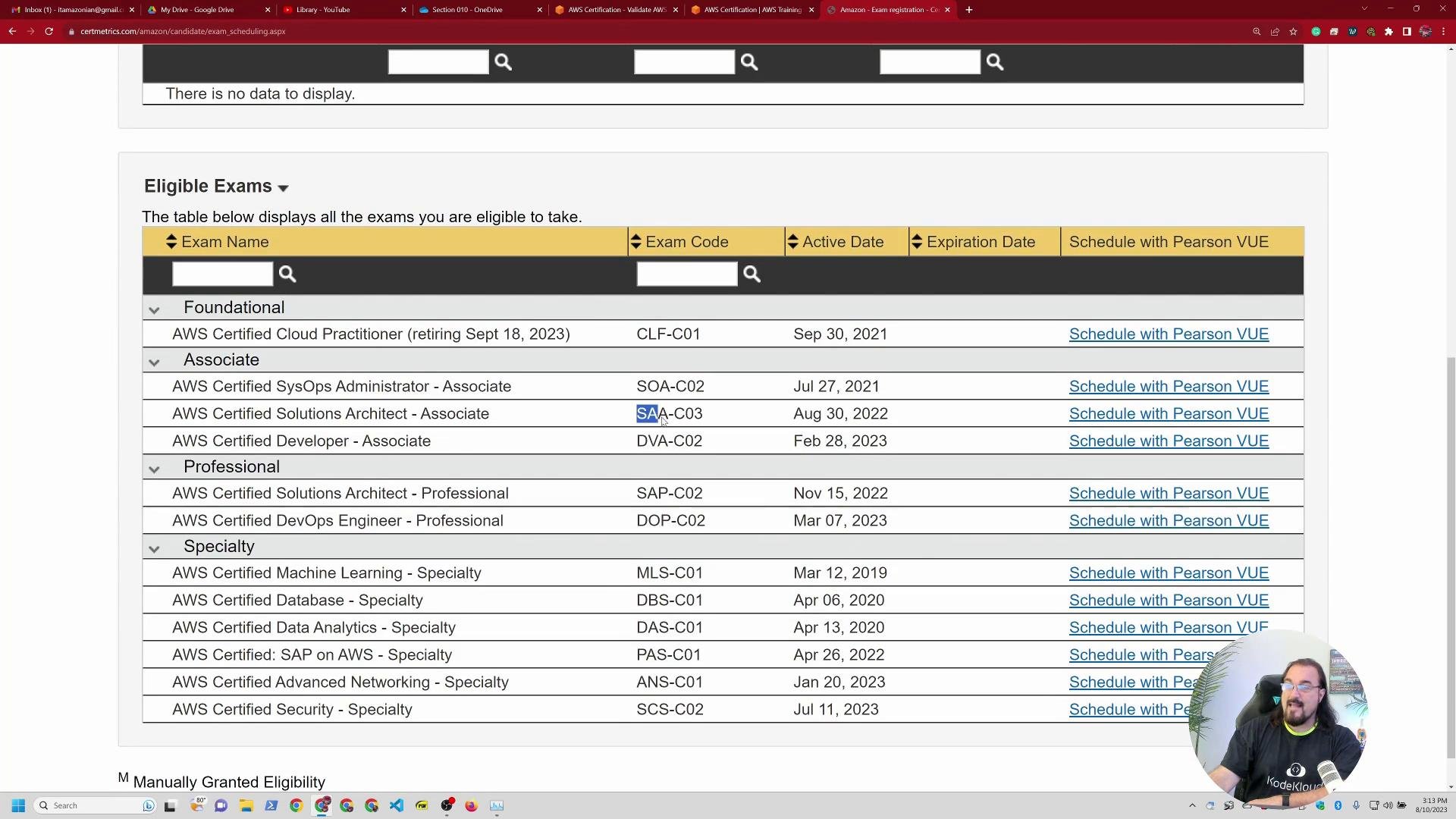
From CertMetrics you’ll be redirected to Pearson VUE to schedule the exam.
A webpage showing an "Eligible Exams" table listing AWS certification names, exam codes, active/expiration dates, and "Schedule with Pearson VUE" links. In the bottom-right there's a small circular webcam overlay of a person speaking.

4. Pearson VUE: choose test center or online proctoring

Pearson VUE gives two main delivery options:
  • In‑person at a testing center (recommended if available).
  • Online via OnVUE (remote proctoring).
Choose the option that best fits your comfort level and environment.
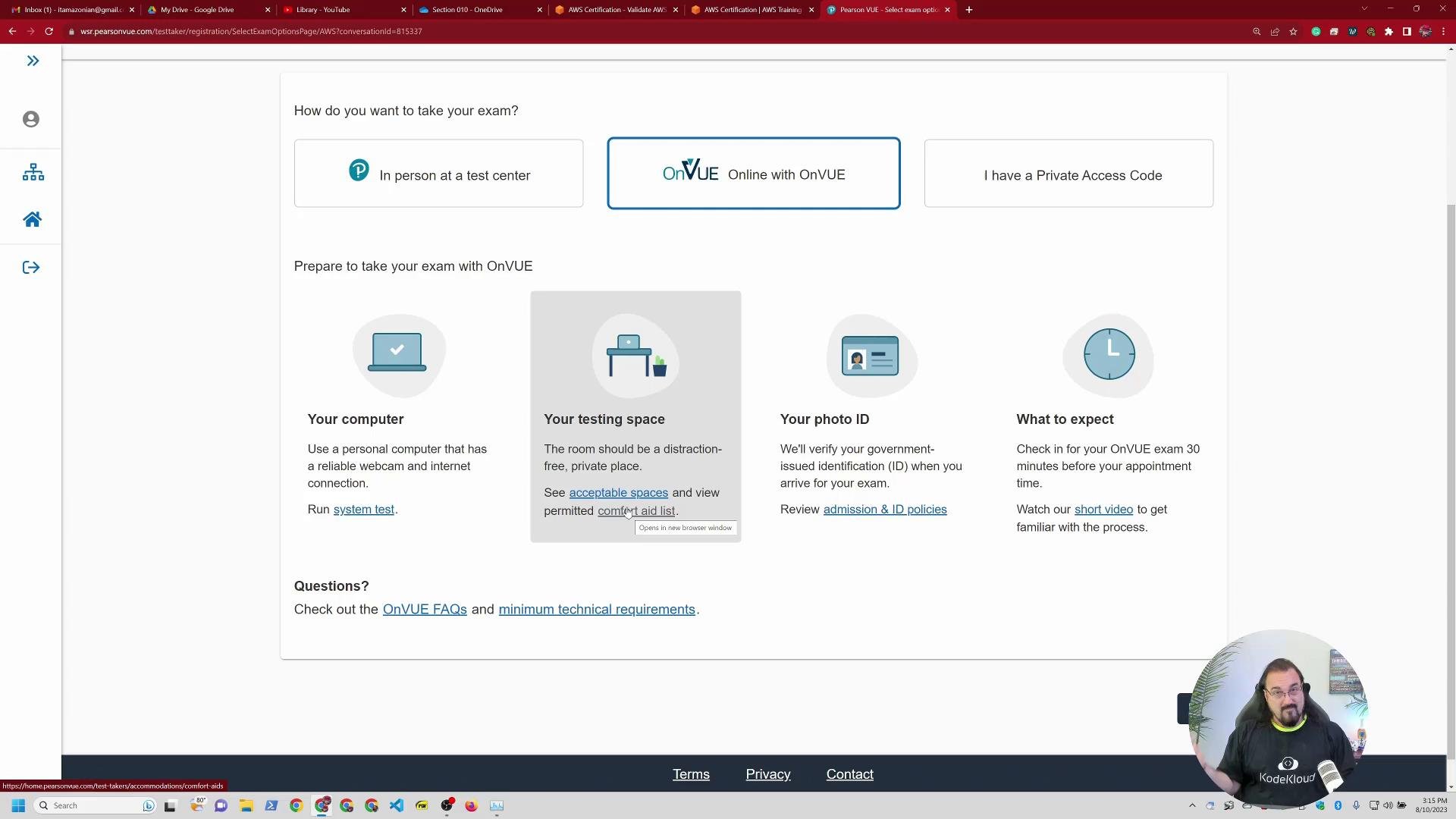
A screenshot of a Pearson VUE/OnVUE exam registration page showing options to take an exam in person, online, or with a private access code, plus guidance panels about your computer, testing space, photo ID, and what to expect. A small circular webcam overlay with a person appears in the lower-right corner.
Online proctoring is tightly controlled. If a third party or disallowed item is detected, your session can be canceled, your exam fee forfeited, or certifications revoked in serious cases. If you can use a testing center, that often reduces risk and stress.

5. Online proctoring requirements (OnVUE)

If you choose OnVUE, expect strict checks:
  • System test for webcam, microphone, and OS/browser compatibility.
  • A clean, private testing space (no others present).
  • Valid government photo ID for identity verification.
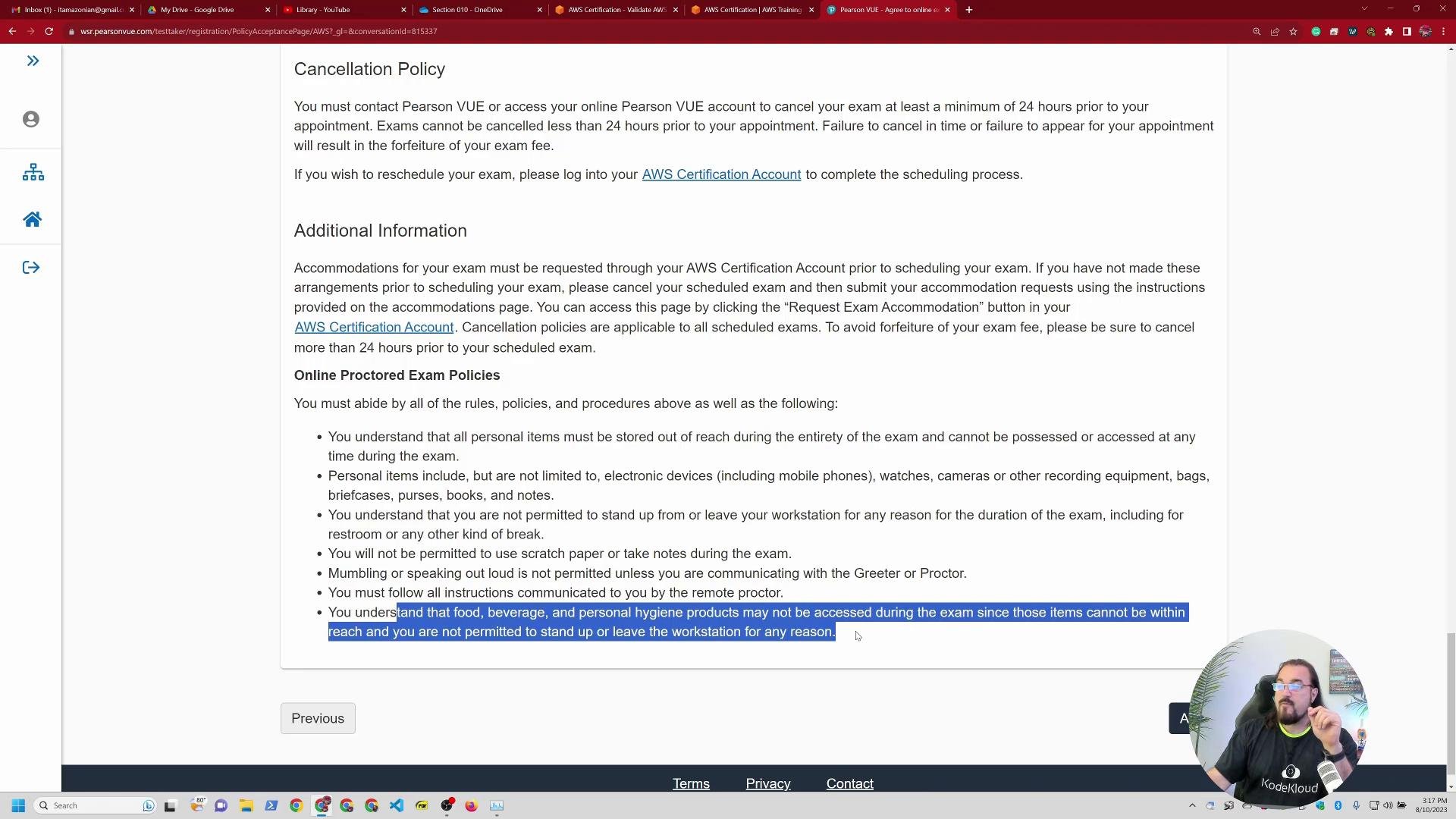
  • No phones, watches, earphones, food, or loose paper.
  • You may be asked to pan the camera around the room.
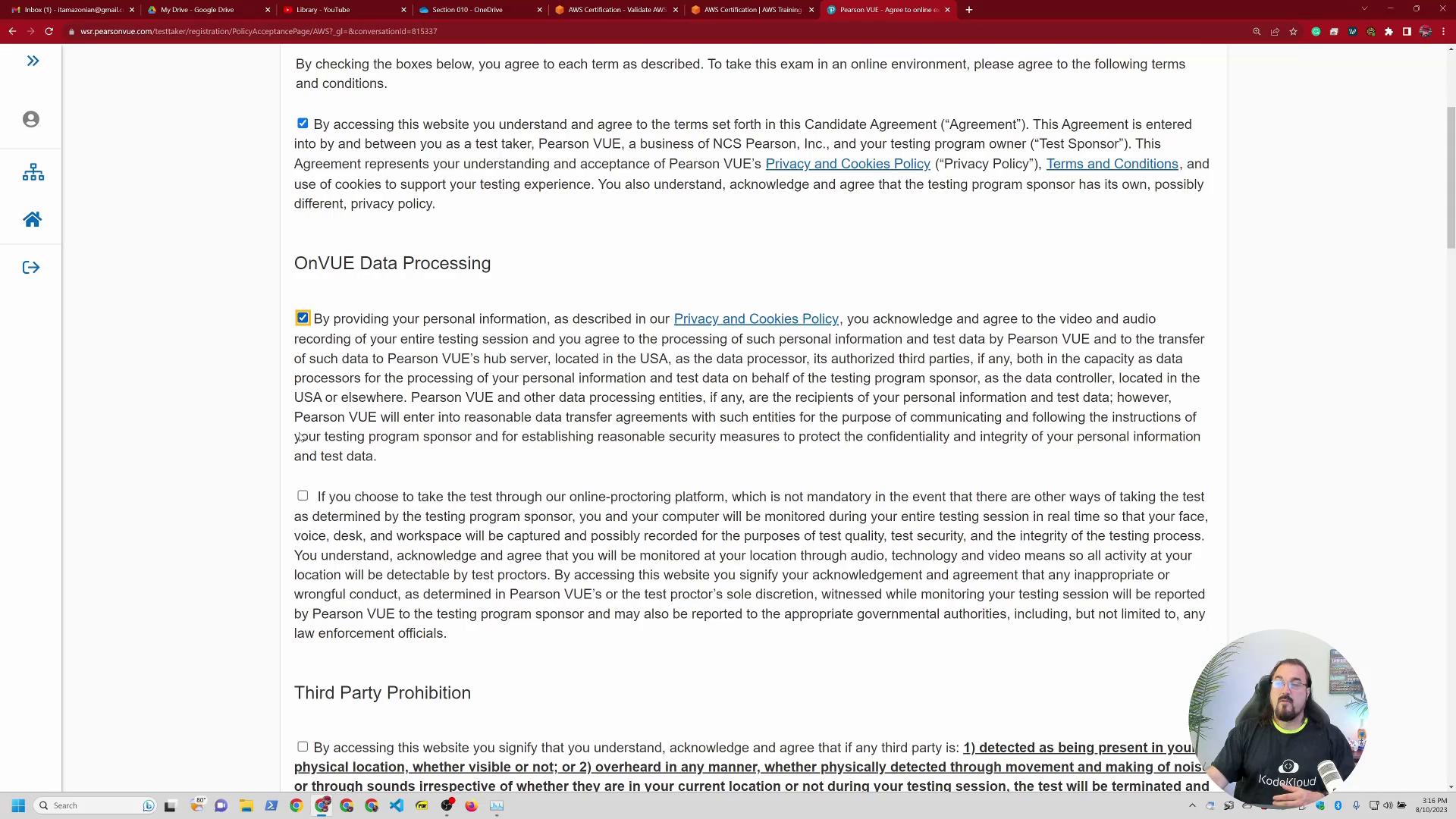
A screenshot of an online exam terms and consent page (OnVUE/Pearson VUE) showing text about data processing and several checkboxes. A small circular webcam overlay with a person appears in the bottom-right corner.
Read the admissions policy and acceptable ID list carefully. On exam day you’ll sign into Pearson VUE/OnVUE, click the “It’s exam day” prompt, and follow the proctor’s setup steps.
A screenshot of a Pearson VUE/AWS Certification webpage displaying cancellation and online proctored exam policies. A small webcam video overlay of a person appears in the bottom-right corner.

6. Language, proctor language, and timezone

When registering you’ll pick:
  • The exam interface language.
  • Spoken language for the proctor (for OnVUE).
  • Your time zone.
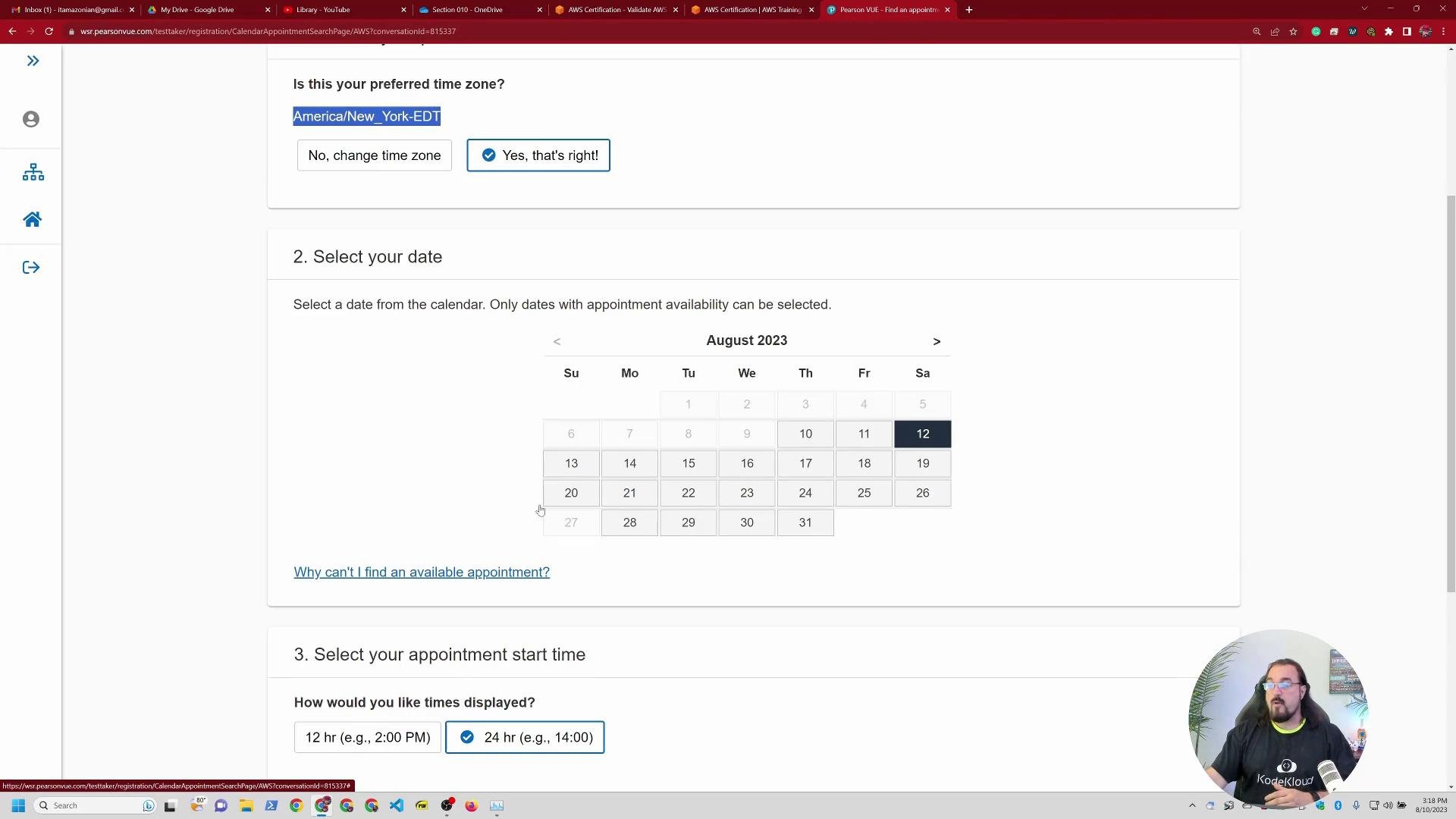
Use 24‑hour times in the scheduler if that helps avoid confusion, and pick a time when you’re alert—mid‑morning is a popular choice.
A screenshot of an online appointment booking page (showing "America/New_York - EDT") with a calendar for August 2023 and the 12th highlighted. A small webcam video overlay of a person appears in the bottom-right corner.
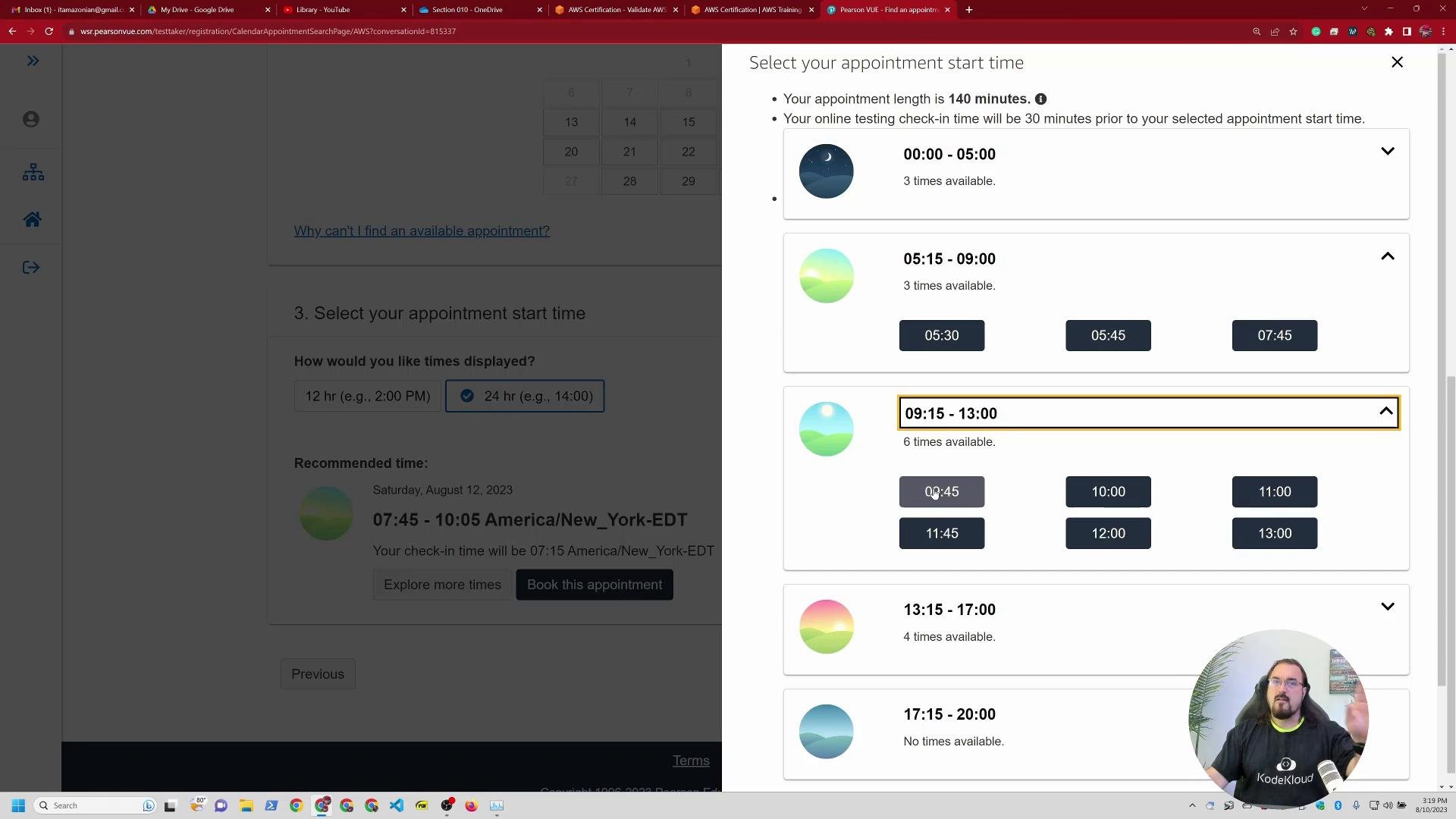
Available time slots will populate; select your preferred start time and note the required check‑in time.
A screenshot of an online appointment booking page showing multiple available time windows and selectable start times. A small circular webcam overlay in the lower-right shows a person speaking or gesturing.

7. Checkout, vouchers, and payment

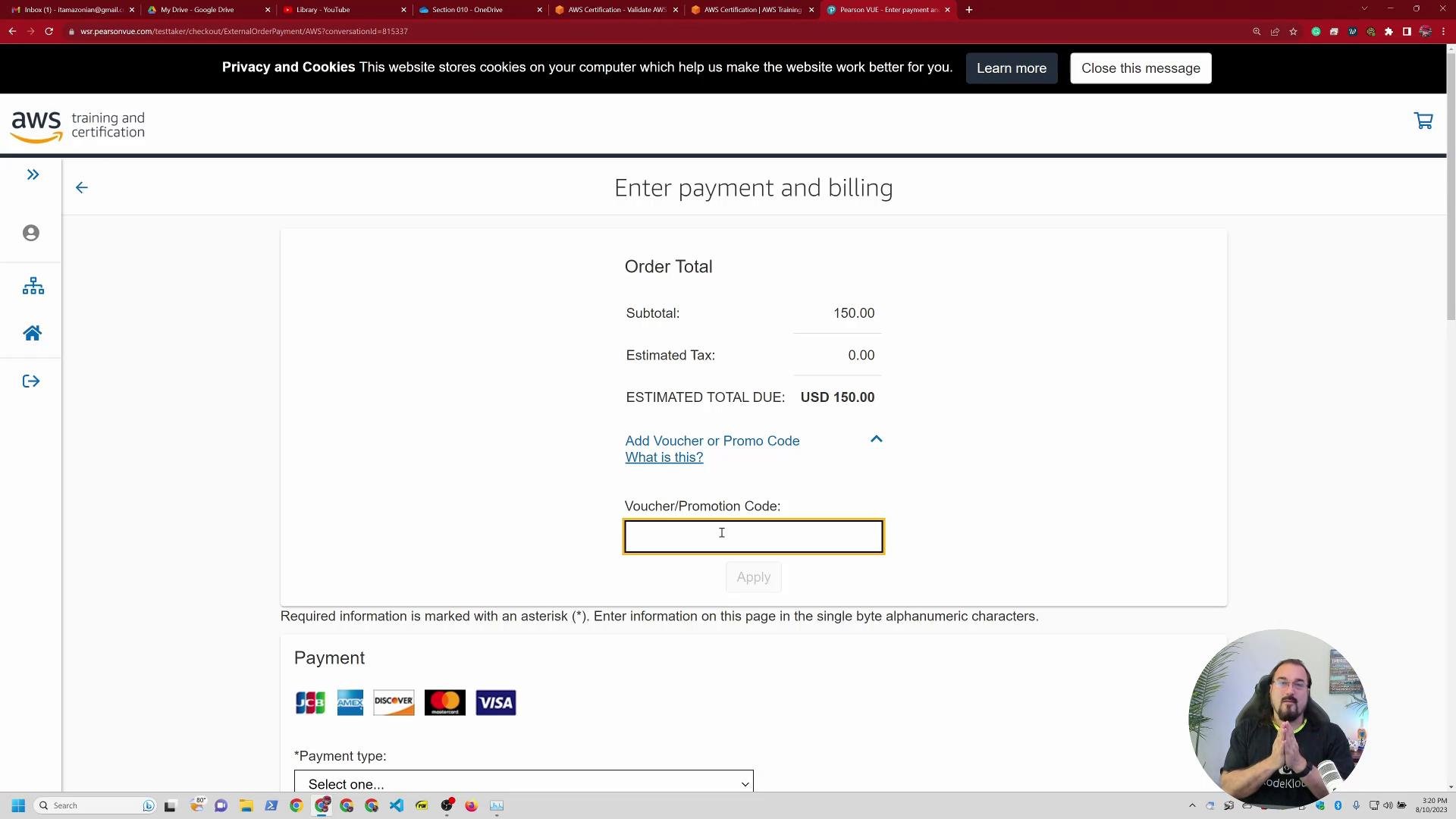
Proceed to checkout to pay the exam fee. You can apply vouchers or promo codes on the checkout page. If you’re registering multiple exams, you can add them to a single cart — but most candidates schedule one exam at a time.
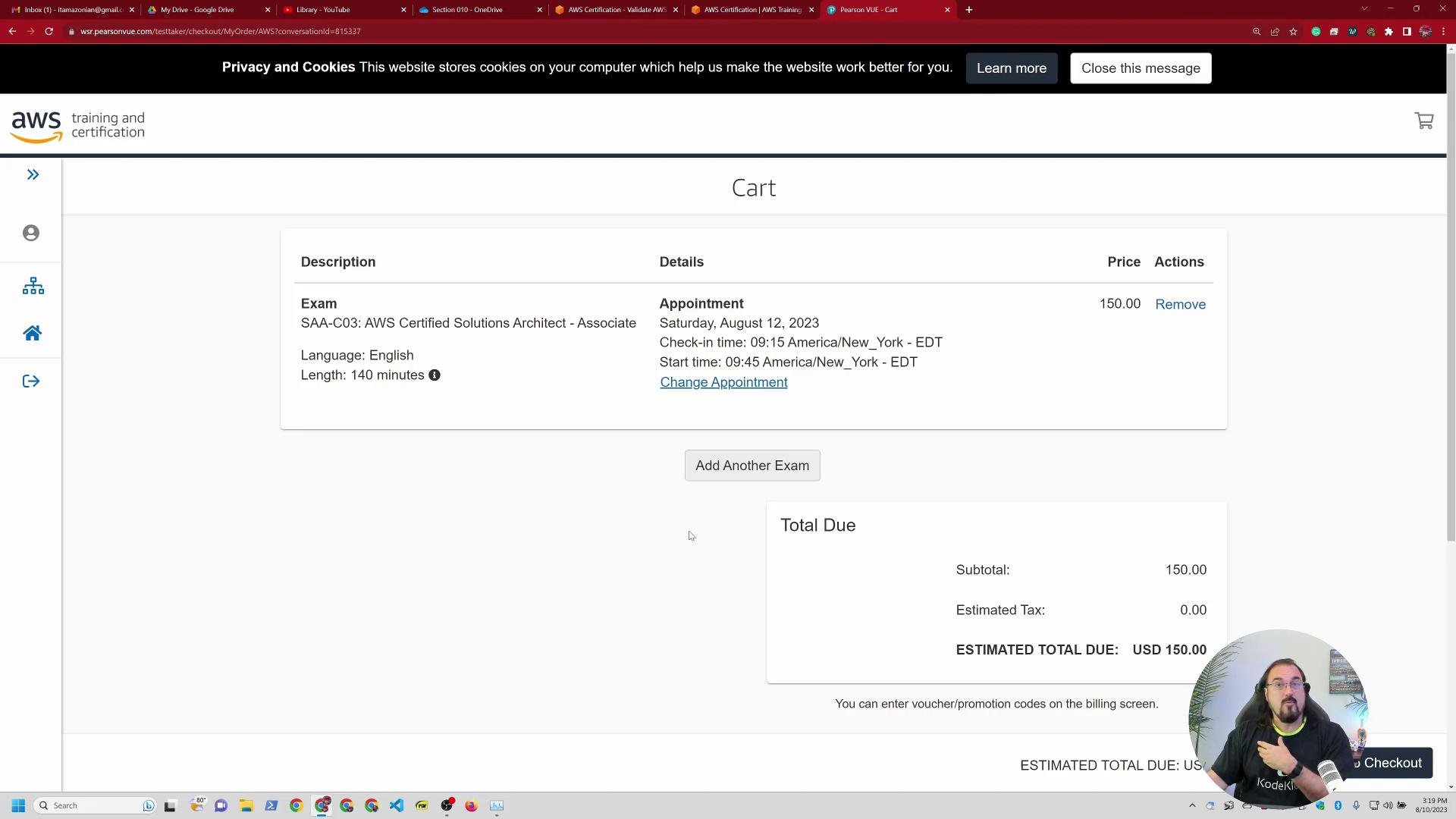
A screenshot of an AWS Training and Certification checkout page showing a cart for the SAA-C03 (AWS Certified Solutions Architect - Associate) exam scheduled for August 12, 2023 with a $150 fee. A small circular webcam overlay of a person appears in the bottom-right corner.
Enter payment and billing details, submit, and verify you receive the confirmation email. Immediately add the appointment to your calendar.
A screenshot of an AWS Training and Certification checkout page titled "Enter payment and billing," showing an order total of USD 150.00 with a voucher/promo code field and payment method icons. A circular webcam overlay of a man appears in the bottom-right.

8. Run the OnVUE system test (if using online proctoring)

Well before exam day run the OnVUE system check to confirm your webcam, microphone, and device compatibility. This helps resolve technical issues early.
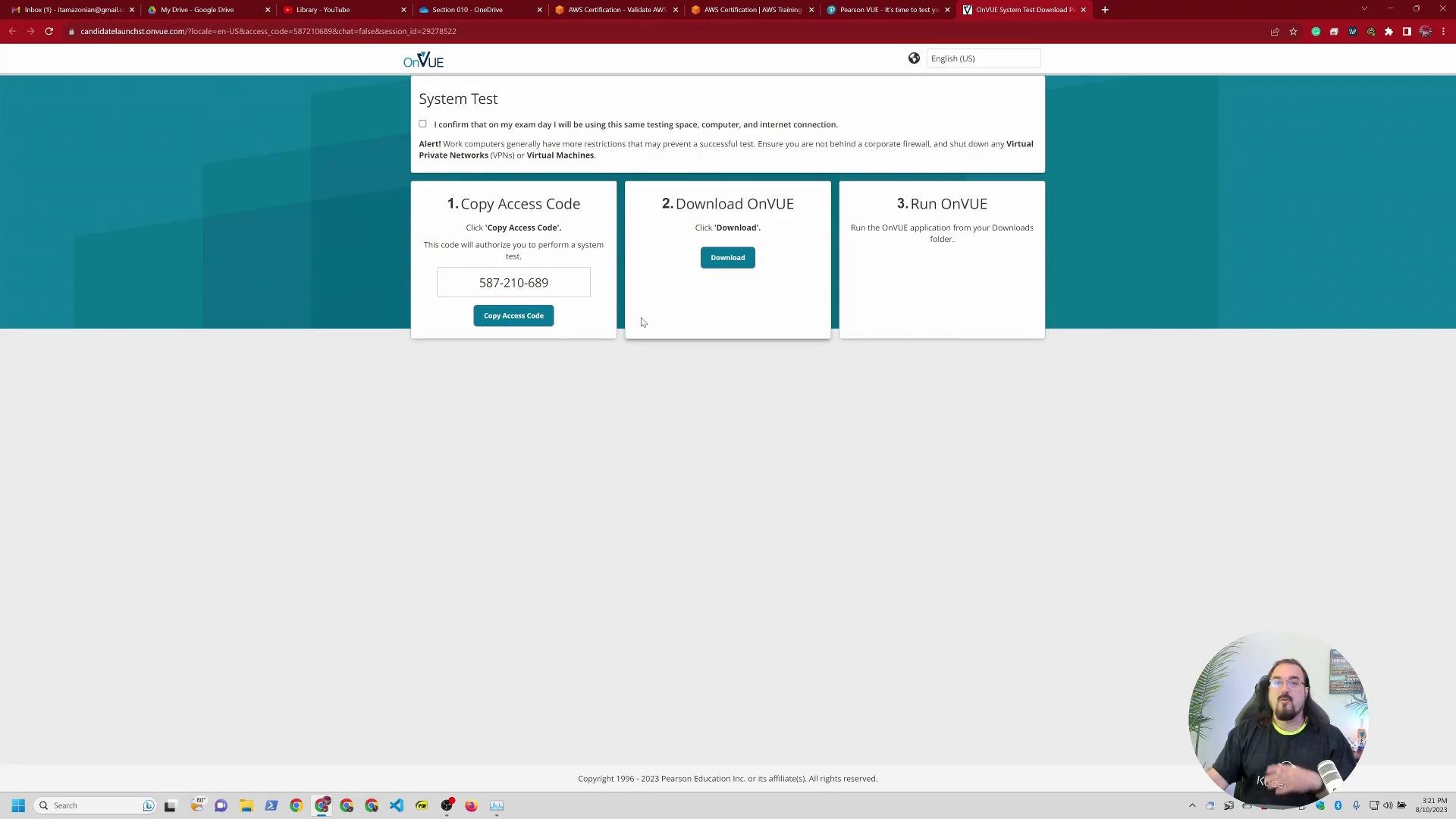
A screenshot of an OnVUE "System Test" webpage showing three steps: copy an access code (587-210-689), download the OnVUE app, and run it. A small circular webcam feed with a person is visible in the bottom-right corner.

9. Final policy review and exam-day prep

Before the exam day:
  • Re‑read the admissions policy and acceptable ID list.
  • Confirm your testing area meets OnVUE rules.
  • Ensure your system passes the OnVUE test and that you have a charged device + reliable internet.
  • Add the exam appointment to your calendar and set reminders.
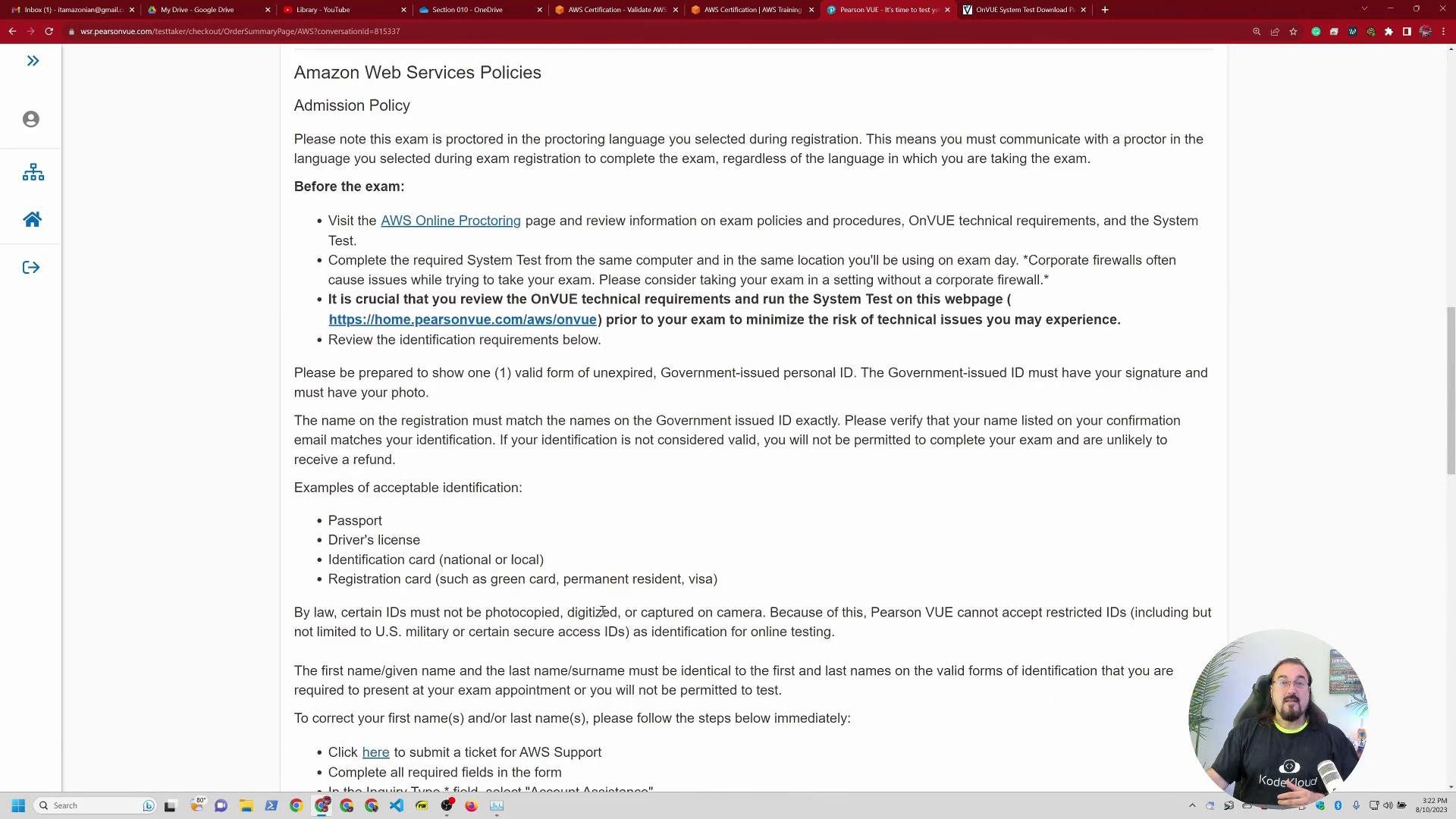
A browser screenshot of an Amazon Web Services Policies page with admission instructions and ID requirements. In the bottom-right is a small circular webcam overlay showing a person speaking.

Quick registration summary table

Pre-exam checklist

If you want, I can:
  • Walk through scheduling an actual appointment step‑by‑step,
  • Show a sample OnVUE system test run and common failure fixes,
  • Or produce a printable one‑page checklist for exam day.
Have questions about any step? I’m happy to help.

Watch Video