

Create a Lambda function (step-by-step)
- Open the AWS Console, search for Lambda, and choose Create a function.
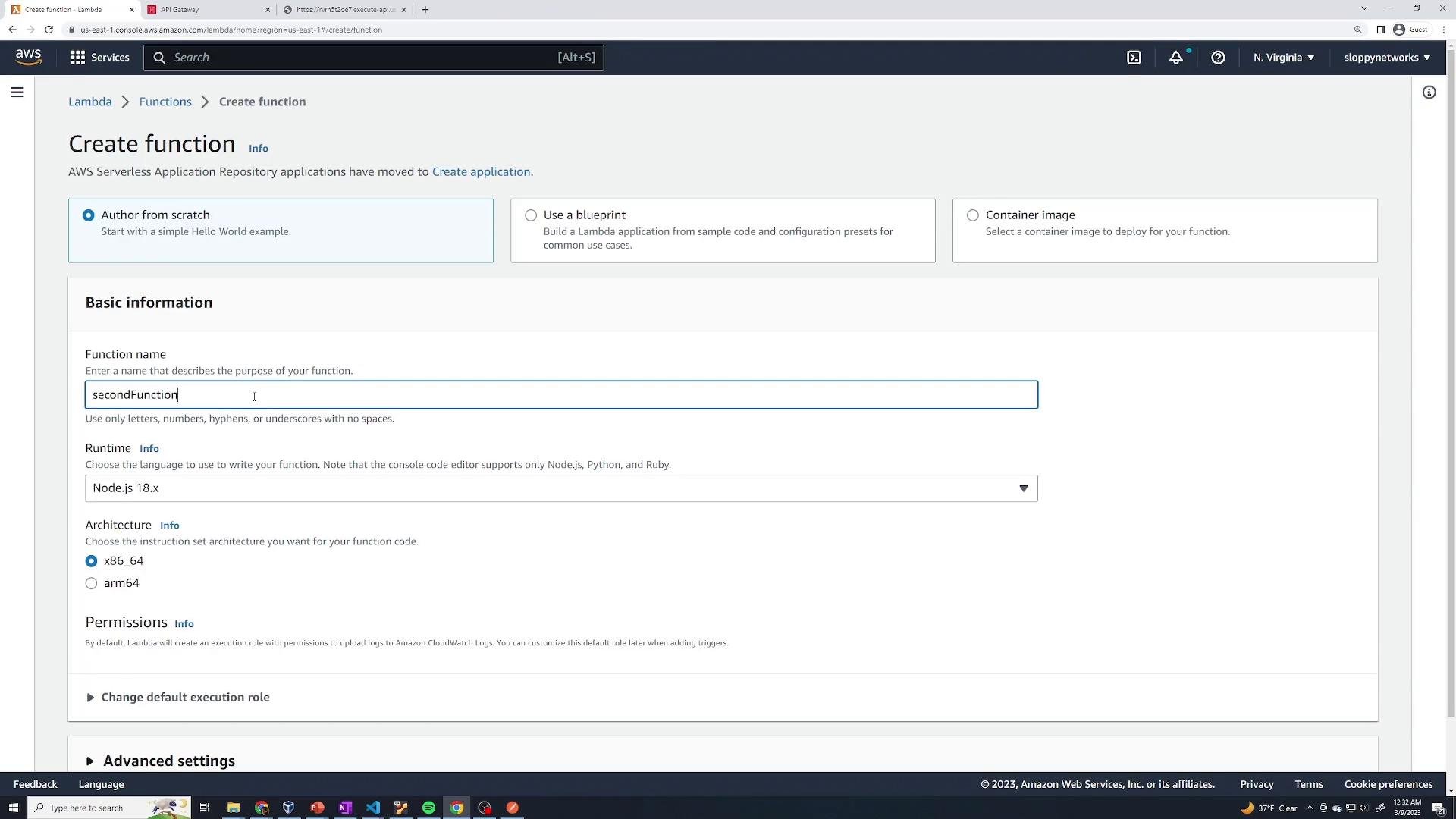
- Choose Author from scratch to start with a blank function (you can also use a blueprint or container image).
- Enter a function name (for example,
firstFunction) and choose a runtime (Node.js, Python, Java, etc.). Examples below use Node.js with an ESM-style handler. - For execution role, accept Create a new role with basic Lambda permissions so the function can write logs to CloudWatch. Leave advanced settings (VPC, etc.) unchecked for this demo.
- Click Create function.
Lambda function configuration and destinations
The Lambda console displays the function’s configuration (triggers, layers, destinations). Destinations route asynchronous invocation records to targets like SNS, SQS, another Lambda, or EventBridge and can be configured for success and failure conditions.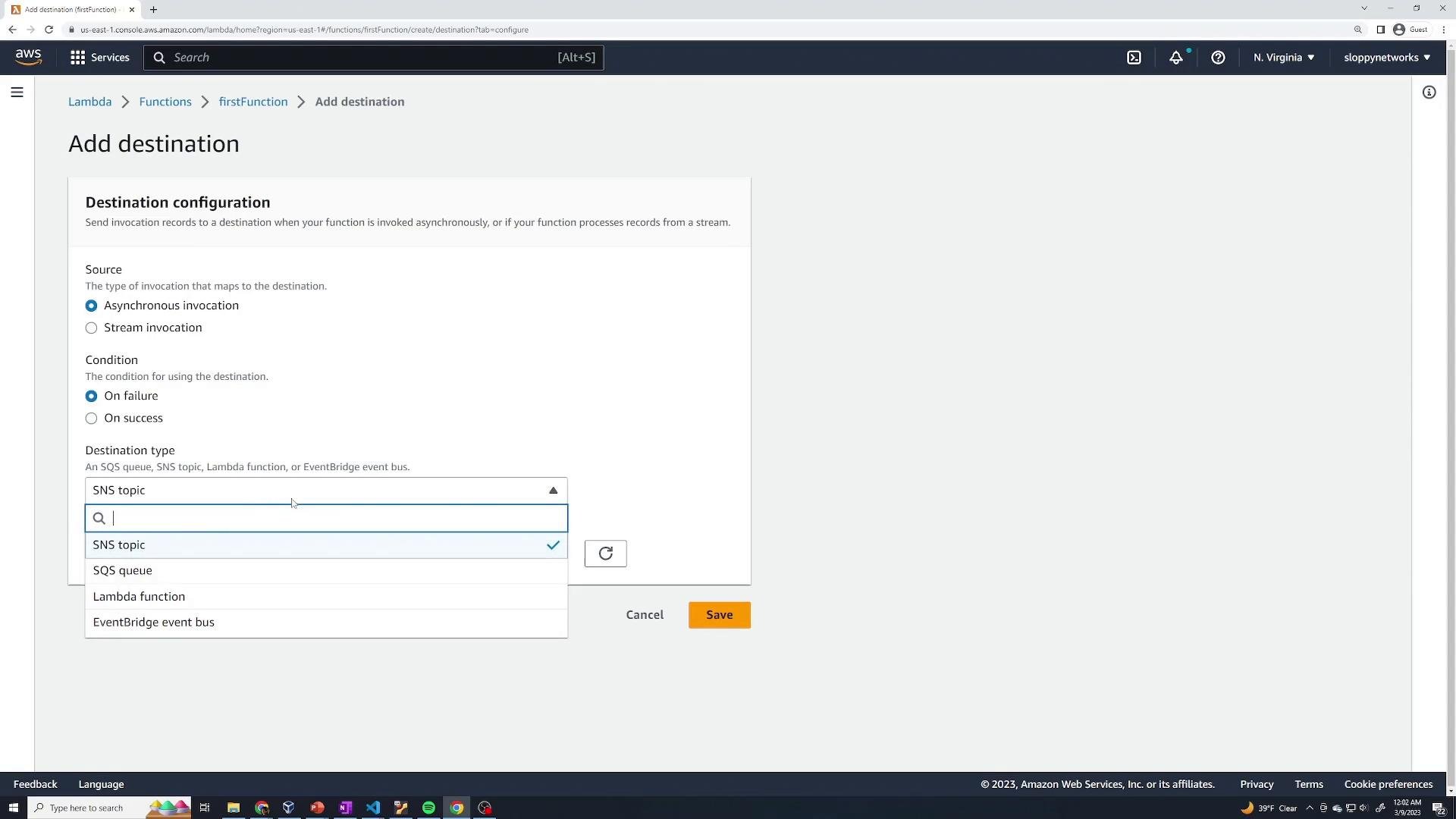
Default handler (Node.js ESM)
A minimal ESM-style Node.js handler that returns a basic HTTP response:Triggers — when your function runs
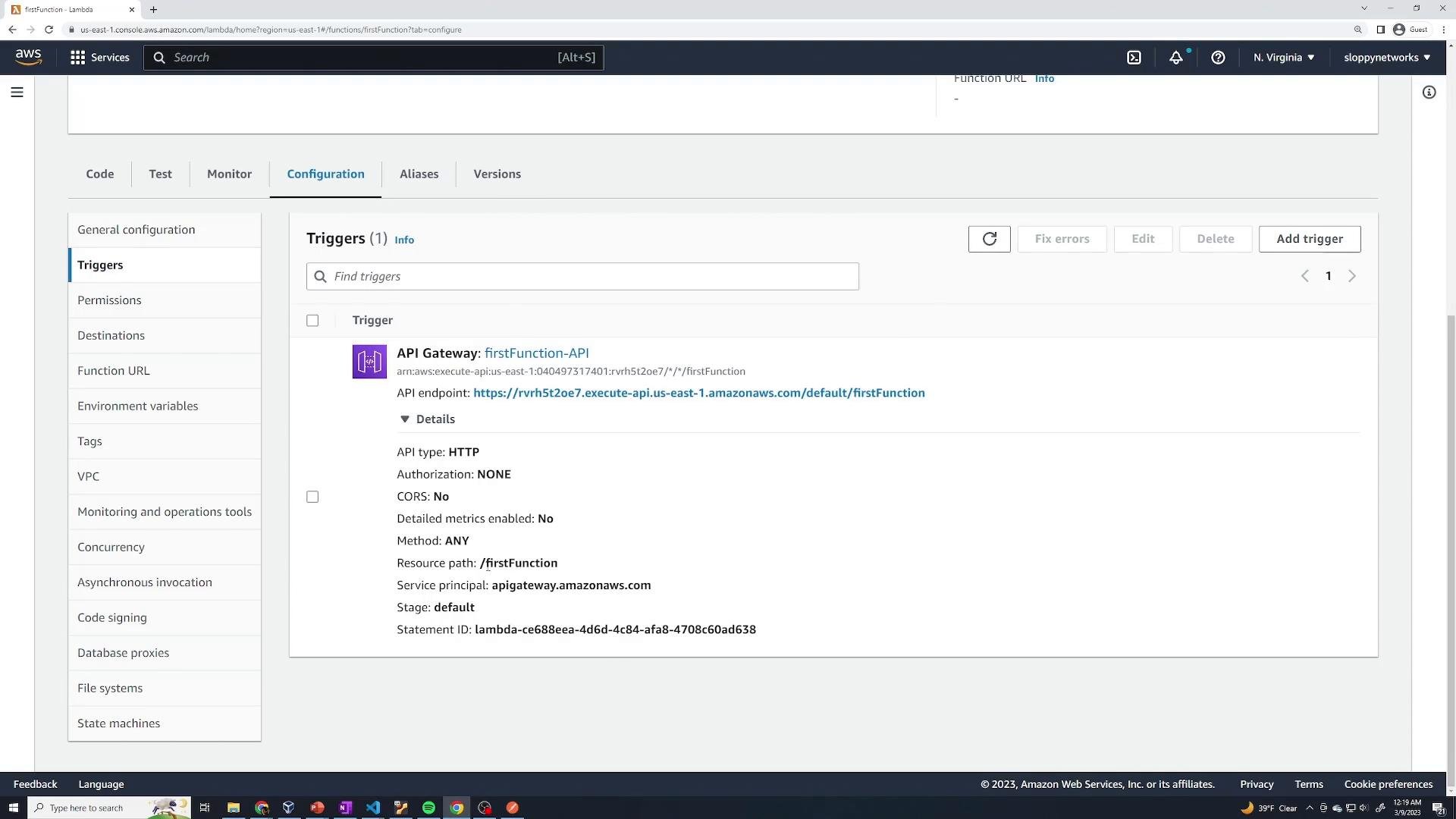
Triggers determine when Lambda executes. Common triggers include API Gateway, S3 events, SNS/SQS, CloudWatch Events / EventBridge, and more. Add triggers on the function’s Configuration tab.Test your function without a trigger
Use the Lambda console to run test events. Test events are JSON objects passed as theevent parameter to your handler.
Example test event:
Reading data from the event
If your test event includes application-specific fields, read them in the handler:
Example event:
event.products:
Deploying an API Gateway trigger
A common pattern is to expose Lambda via API Gateway so HTTP clients can invoke it. From Add trigger, select API Gateway and create a new API (HTTP or REST). For simple demos you can leave Authorization as NONE.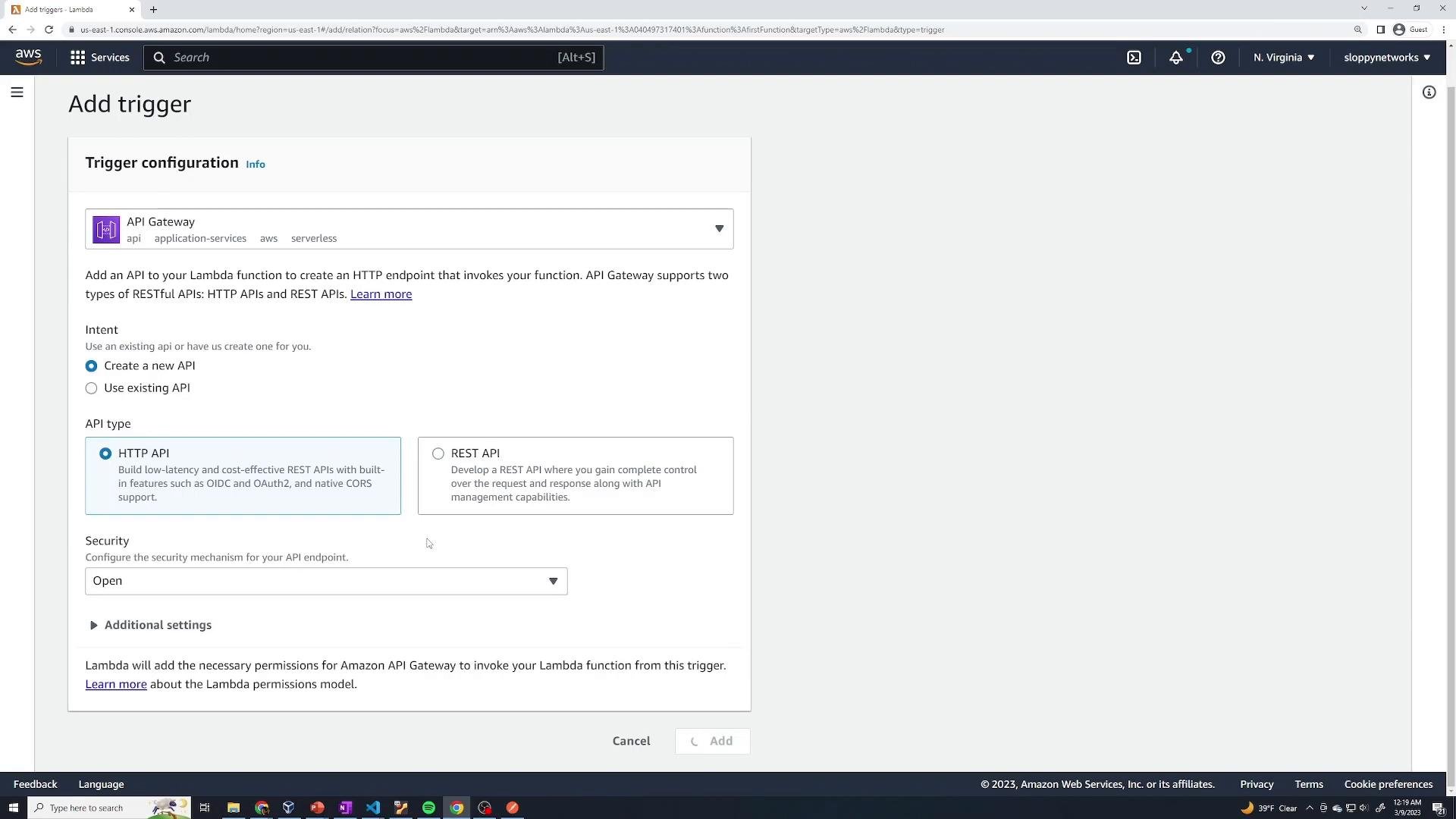
Using third‑party Node.js libraries (example: bcryptjs)
Real-world functions often require external packages. For Node.js you install packages locally (they appear undernode_modules) and include them with your deployment package or supply them via a Lambda Layer.
Install locally:
If you paste code that imports a third‑party package into the Lambda console editor without uploading the package, you’ll get a “Cannot find package” error. You must include
node_modules in your function deployment or attach a Layer that contains the packages.Why you might see “Cannot find package”
If you run the function immediately after pasting code that importsbcryptjs you might get:
Bundling code and node_modules in a ZIP
To include dependencies with your function:- On your machine create a project folder containing:
- your handler file (e.g.,
index.mjs) package.json(optional)- the
node_modulesfolder created bynpm install
- your handler file (e.g.,
- Compress those items into a ZIP file (for example,
hashLambda.zip). - In the Lambda console choose Upload from →
.zip file, upload the ZIP, and deploy.
node_modules) before zipping:
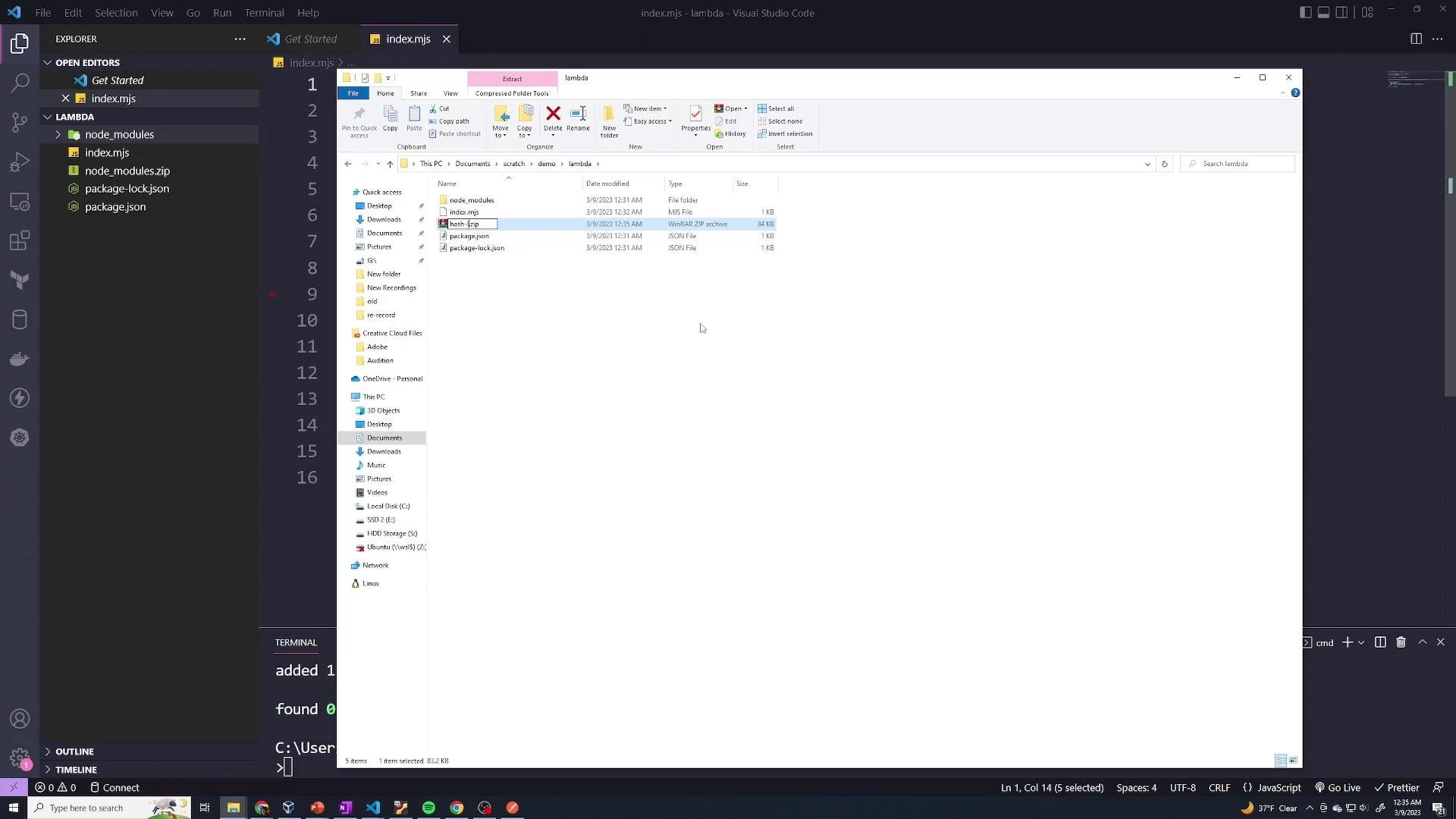
bcryptjs and your test should return a 200 status with the hashed password.
Using Lambda Layers to share libraries
Lambda Layers let you share common libraries across multiple functions so you don’t have to bundlenode_modules in every function.
Use Layers to share common libraries across functions. Update the Layer to patch or upgrade dependencies and attach the new Layer version to functions that require the change.
- Create a folder named
nodejsand copy yournode_modulesinto it so the ZIP root containsnodejs/node_modules/.... - Zip the
nodejsfolder (for example,hash-layer.zip). - In the Lambda console go to Layers → Create layer, upload the ZIP, set compatible runtimes (e.g.,
nodejs18.x), and create the Layer. - In your function’s configuration, add the Layer (choose the desired version). The function can then import packages from the Layer at runtime.
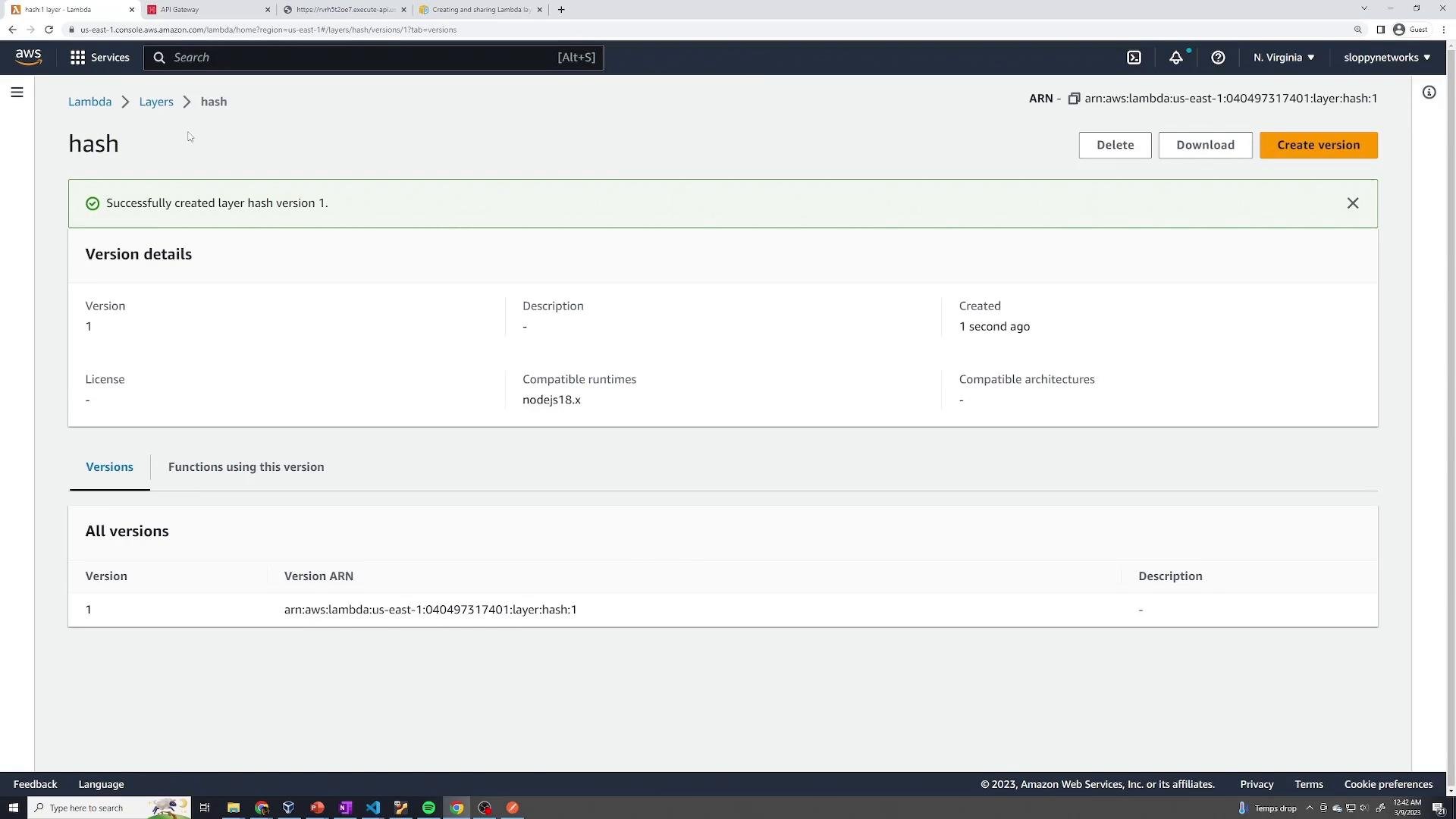
node_modules from your function package and rely on the Layer for dependencies.
Monitoring, metrics, and logs
Lambda integrates with CloudWatch to surface metrics and logs. The Lambda console provides at-a-glance metrics such as invocations, duration, error count, throttles, iterator age (for stream-based invocations), and concurrent executions. From there you can jump into CloudWatch Logs for deeper inspection and troubleshooting.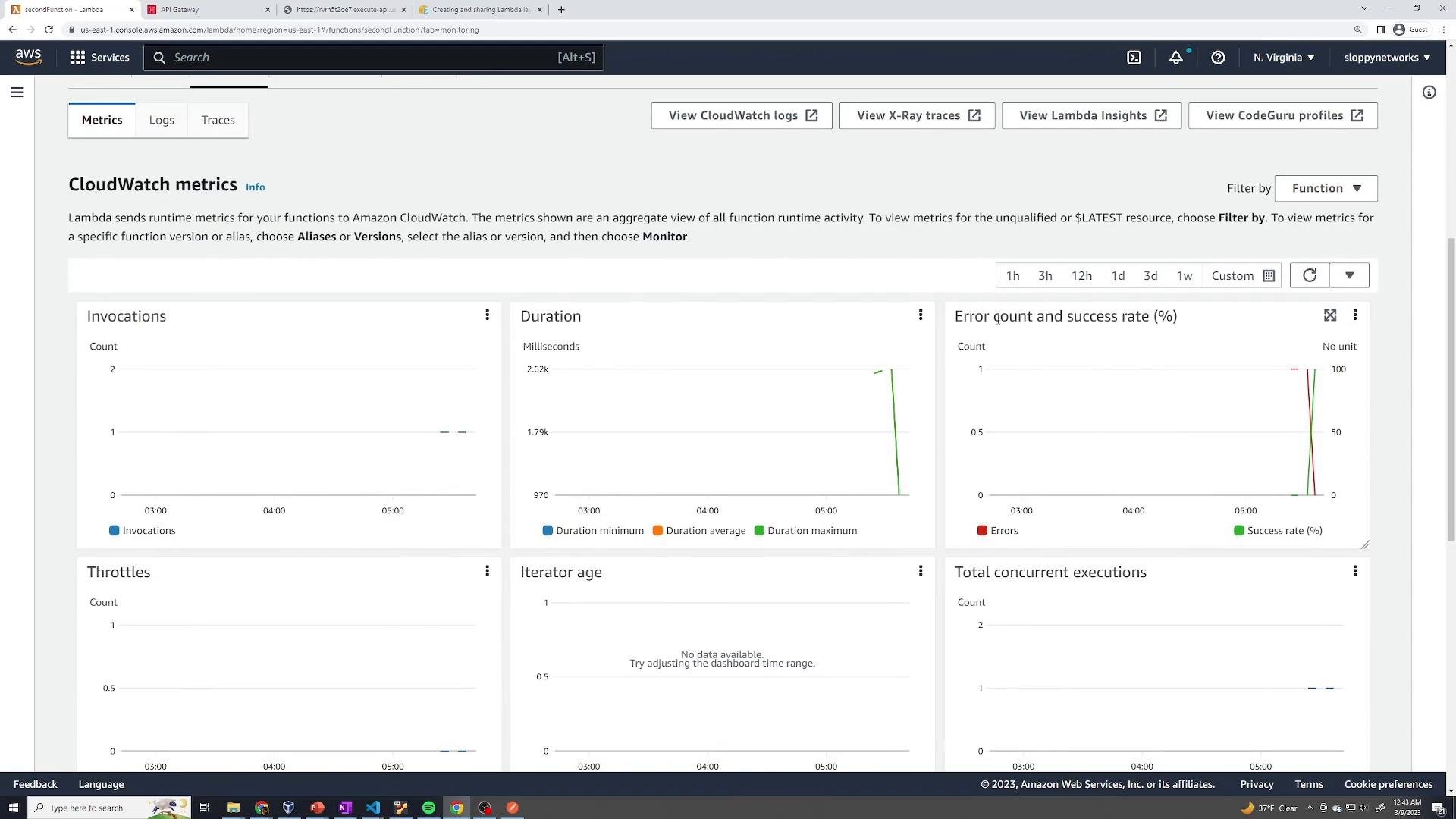
Summary
- Create a Lambda with Author from scratch and choose the correct runtime.
- Use triggers (API Gateway, S3, SNS, SQS, EventBridge) to invoke Lambda.
- Test functions in the console with JSON test events.
- Include third‑party Node.js packages by zipping
node_moduleswith the function or by using a Lambda Layer. - Monitor functions with the Lambda console and CloudWatch Logs/Metrics.
Links and references
- AWS Lambda Developer Guide
- API Gateway documentation
- bcryptjs on npm
- AWS Lambda Layers documentation
- CloudWatch Logs documentation