

Launching an EC2 Instance
Begin by accessing the AWS console and using the search bar to navigate to the EC2 service. In the EC2 dashboard, click on the “Instances” section. You can either click the direct “Launch instances” button on the dashboard or select the option within the instances page.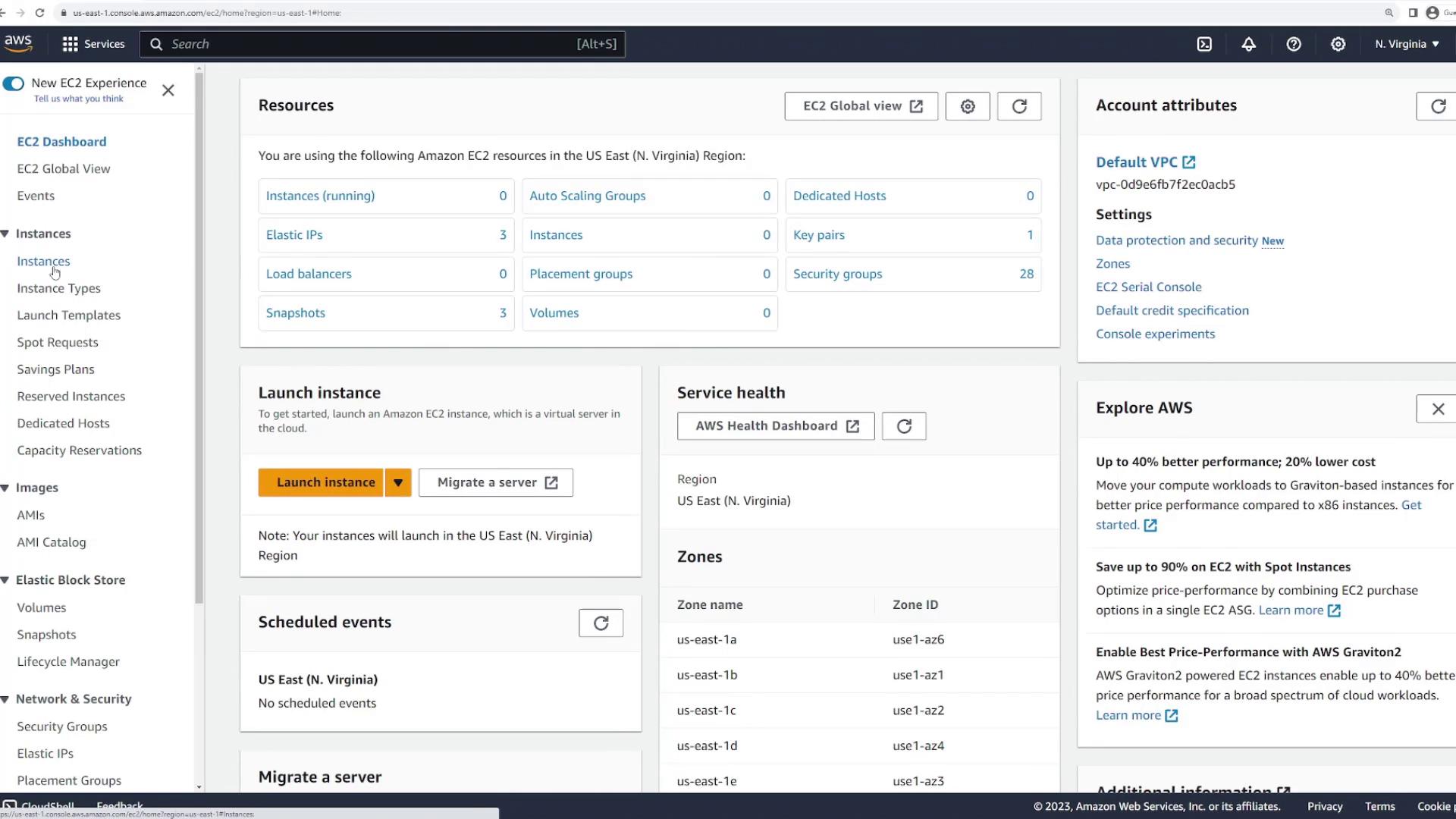
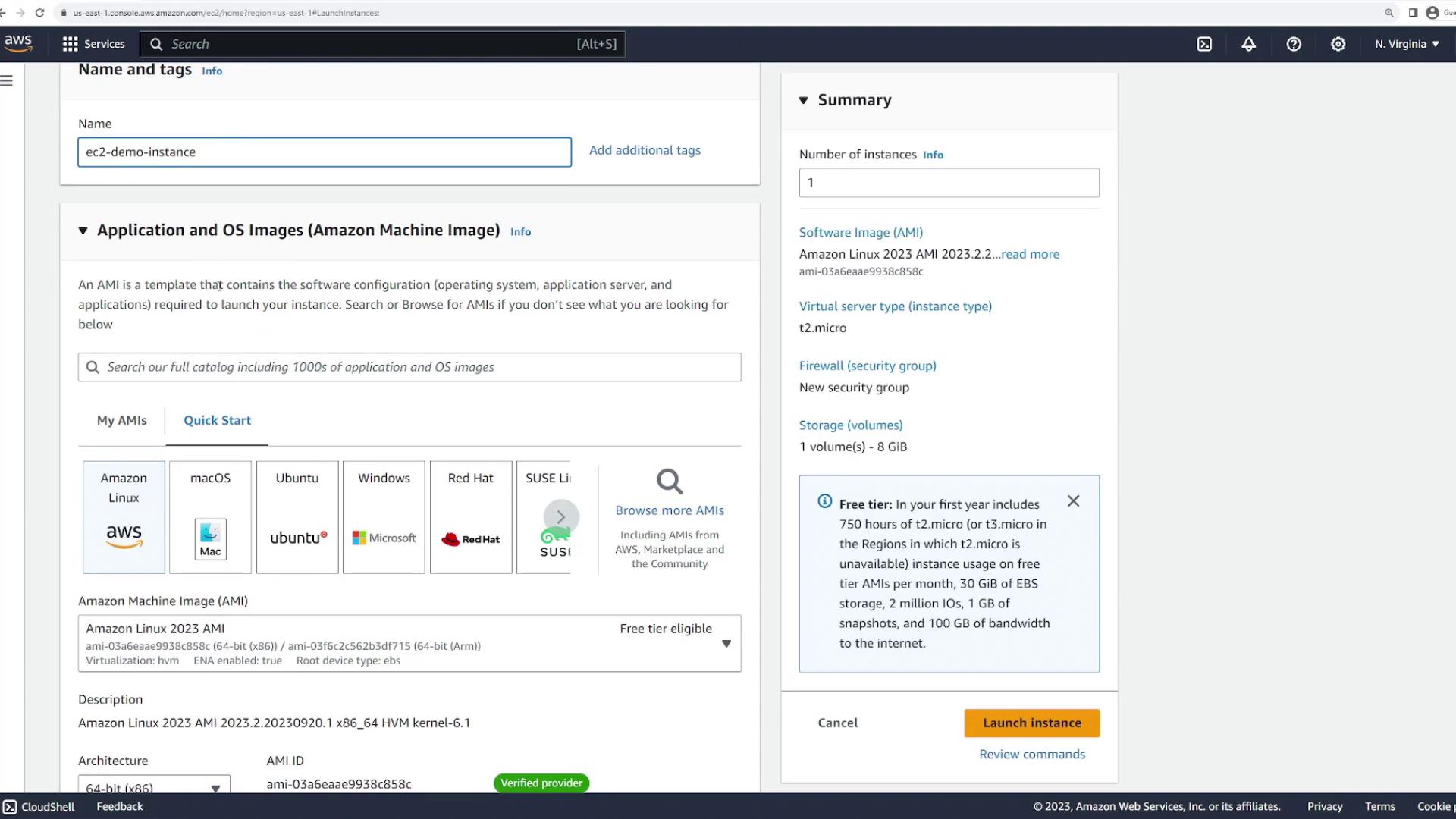
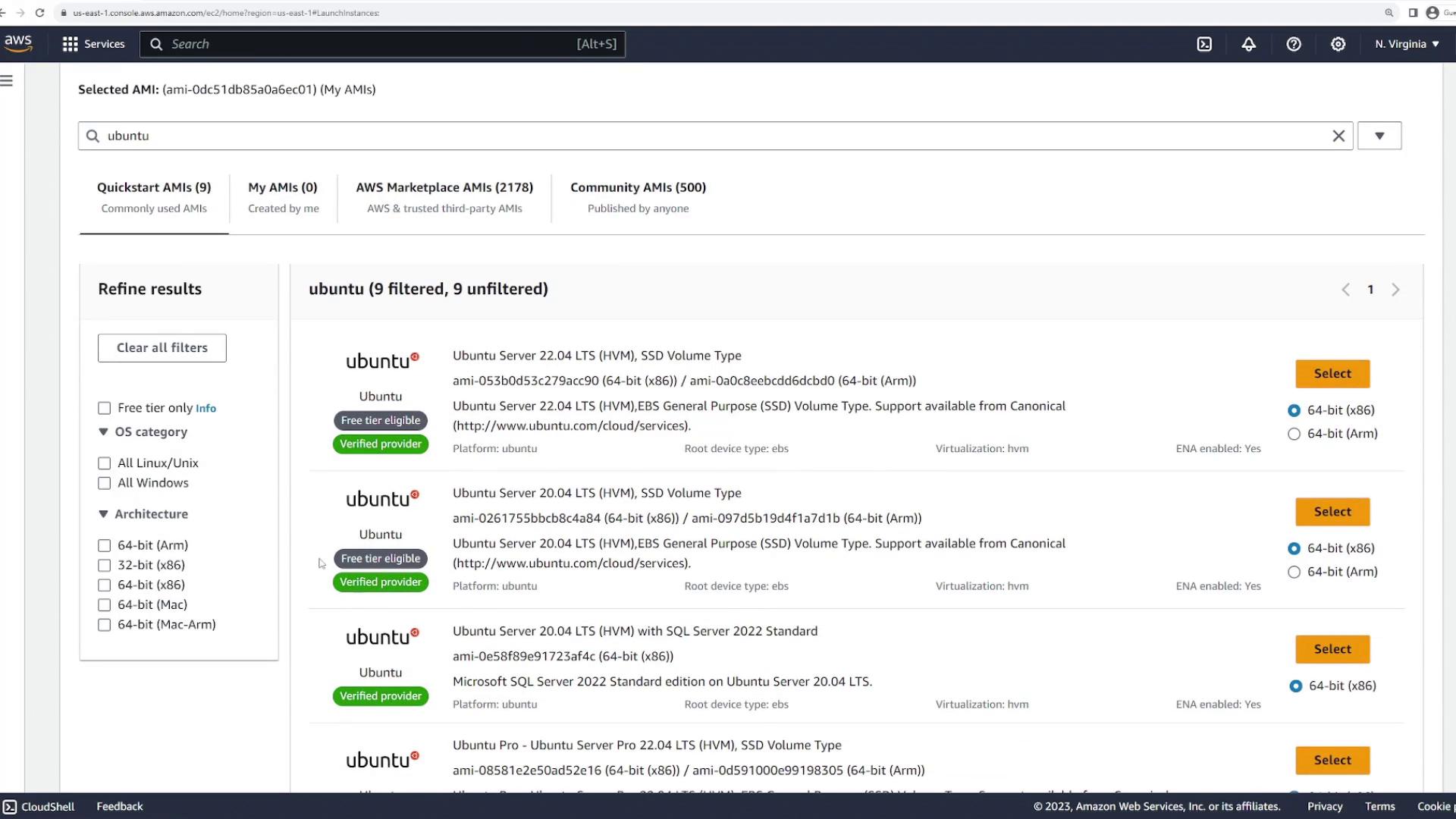

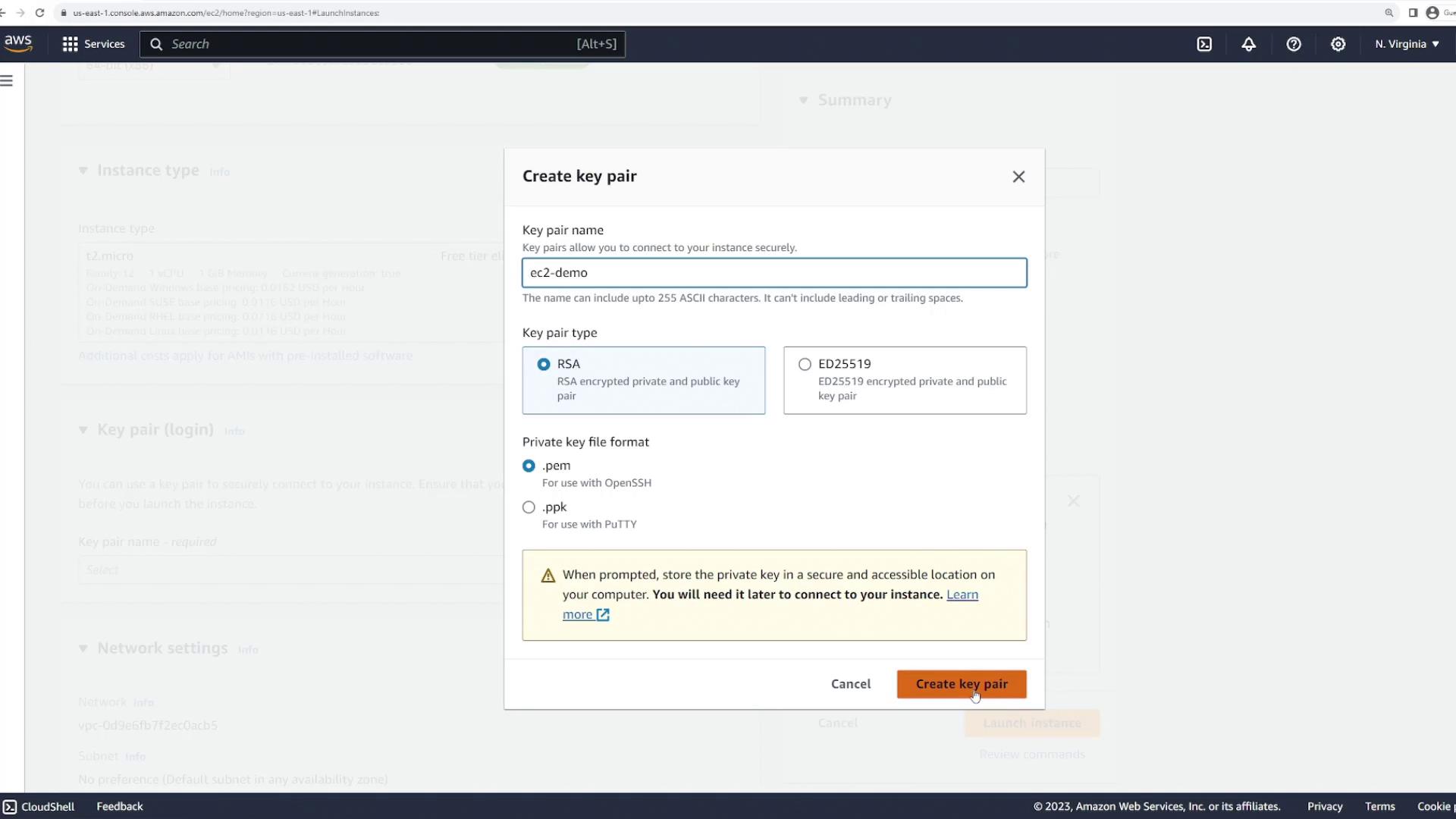
- Select “Create new key pair”.
- Enter a name (e.g., “EC2 demo”).
- Choose the default RSA type and the .pem format.
- Download the PEM file and store it securely.
Configuring Networking and Security
After setting up your key pair, proceed to configure the networking settings including the Virtual Private Cloud (VPC), subnet, and public IP assignment. The default VPC and subnet are usually sufficient, but ensure that you enable a public IP if you need to connect to your instance over the internet. Next, assign an existing security group or create a new one. By default, a new security group includes an inbound rule allowing SSH traffic and outbound rules permitting all traffic. Configure your storage options, such as an 18 GB root volume, and leave advanced options like spot instances or auto recovery settings as default unless your scenario demands a custom setup. Once all settings are applied, click “Launch instance”. Your “EC2 demo instance” will now be deployed.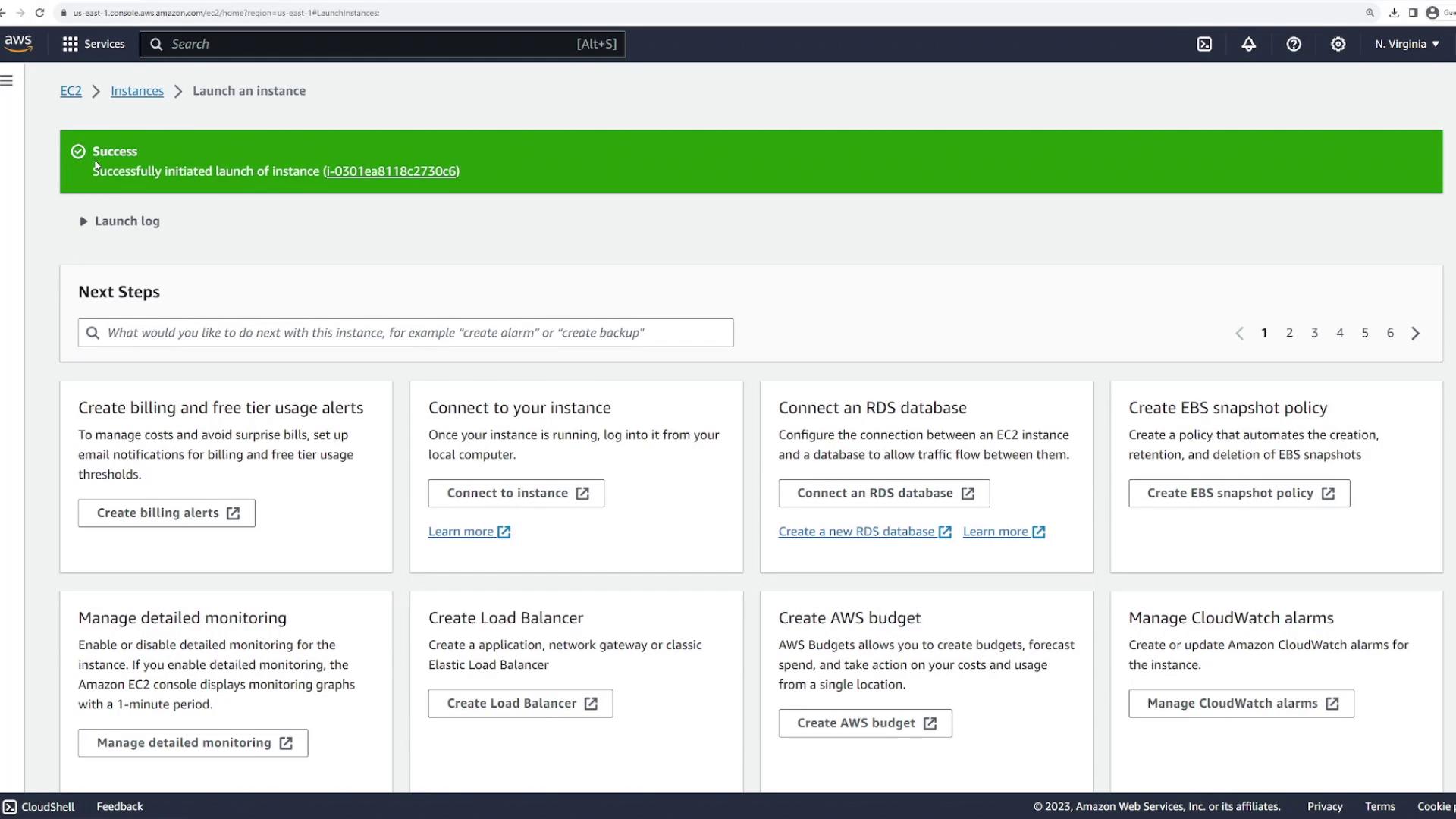
Viewing Instance Details
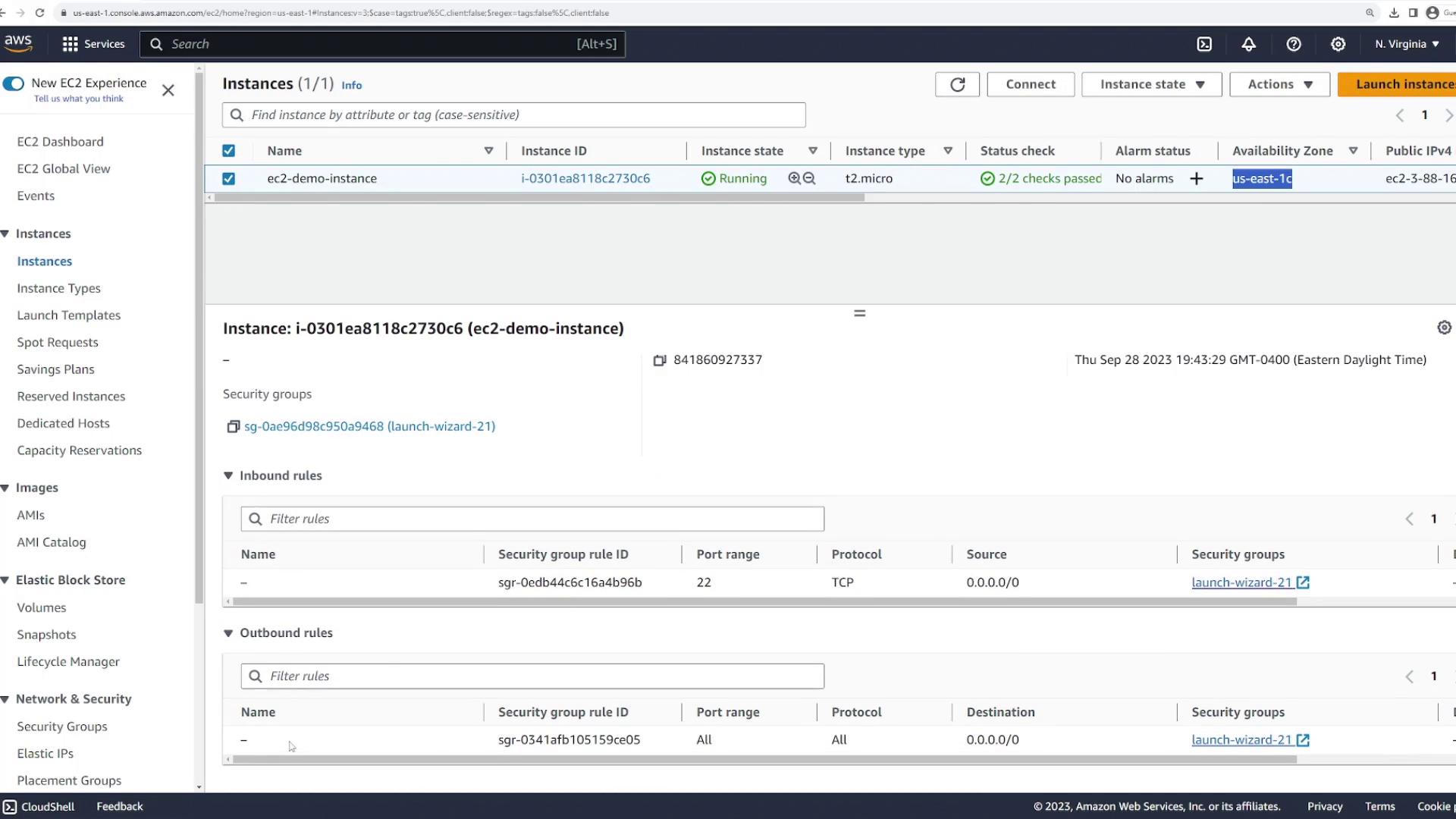
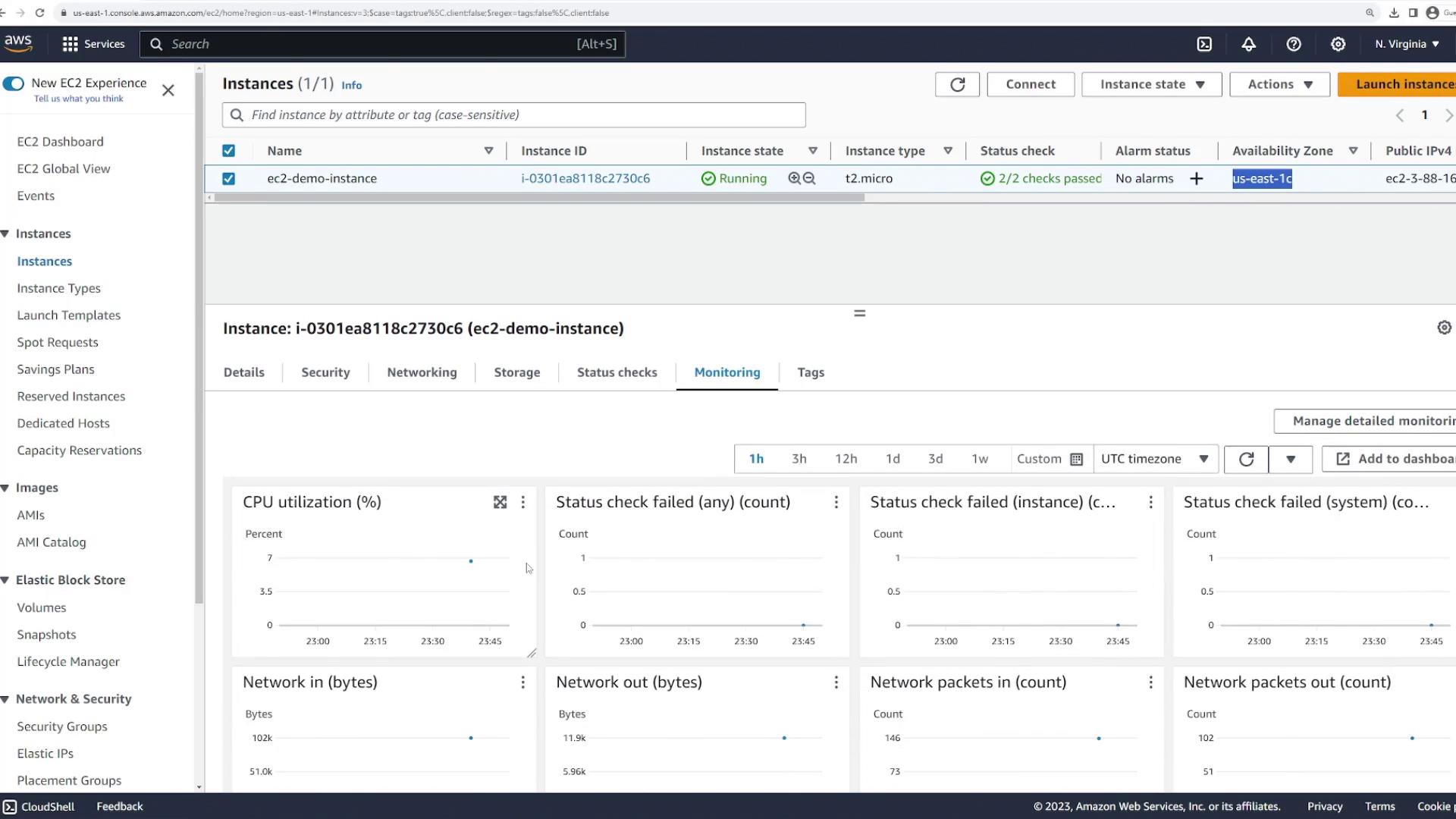
After launching the instance, return to the Instances page to review its details. Here you will find important information such as:- Instance ID
- Current state (running)
- Instance type
- Availability zone
- Public and private IP addresses
- Public DNS name
Connecting to Your EC2 Instance
To establish an SSH connection with your instance, copy its public IP or public DNS address from the instance details page. Then, verify that your PEM file (e.g., “EC2.pem”) is available in your terminal directory:Always ensure your PEM file permissions are set correctly using the chmod command (e.g., chmod 400 ec2-demo.pem) to avoid connection issues.
Stopping and Terminating the Instance
To avoid unnecessary costs, it is important to stop or terminate your instance after use. To stop the instance, navigate back to the AWS console, select your instance, and choose “Stop instance” from the “Instance State” menu. The state will transition from “running” to “stopping” and finally to “stopped”. You can restart, reboot, or hibernate the instance if needed.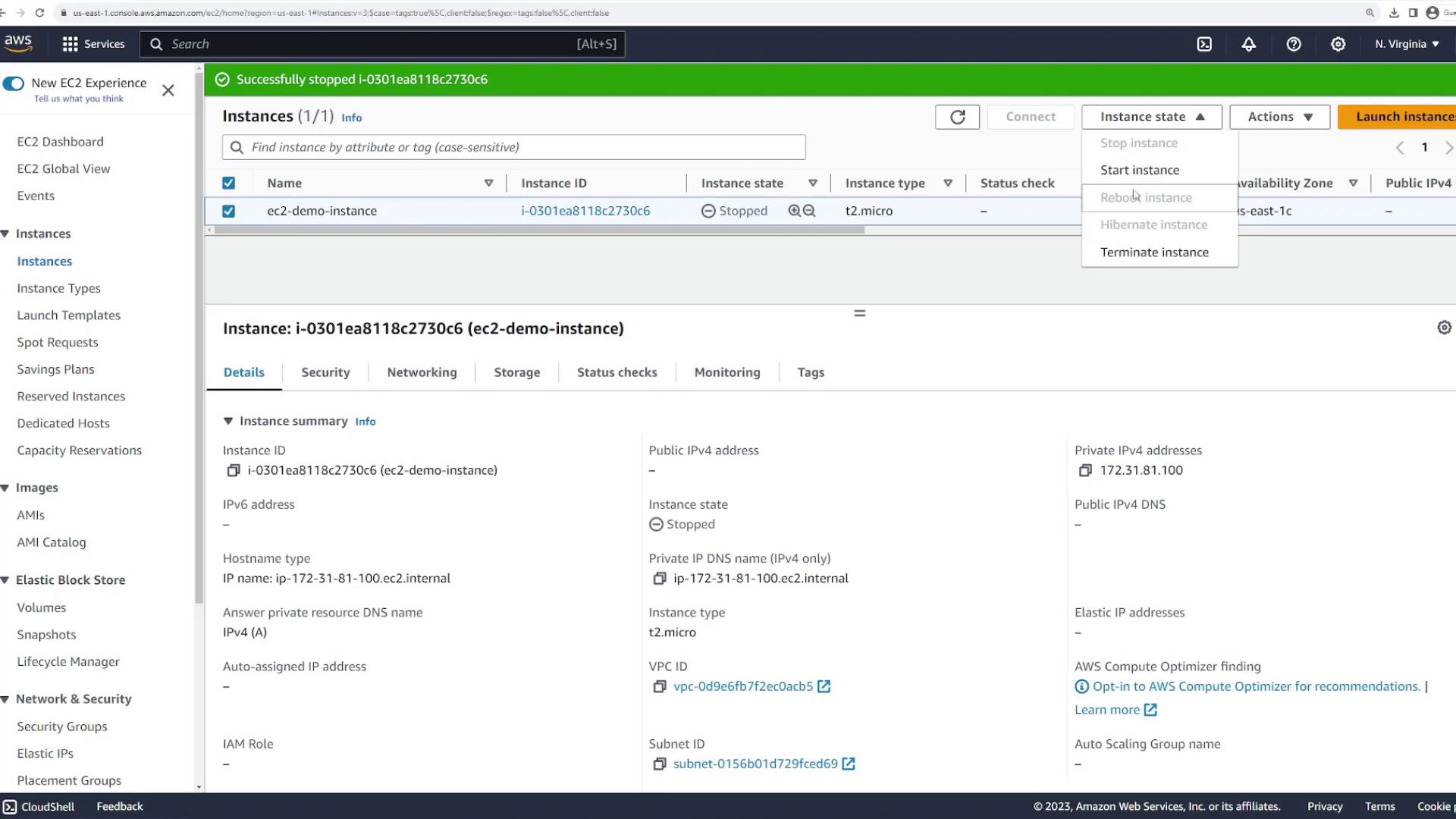
Always terminate instances that are no longer in use to prevent unexpected billing charges.
This concludes our comprehensive guide on deploying, connecting to, and managing an Amazon EC2 instance. Enjoy your journey in cloud computing and explore more advanced AWS features to scale your infrastructure!