

- How EventBridge event buses isolate and receive events.
- How rules match events and route them to targets.
- How to build event patterns for AWS services (EC2) and custom events.
- How to test events end-to-end using Lambda and CloudWatch Logs.
Event buses
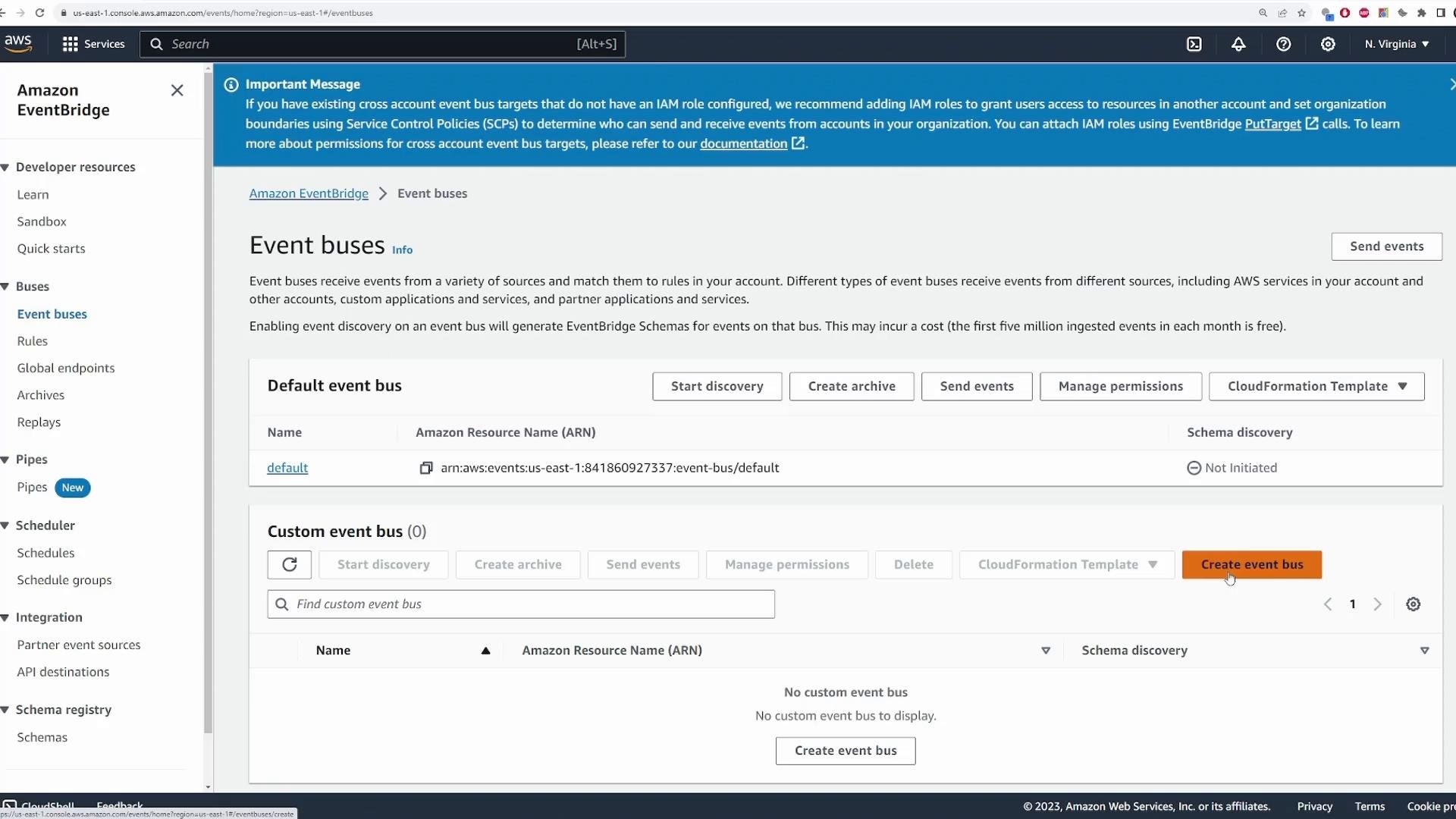
EventBridge provides a default event bus for your account; you can create custom buses to isolate apps or teams. For this demo we use the default event bus — the workflow is identical for custom buses.
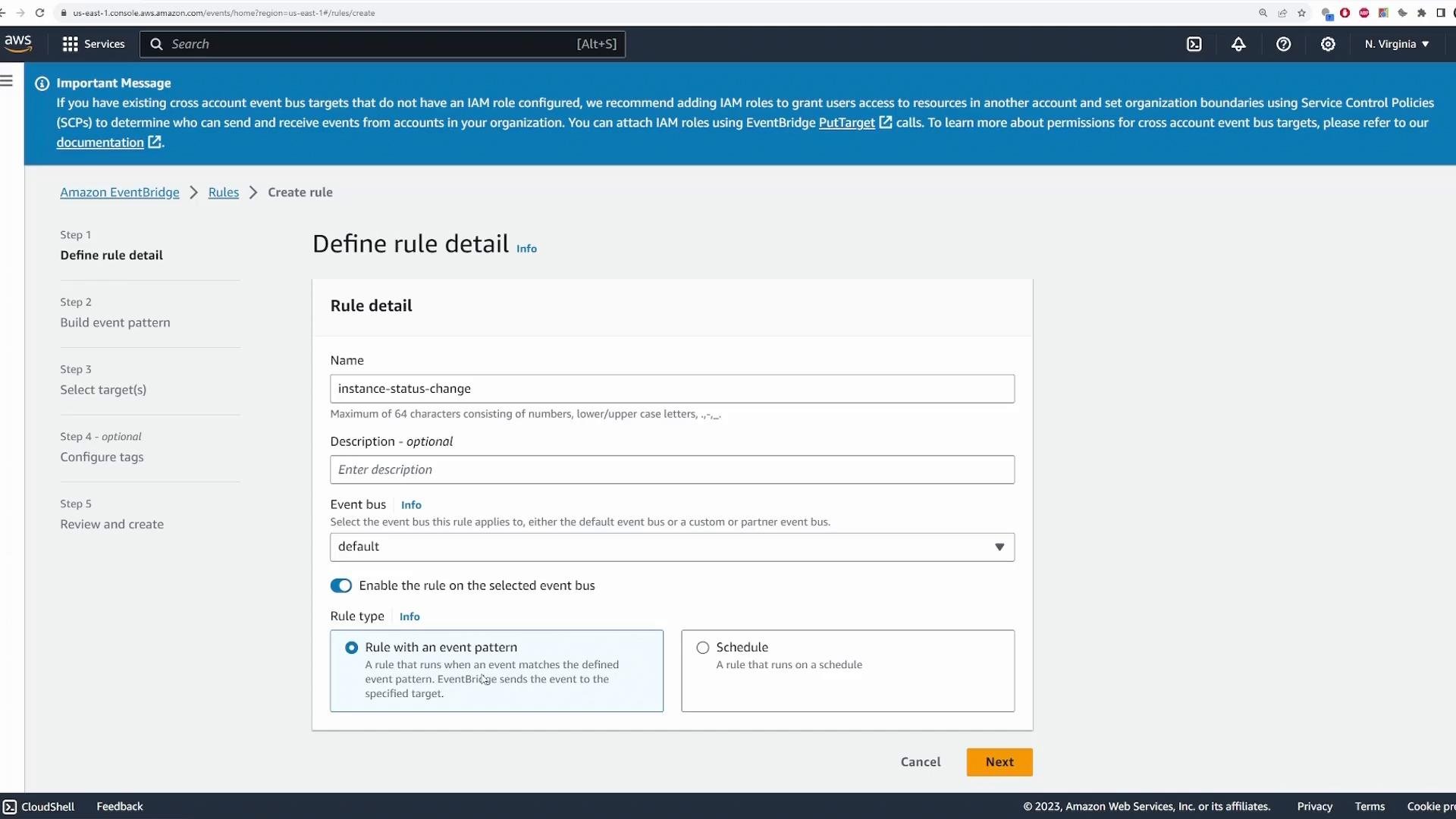
- Event pattern — Runs when an incoming event matches the JSON pattern.
- Schedule — Runs on a cron-like schedule for time-based triggers.
- Schema discovery (discover shapes of AWS events)
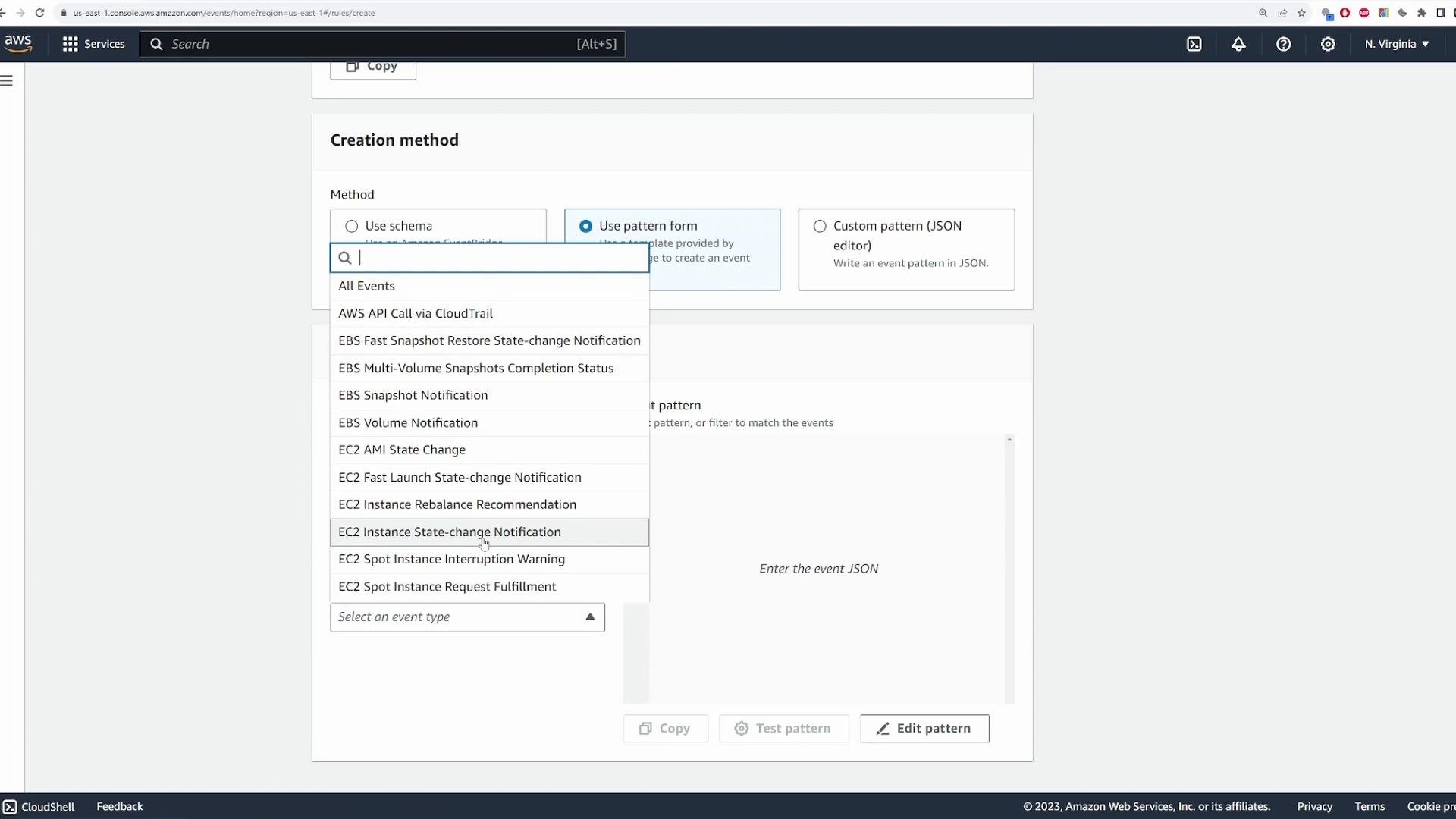
- Pattern form (guided form by service and event type)
- Custom JSON (paste or author your own JSON)
- The AWS service (EC2)
- The event type (EC2 Instance State-change Notification)
- Optional filters such as specific state(s) (
shutting-down,stopped,terminated) or specific instance IDs
shutting-down state:
detail.state key so the rule matches any EC2 state change.
Choosing targets
After defining the pattern, attach one or more targets to receive matched events. Common targets include Lambda, SNS, SQS, Step Functions, and ECS tasks. You can add multiple targets to run different actions in response to the same event.
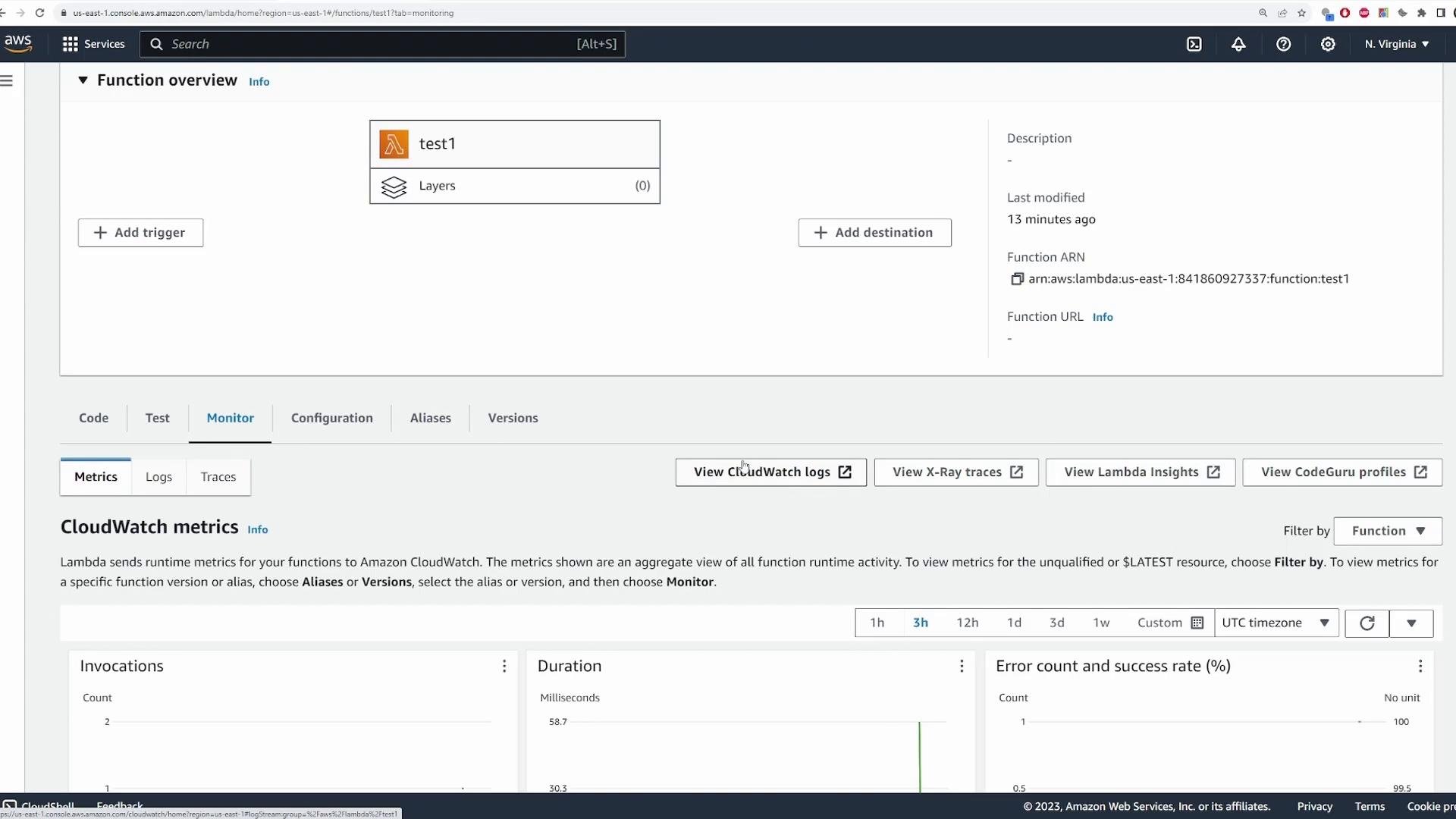
Example Lambda ARN shown in the console:
arn:aws:lambda:us-east-1:841860927337:function:test1
Lambda handler (example)
For testing, have your Lambda log the incoming event payload. A minimal Node.js handler that prints the event:
- A minimal Node.js/Express example that emits an EventBridge event on user signup.
- Instructions for creating an EventBridge rule to match that custom event.
- Steps to verify the Lambda target received the custom event.
Source— free-form identifier for the event source (e.g.,"my-app").DetailType— describes the kind of event (e.g.,"New User").Detail— a JSON string containing the event payload.
my-app and DetailType New User looks like this:
test2) so that when your application emits the event, EventBridge routes it to the Lambda.
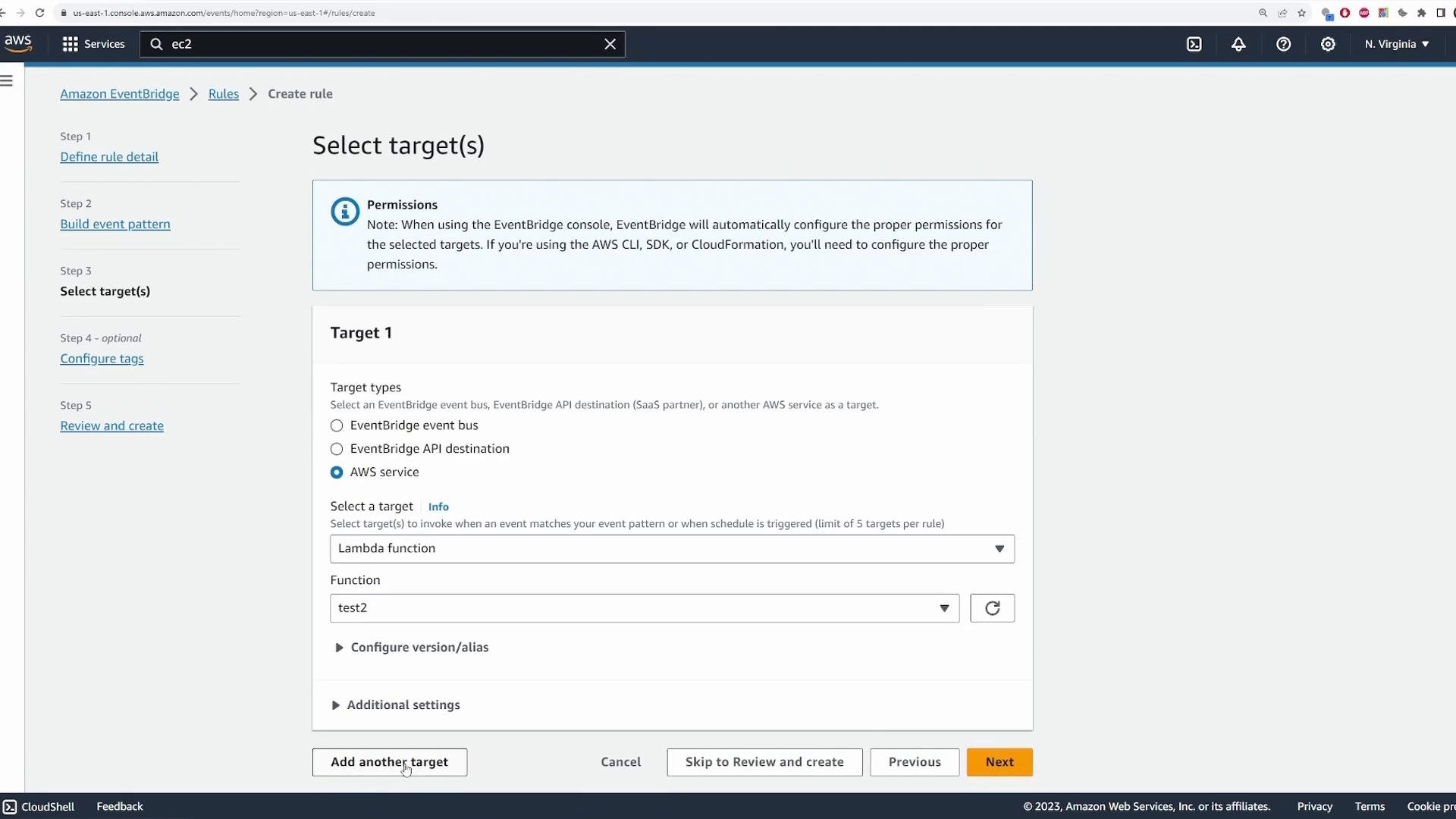
/signup:
Example curl request:
- EventBridge ingests both AWS service events and custom application events.
- Use event rules to match patterns and route events to one or more targets.
- Lambda is a common, lightweight target for processing, forwarding, or debugging events.
- Custom events enable decoupled, event-driven architectures across applications and AWS services.
- Amazon EventBridge documentation: https://docs.aws.amazon.com/eventbridge/latest/userguide/
- AWS Lambda docs: https://docs.aws.amazon.com/lambda/latest/dg/welcome.html
- AWS SDK for JavaScript v3 (EventBridge client): https://docs.aws.amazon.com/AWSJavaScriptSDK/v3/latest/clients/client-eventbridge/
Use the EventBridge pattern form and sample events to explore available fields for different AWS services — this makes it easier to build precise matching rules without guessing the event shape.