

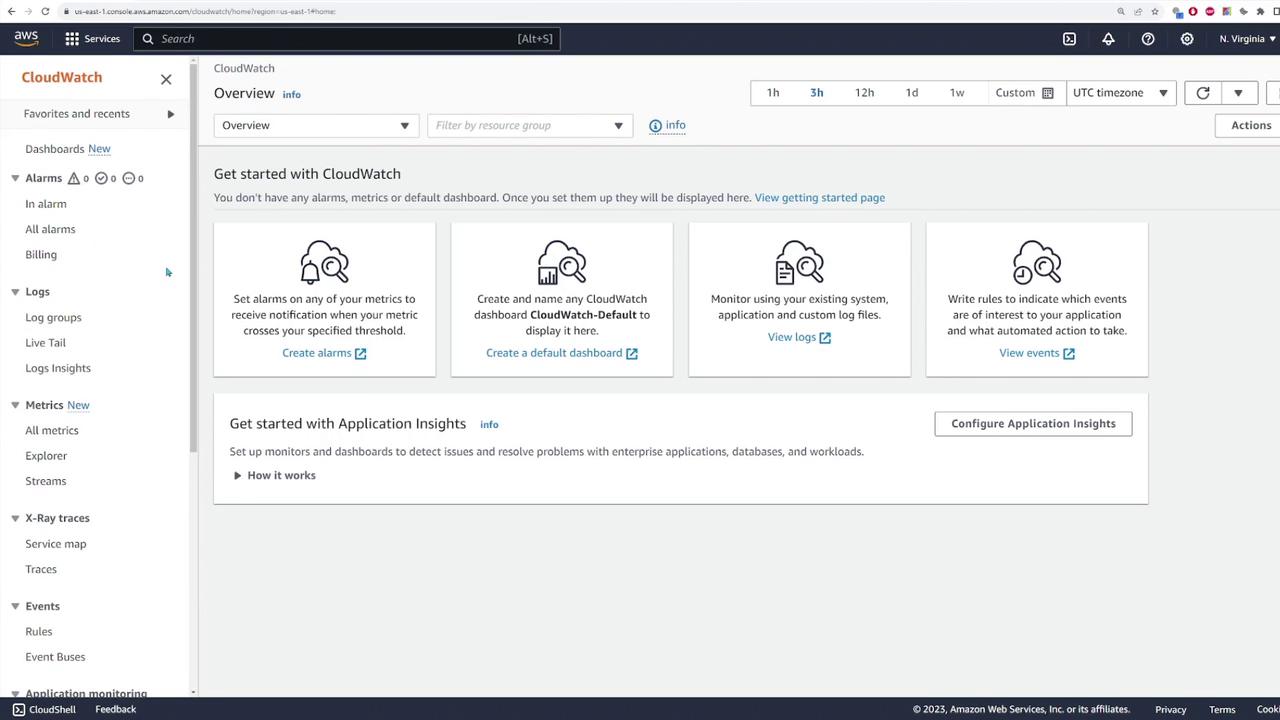
Logs
CloudWatch’s centralized log management lets you collect and analyze logs from different services and applications across your AWS account. Logs are organized into log groups based on your configurations or the specific service/resource generating them. This means you can have distinct log groups for your DataSync operations, each Lambda function, or services like AWS Macie.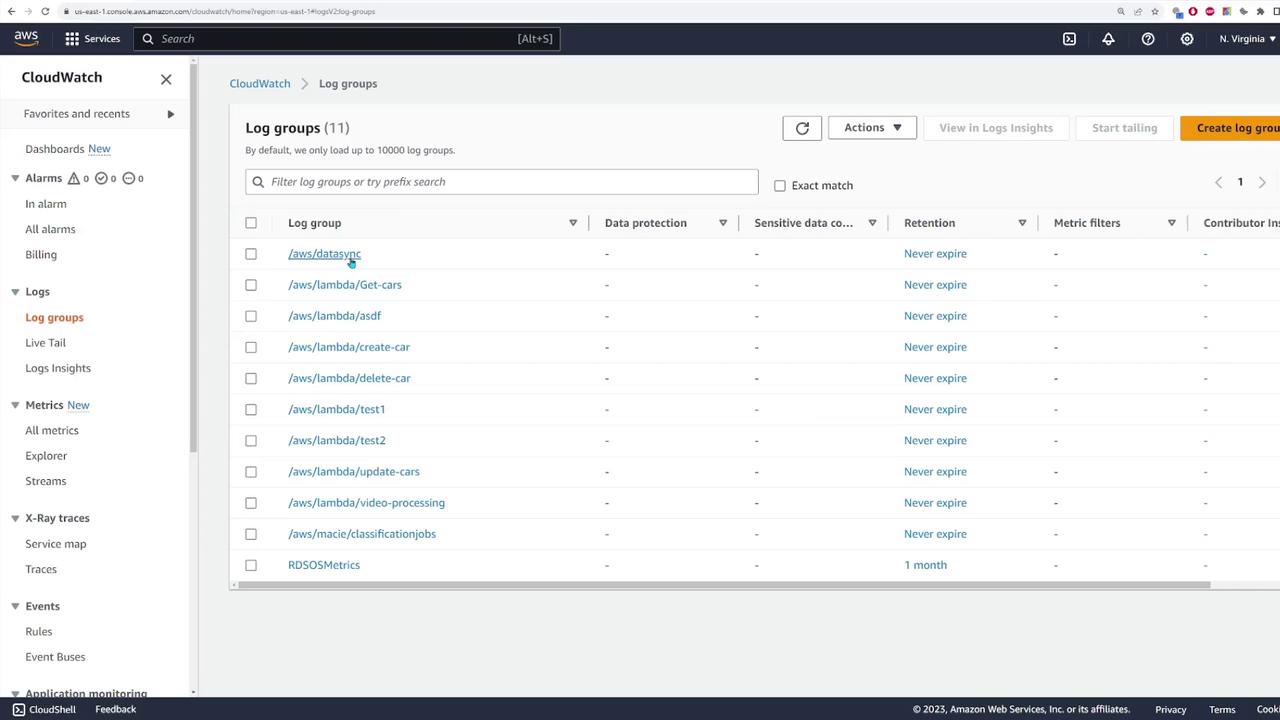
Viewing Log Streams
Within each log group, inspect individual log streams. For example, when you navigate to the logs of a Lambda function (e.g., “test one”), you’ll notice several log streams that include timestamps of the last events. Selecting a log stream reveals detailed log data such as initialization messages, invocation details, and function output.
This live tail feature is invaluable for immediate insights during troubleshooting, allowing you to quickly pinpoint issues as they occur.
Log Insights
CloudWatch Log Insights provides a powerful query language similar to SQL, enabling you to filter and analyze logs efficiently. For instance, you can execute the following query to list the 20 most recent log entries:Metrics
CloudWatch collects a variety of metrics for your AWS resources. To view these metrics, navigate to the “All Metrics” section. You can filter metrics by service; for example, EC2 metrics include CPU utilization, status checks, network traffic, and EBS operations. Consider the following example for monitoring CPU utilization of an EC2 instance: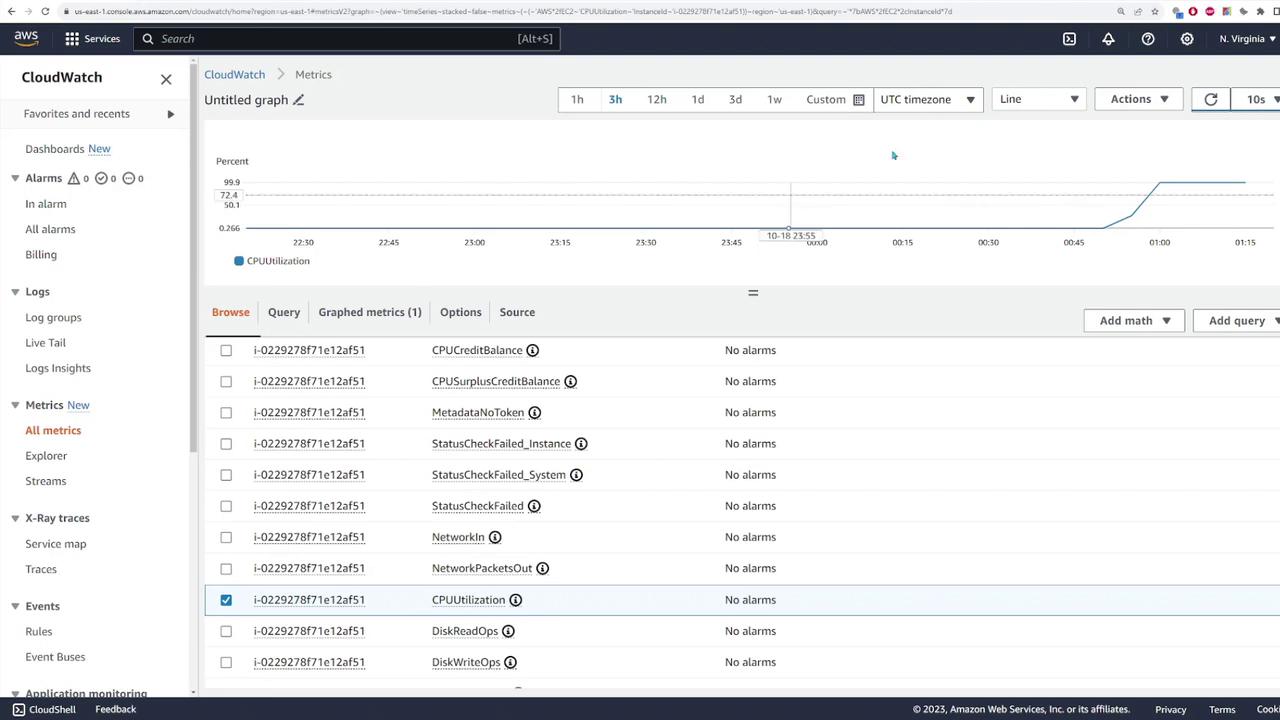
Creating Alarms
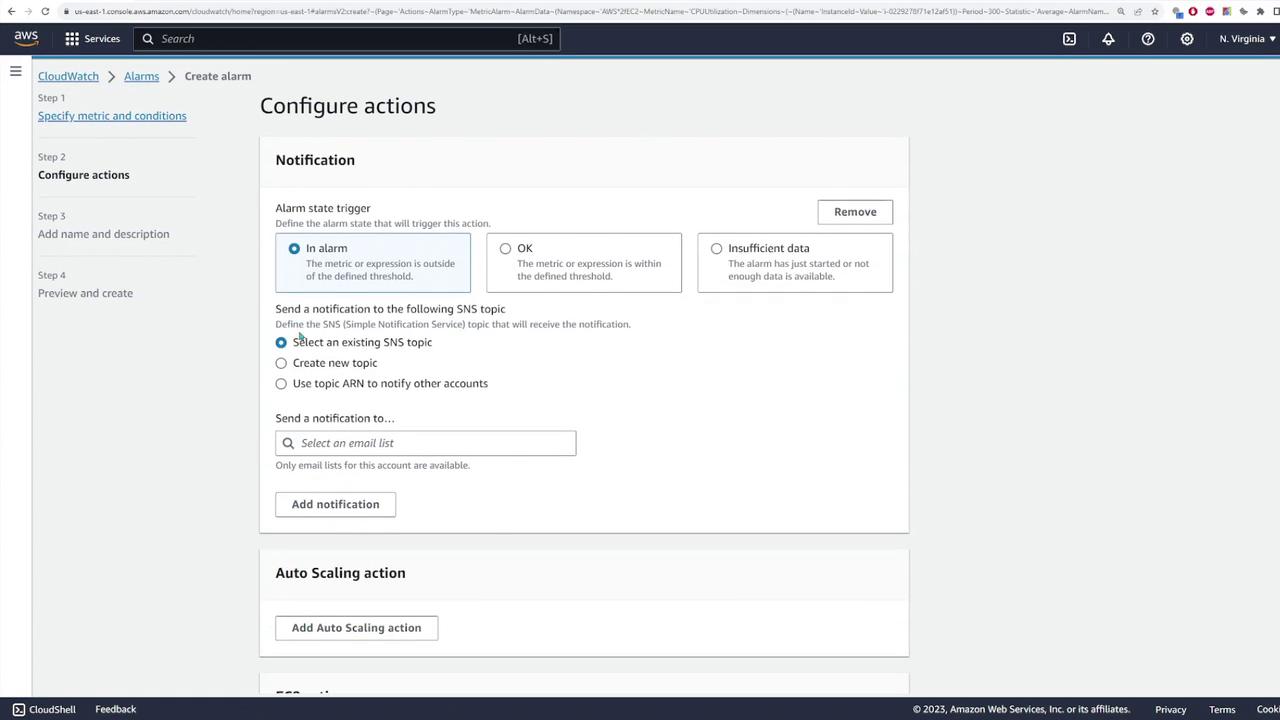
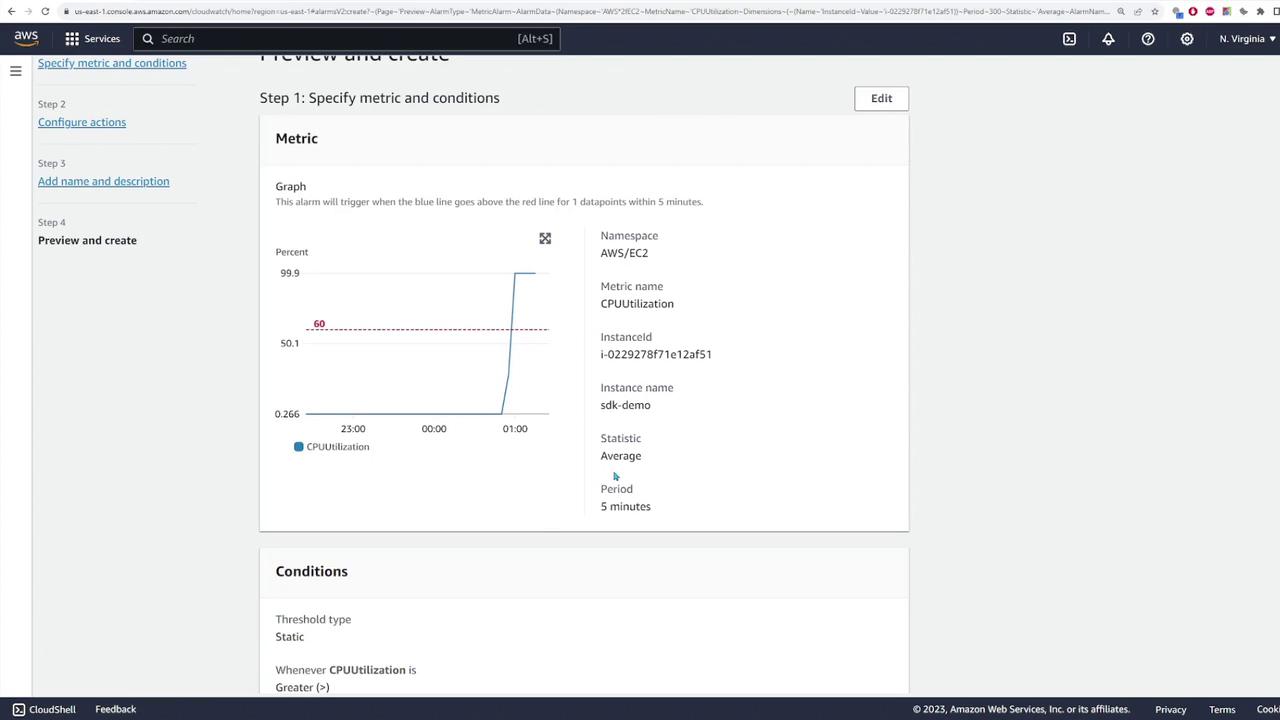
CloudWatch alarms allow you to monitor specific metrics and trigger notifications when thresholds are exceeded. For instance, you can create an alarm for CPU utilization. When the average CPU usage exceeds a predefined static threshold—say 60% over a five-minute period—an alarm is triggered.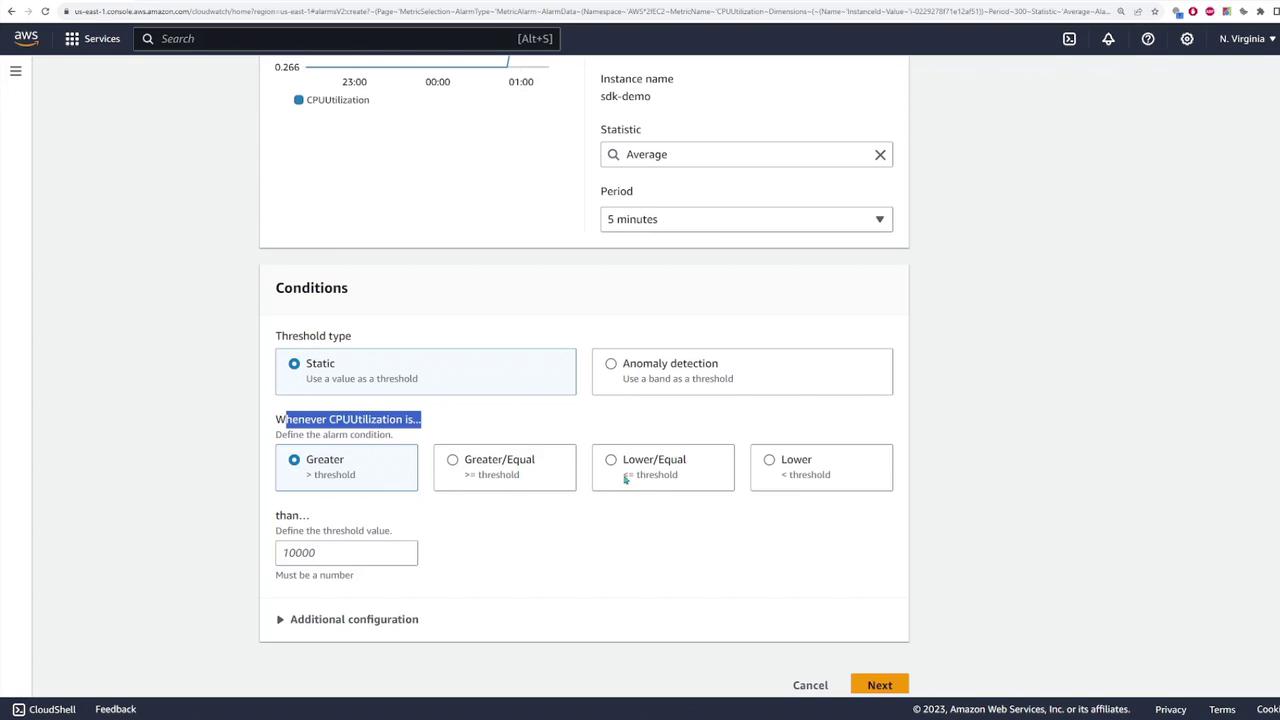
Additional Features
CloudWatch offers several additional capabilities to enhance monitoring:- X-Ray Traces: Monitor distributed applications with AWS X-Ray. (Note: This demo does not include an X-Ray example.)
- Service-Specific Insights: Leverage tailored pages such as Container Insights, Lambda Insights, and Application Insights.
- Events: Utilize Amazon EventBridge (formerly CloudWatch events) to define rules that trigger actions based on specific AWS environment events.
Dashboards
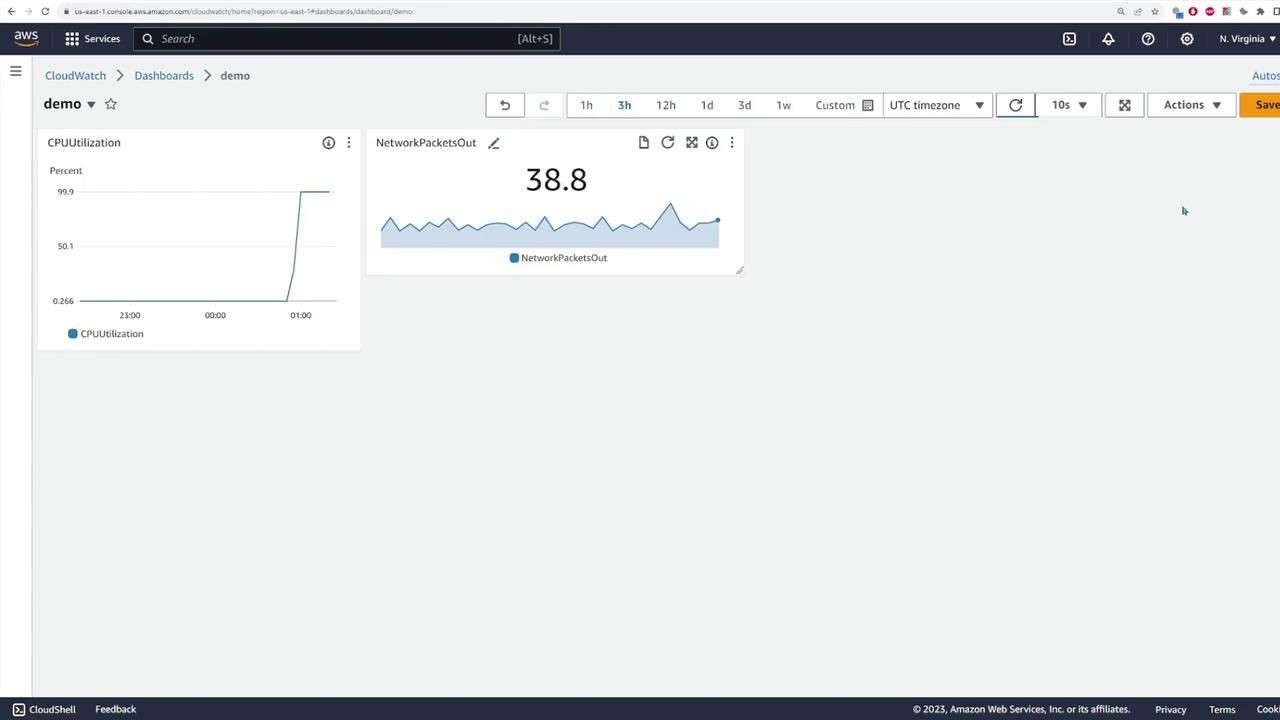
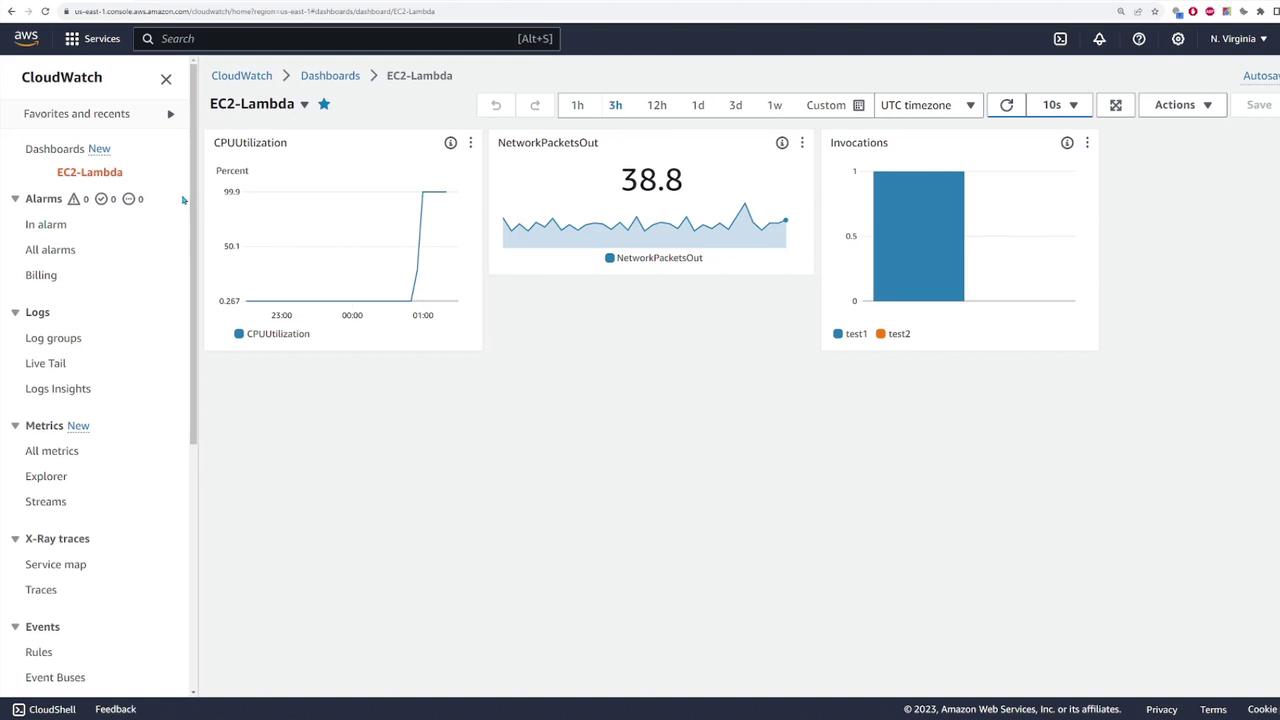
Dashboards in CloudWatch let you assemble metrics and logs into customizable visual displays. Creating a dashboard is straightforward:- Navigate to the “Dashboards” section and click “Create dashboard.”
- Name your dashboard (e.g., “demo”) and add various widgets:
- Metric Widgets: Insert a line graph for CPU utilization by selecting the corresponding metric.
- Numeric Widgets: Include widgets that showcase numerical data, such as the number of network packets sent.
- Lambda Invocation Metrics: Display the number of invocations for your Lambda functions.
This overview of CloudWatch has covered log management, live tailing, log insights, metrics, alarms, and dashboards. Experiment with these features to tailor your AWS monitoring strategy to your specific requirements. Happy monitoring!