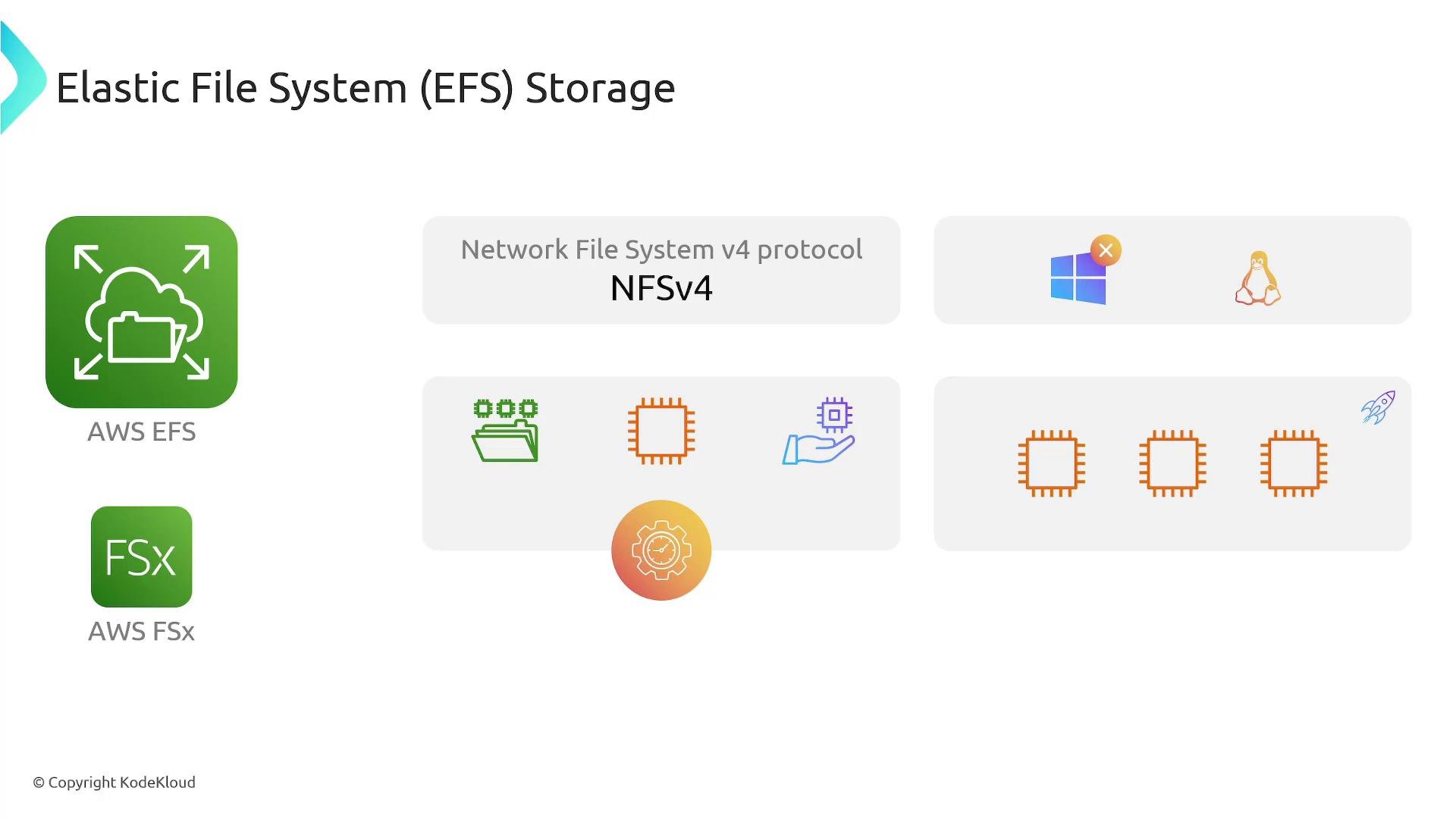
In this lesson we cover file-system storage on AWS, focusing on Amazon Elastic File System (EFS). EFS is a managed, NFS-based file system (commonly NFS v4.1) that lets multiple Linux-based compute instances mount the same file system concurrently. Because EFS uses NFS, it is not supported on Windows EC2 instances.
A presentation slide about AWS Elastic File System (EFS) and FSx showing the NFSv4 protocol, with a Linux icon and a crossed-out Windows icon to indicate compatibility, plus illustrations of compute and scalability.
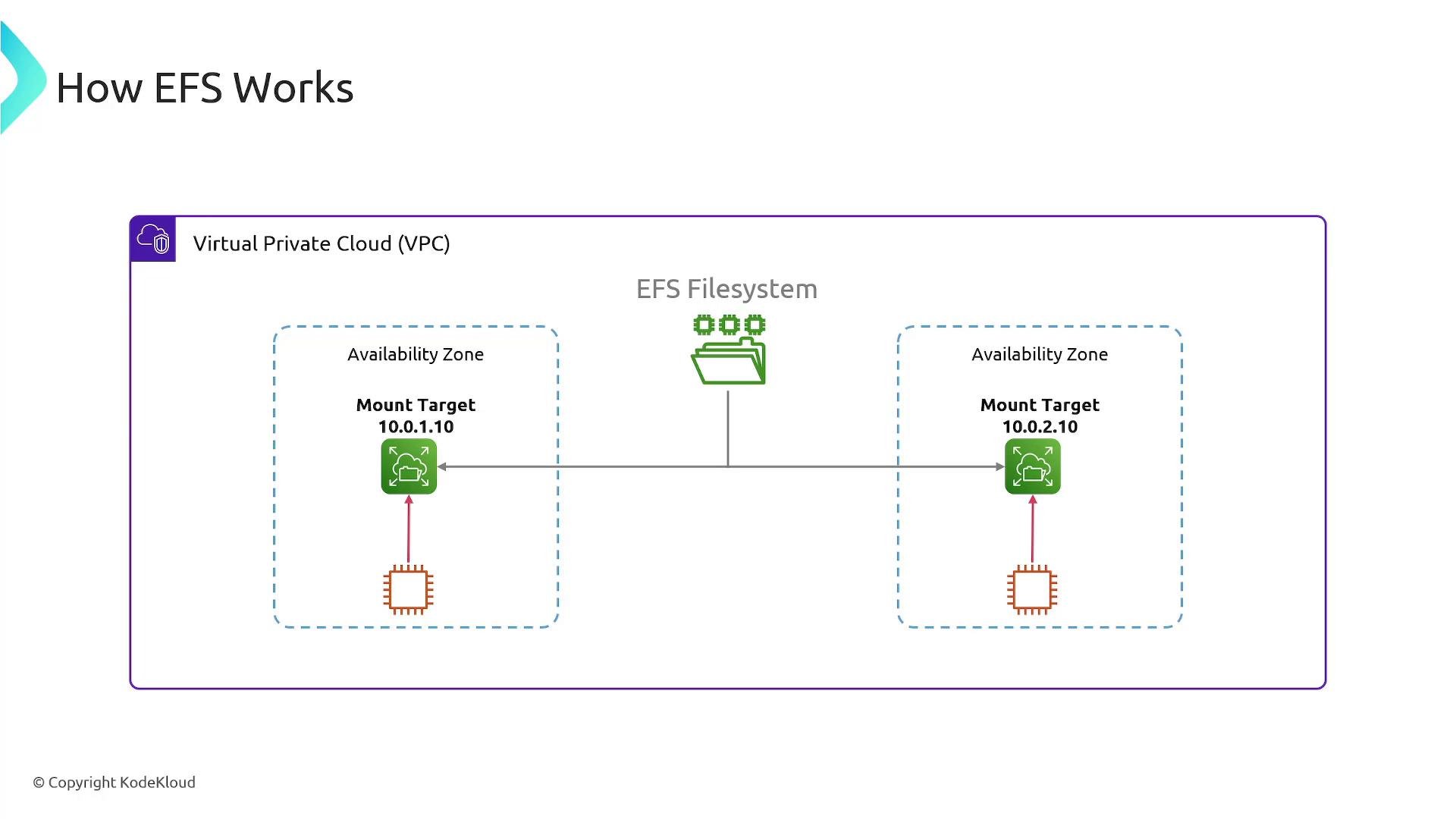
EFS is deployed inside an Amazon VPC. To make a file system accessible, EFS creates mount targets in the subnets you select. Each mount target receives its own IP address within its subnet — instances use those IPs to reach and mount the file system. For high availability, create mount targets in multiple Availability Zones (AZs) so EC2 instances in each AZ can mount a local mount target and avoid cross‑AZ network hops.
A network diagram titled "How EFS Works" showing an EFS filesystem inside a VPC with mount targets in two Availability Zones. Each mount target (10.0.1.10 and 10.0.2.10) is connected to a compute instance.
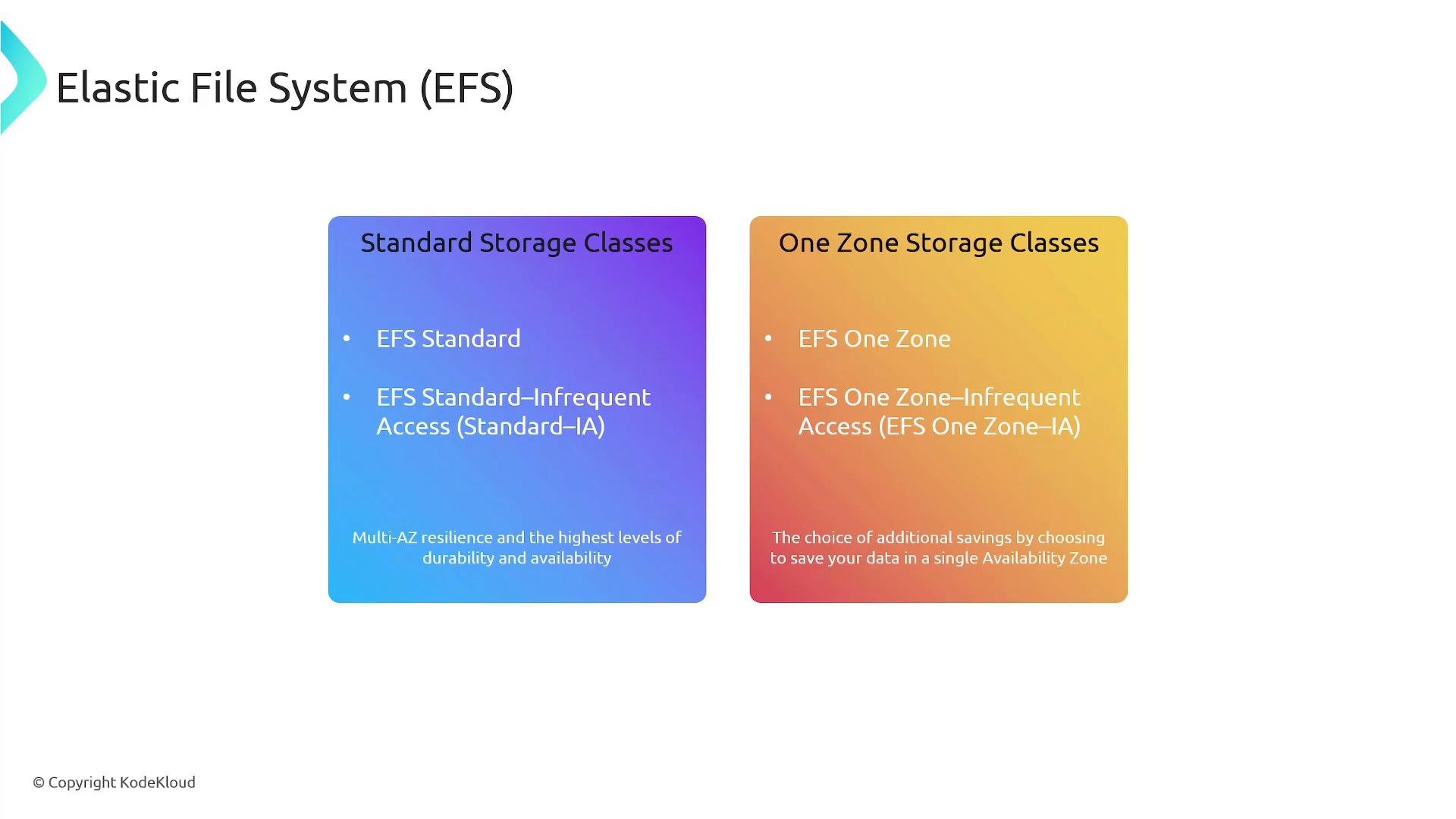
Storage classes EFS provides multi‑AZ and single‑AZ storage options to balance durability and cost. Use the table below to compare the storage classes and pick the right one for your workload.
A presentation slide titled "Elastic File System (EFS)" showing two colored boxes comparing "Standard Storage Classes" and "One Zone Storage Classes." Each box lists the corresponding EFS options (EFS Standard / Standard‑IA vs EFS One Zone / One Zone‑IA) with brief notes about multi‑AZ resilience and cost savings.
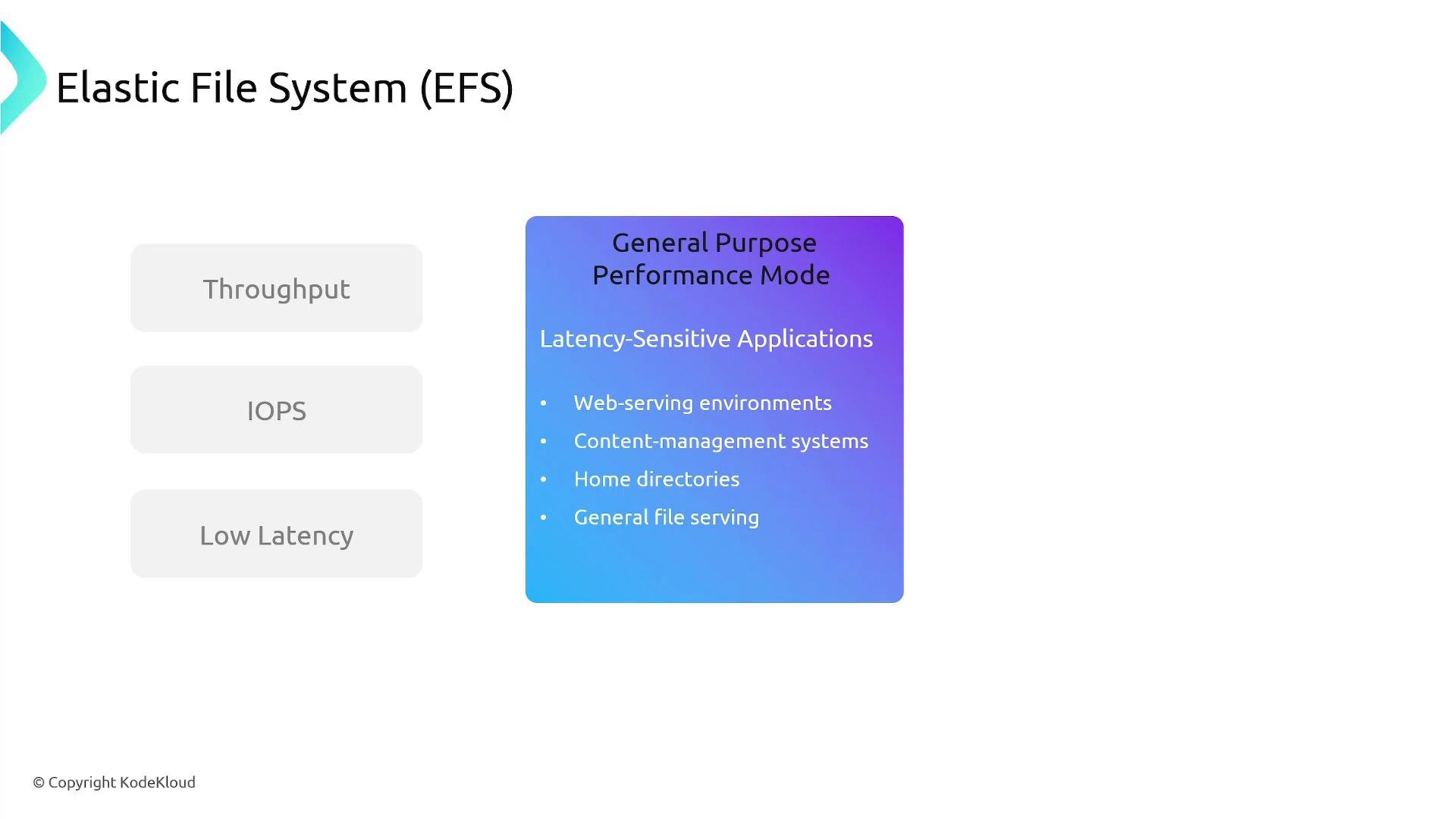
Performance and throughput modes EFS separates performance behavior (latency, IOPS characteristics) from throughput allocation. Choose the appropriate mode for your workload. Performance modes Throughput modes
A slide titled "Elastic File System (EFS)" highlighting the General Purpose Performance Mode. It lists latency-sensitive use cases like web-serving, content-management systems, home directories, and general file serving.
Mounting EFS on an EC2 Linux instance Follow these steps to mount an EFS file system from a Linux EC2 instance. Replace fs-01234567 with your EFS File System ID and us-east-1 with your region where applicable.
  1. Install the EFS mount helper (amazon-efs-utils). Use your distribution’s package manager:
  1. Create a mount point and mount the file system:
Optional: persist the mount with /etc/fstab. Example fstab entry using the mount helper and TLS:
Important network and security considerations
  • Ensure the mount targets and EC2 instances are in the same VPC (or connected via VPC peering / Transit Gateway where supported).
  • Security groups and NACLs must allow NFS traffic — typically TCP port 2049 — between the instances and the mount targets.
  • For cross-AZ reliability, create mount targets in each AZ you use.
Make sure your security groups and network ACLs permit TCP port 2049 (NFS) between your instances and the EFS mount targets. If network rules block NFS, mounts will fail. Also confirm that route tables and subnet configuration allow connectivity to the mount target IPs.
EFS mounts are NFS-based and supported only on Linux clients. EFS is not a bootable (root) volume — you cannot install an OS on EFS. Use EBS for root volumes and booting instances. Consider EFS Access Points and POSIX permissions for per-application access control.
Summary
  • Amazon EFS is a managed, NFS-based file system service that enables concurrent, shared access from multiple Linux instances.
  • EFS file systems are exposed inside a VPC using mount targets; each mount target is an IP address in a chosen subnet/AZ.
  • Choose between Standard (multi‑AZ) and One Zone storage classes depending on durability and cost requirements.
  • Select the appropriate performance mode (General Purpose or Max I/O) and throughput mode (Bursting or Provisioned) to match application latency and throughput needs.
  • EFS cannot be used as a boot/root volume — use block storage (EBS) for booting.
Links and references

Watch Video