Website File Structure
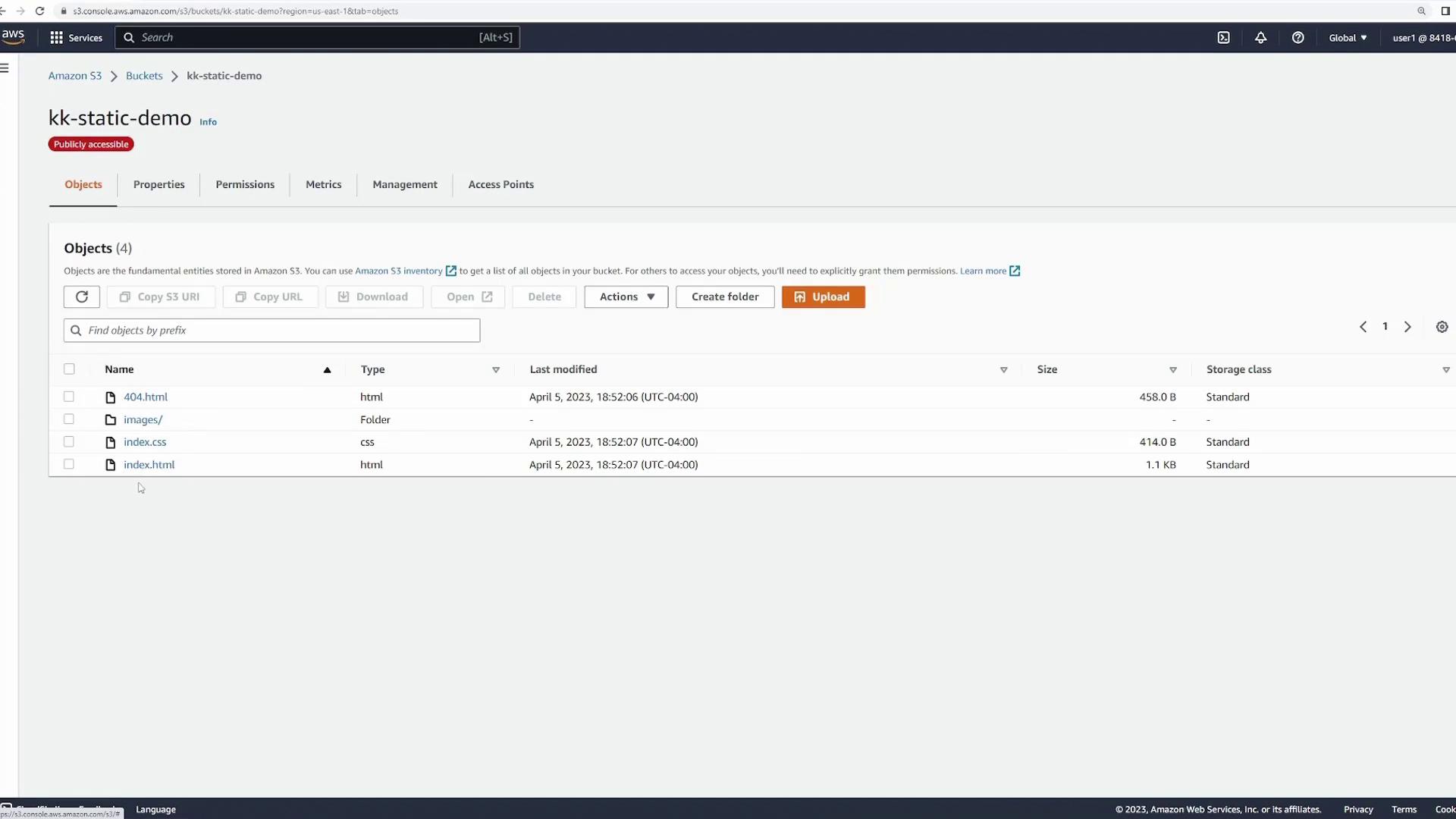
Before uploading your site to S3, it’s important to familiarize yourself with the file structure. Below is an illustration of the website components: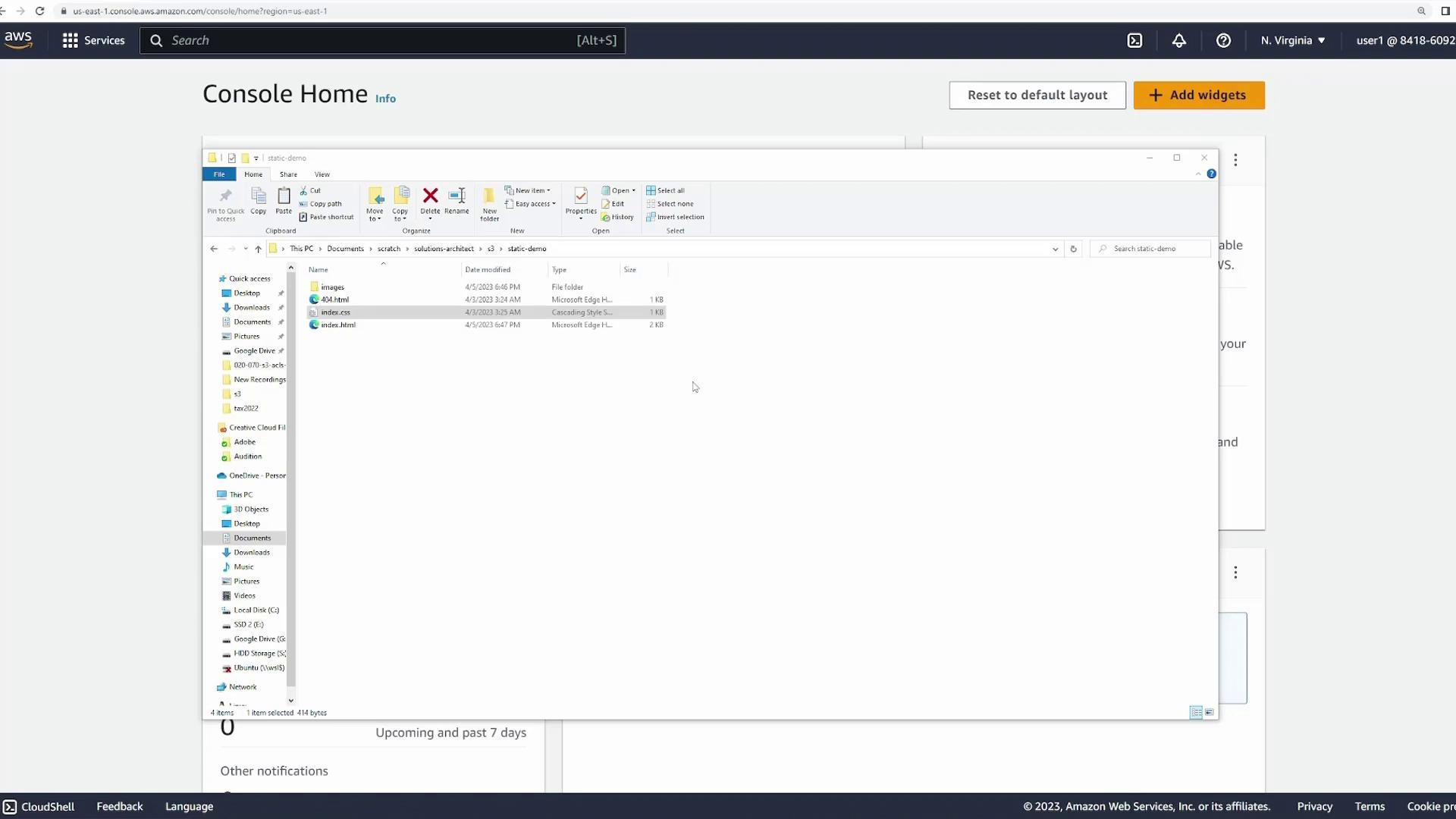
- index.html: The landing page that loads the CSS file and displays images.
- index.css: Contains the styling and visual presentation for the website.
- 404.html: A custom error page shown when a user navigates to a non-existent page.
- images folder: Stores various food images referenced in the HTML file.
index.html file by default, which in turn loads the necessary CSS and images. If a non-existent file is requested, the custom 404 page is returned.
Uploading Files to S3
To get started, log in to the S3 console and create a new bucket for your static website.- Create a new bucket (e.g., “static-demo”) using the default settings.
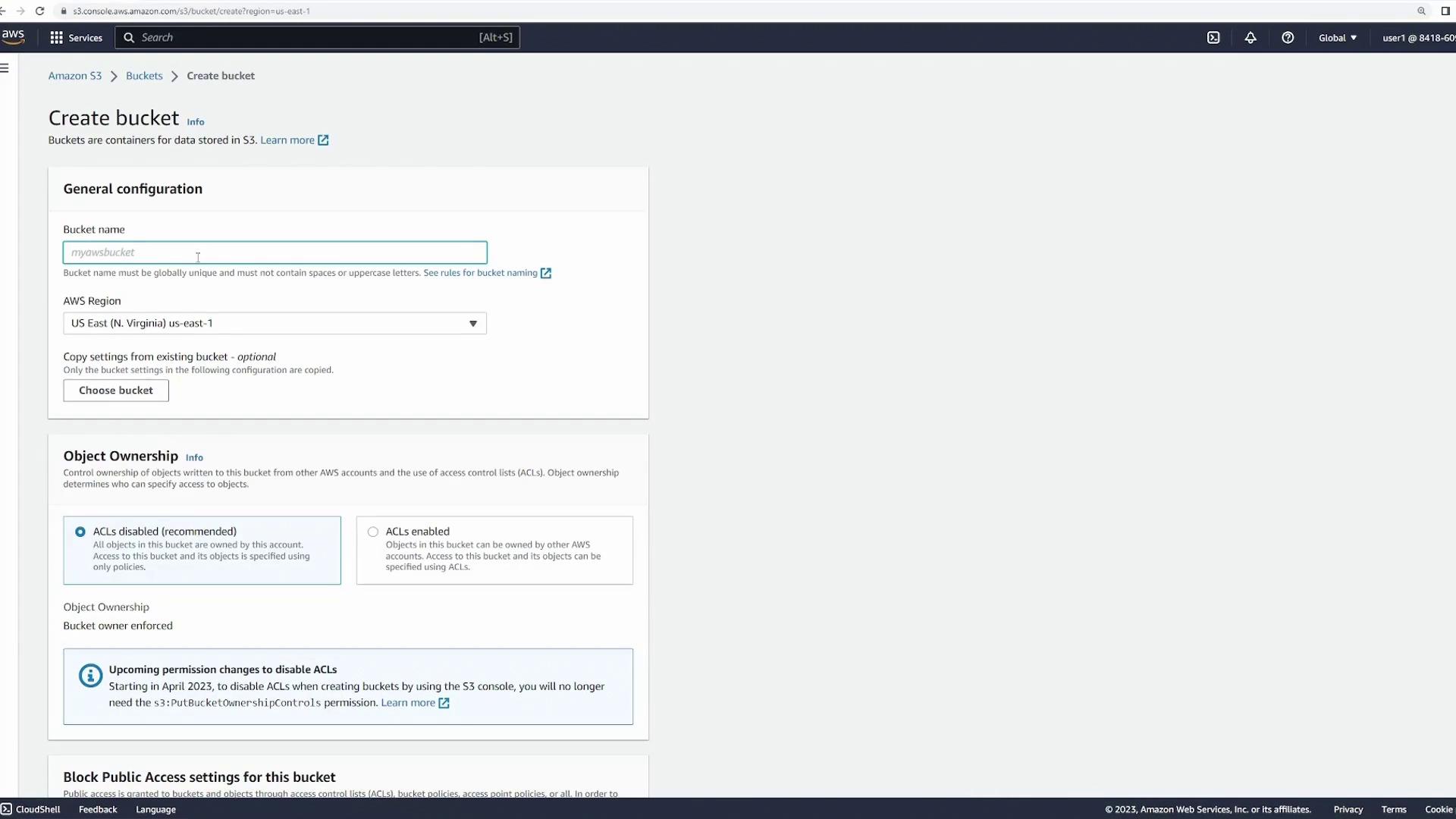
- After creating the bucket, you will receive a confirmation notification.
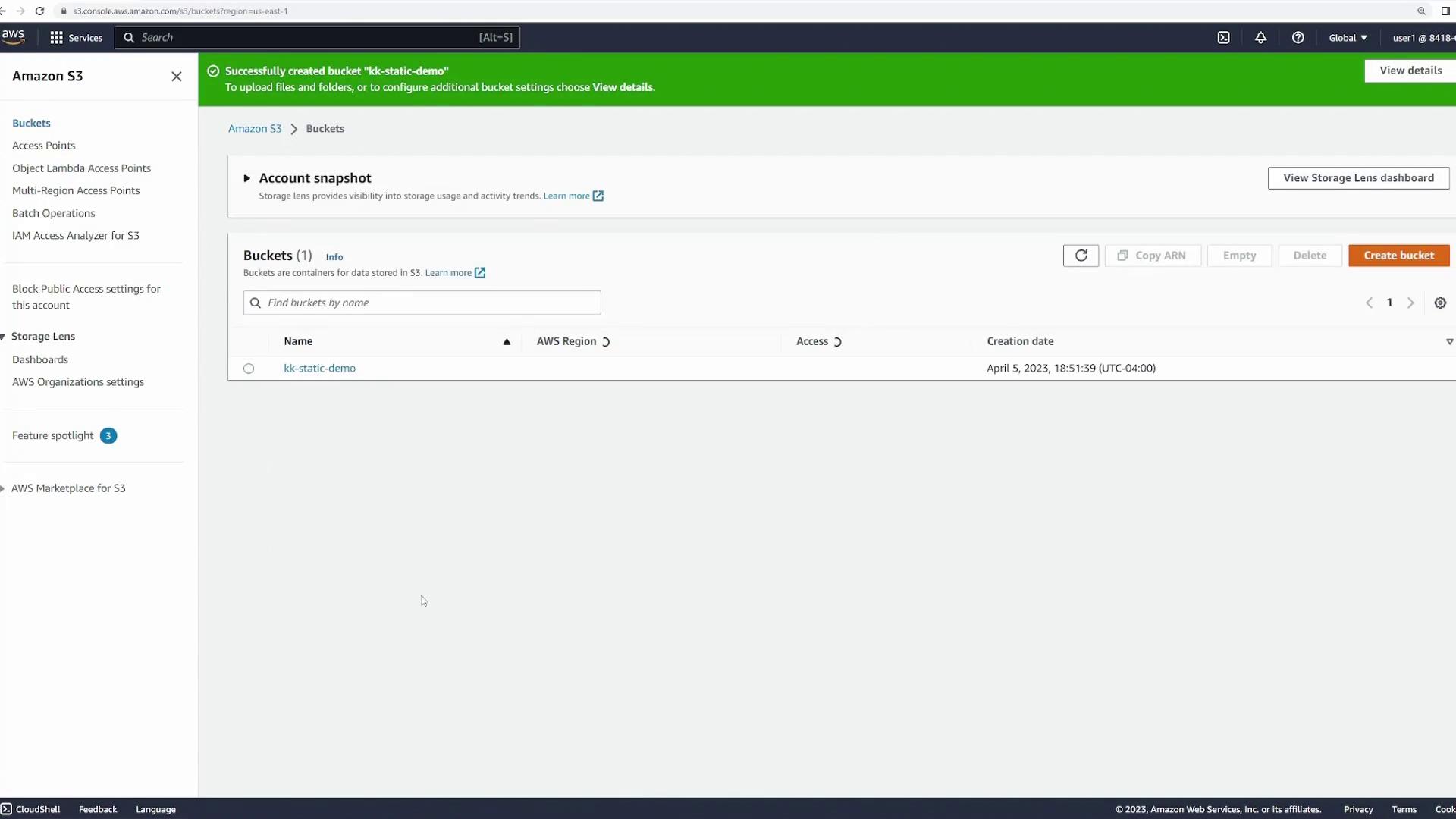
- Open the bucket and proceed to upload all website files, including HTML, CSS, the 404 error page, and the images folder. Note that the upload duration may vary based on file size and quantity.
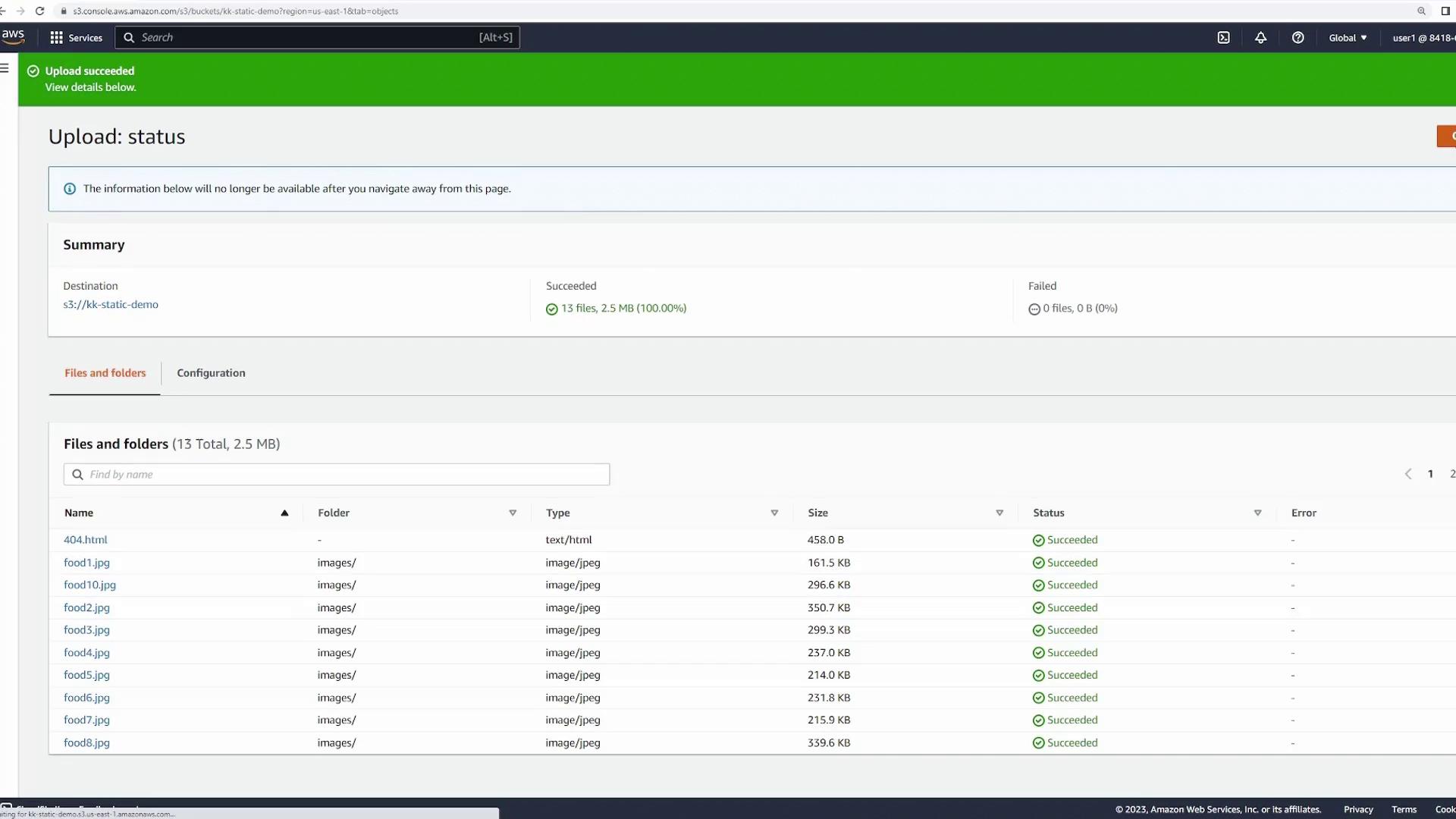
Enabling Static Website Hosting
Once your files are uploaded, enable the static website hosting feature:- Navigate to the Properties tab in your bucket.
- Scroll down to the Static website hosting section and click Edit.
- Select the “Host a static website” option.
- Configure the following settings:
- Index document: Set this to
index.htmlto serve as the homepage. - Error document: Set this to
404.htmlto handle error messages.
- Index document: Set this to
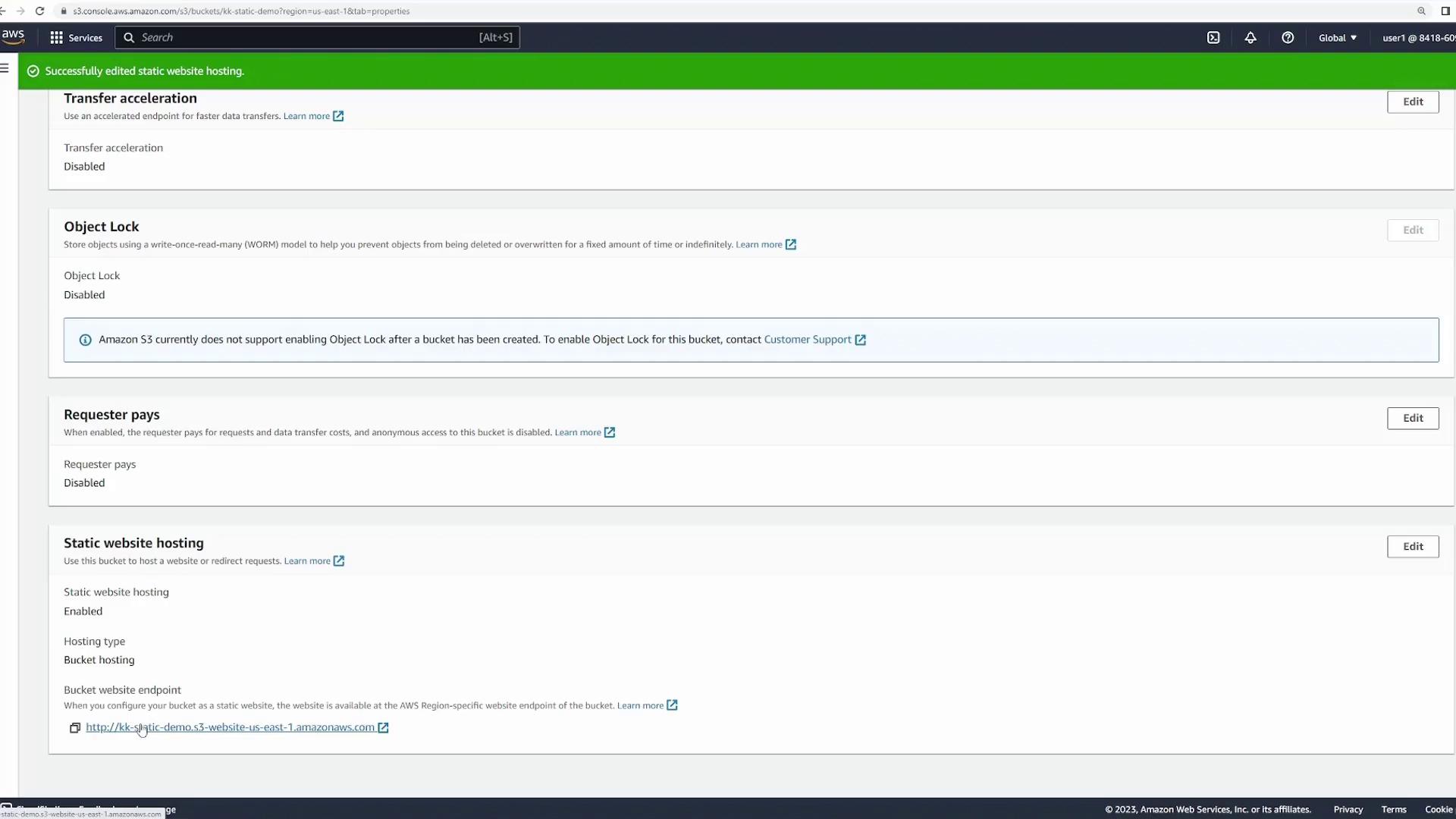
Clicking the website endpoint URL might initially result in an “Access Denied” error. This is expected until you configure public access.
Configuring Public Access
To allow public access to your website, you’ll need to adjust the bucket’s permissions and include a bucket policy.- Click on the Permissions tab and disable the “Block all public access” setting.
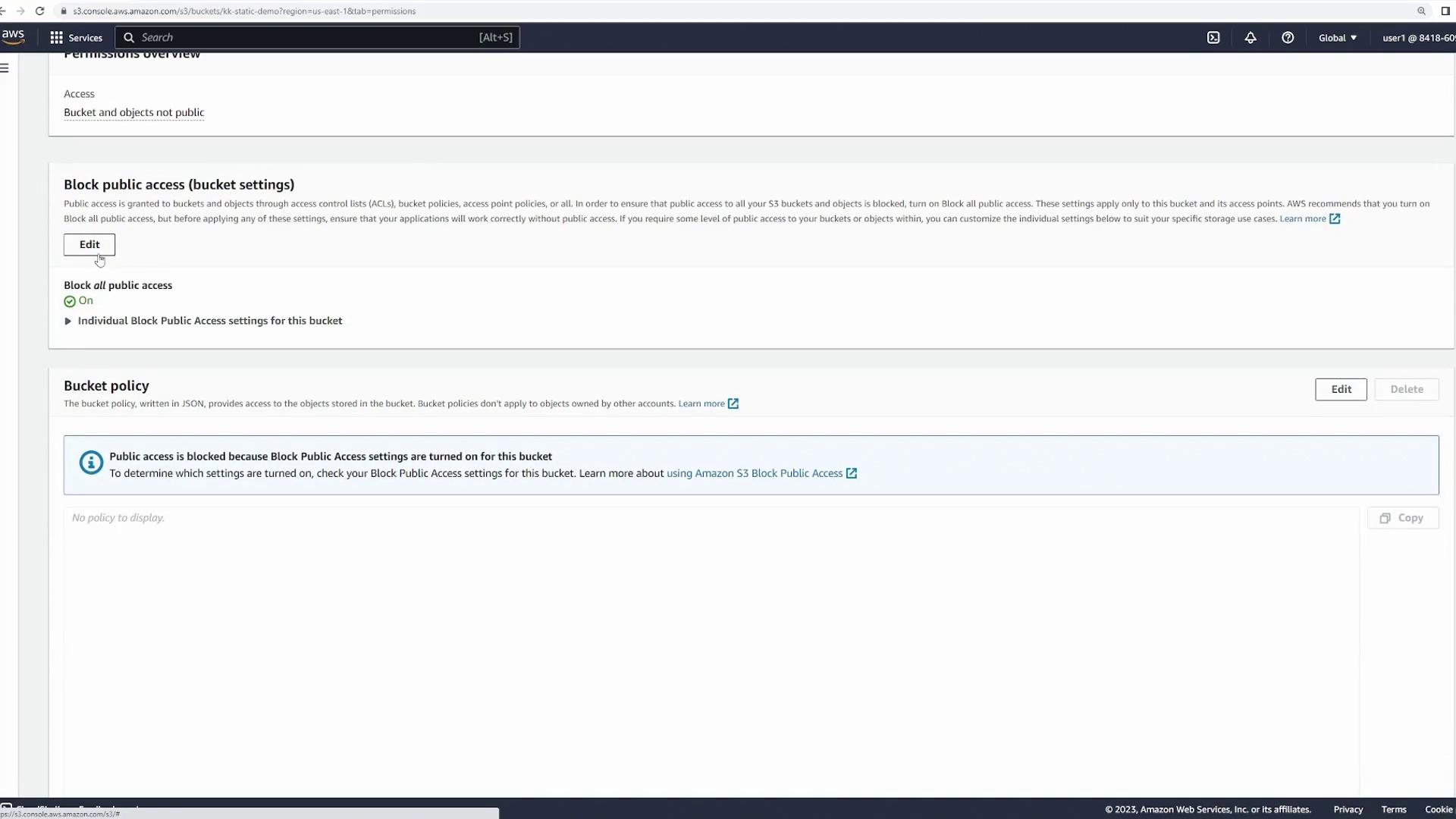
- Confirm your changes to allow public access.
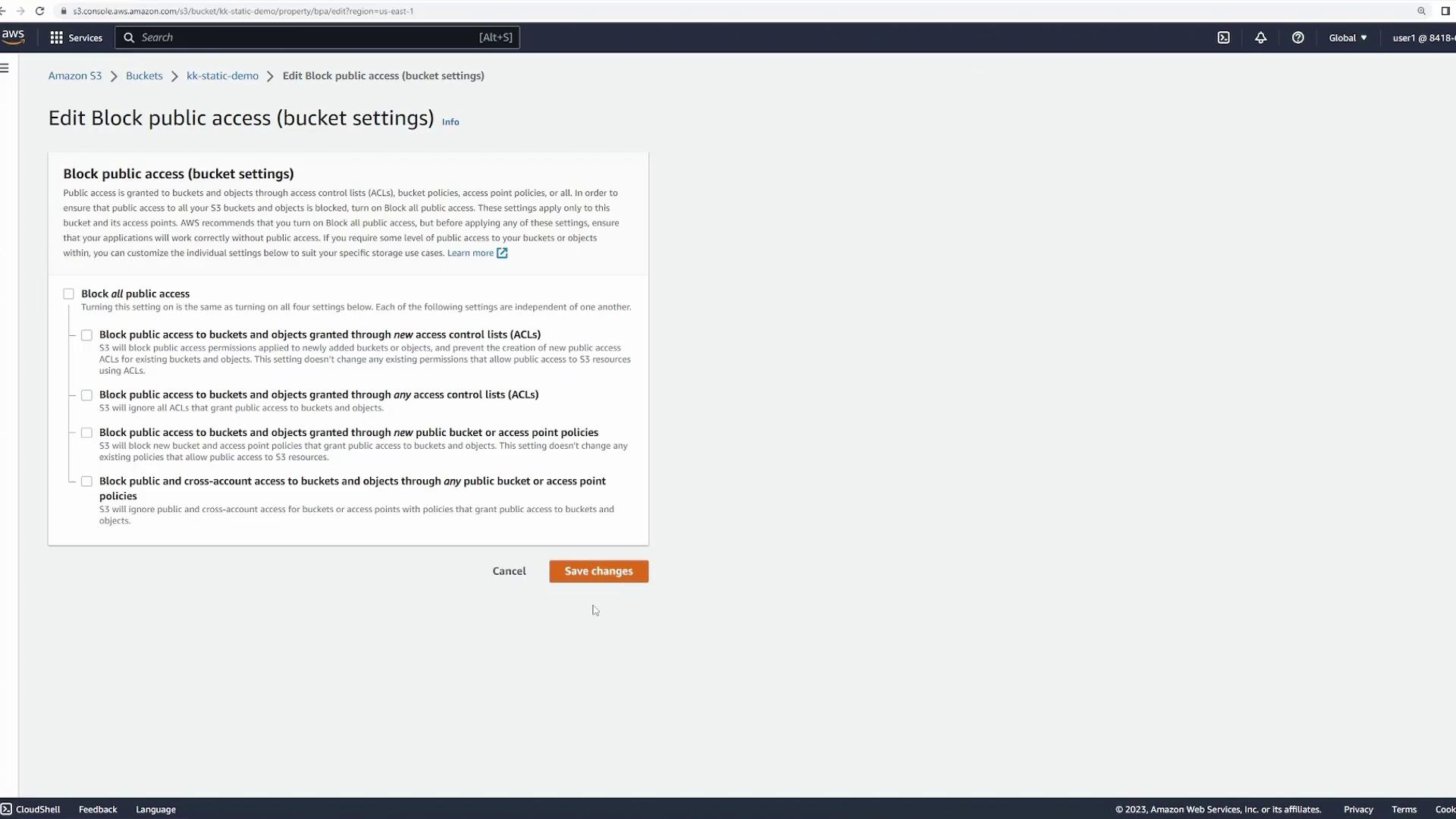
Verifying Your Website
Return to the Properties tab and check the Static website hosting section again. The provided URL should now load your website for public access.- Navigating to the bucket URL without specifying a file returns the
index.htmlautomatically. - You can access specific assets by appending their paths (for example,
/images/food1.jpg) to the URL. - If a user navigates to an invalid path, the custom
404.htmlpage will be shown.